
Icon Sets
Last updated:
Mermaid Studio lets you use icons from popular icon libraries in your diagrams. With access to 200,000+ icons through Iconify, you can add visual clarity to architecture diagrams, flowcharts, and more.
Default Icon Sets
Section titled “Default Icon Sets”Mermaid Studio includes these icon sets out of the box:
| Icon Set | Prefix | Description |
|---|---|---|
| Font Awesome Brands | fab | Brand logos (GitHub, Twitter, etc.) |
| Font Awesome Regular | far | Regular weight icons |
| Font Awesome Solid | fas | Solid weight icons |
| Font Awesome | fa | Alias for regular icons (provided to support older diagrams authored using older versions of Font Awesome) |
| Logos | logos | Programming language and technology logos |
| AWS Architecture | aws | Amazon Web Services service icons |
| Azure Architecture | azure | Microsoft Azure service icons |
| Google Cloud Platform | gcp | Google Cloud Platform service icons |
Icon Support by Diagram Type
Section titled “Icon Support by Diagram Type”Different diagram types have different levels of icon support:
| Diagram Type | Support | Example |
|---|---|---|
| Architecture | Any icon set | logos:kubernetes, aws:s3-bucket |
| Flowchart | Font Awesome only | fa:fa-user, fab:fa-github |
| Class Diagram | Font Awesome only | fas:fa-database |
The Font Awesome-only limitation in Flowchart and Class Diagram is a constraint in the upstream Mermaid.js library, not Mermaid Studio.
Where this icon implementation exists, the format is <prefix>:fa-<icon-name>, e.g., fas:fa-camera.
While Mermaid does support icons in Mindmap diagrams, this support is limited to legacy font-based icons, which Mermaid Studio does not provide or support.
Using Icons in Diagrams
Section titled “Using Icons in Diagrams”Architecture Diagrams
Section titled “Architecture Diagrams”Architecture diagrams have full icon support:
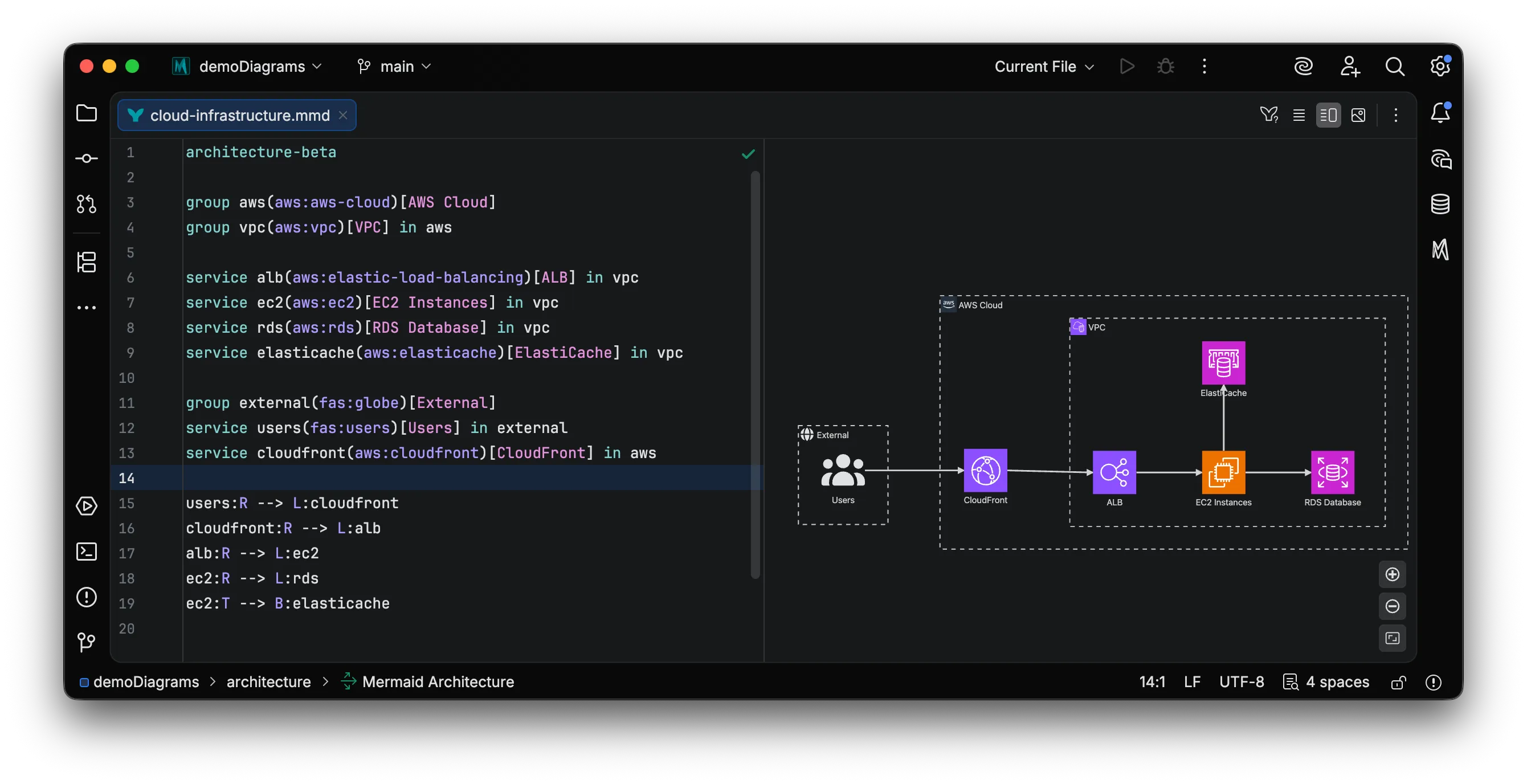
Flowcharts
Section titled “Flowcharts”Flowcharts only support Font Awesome icons with the <prefix>:fa-<icon-name> pattern:
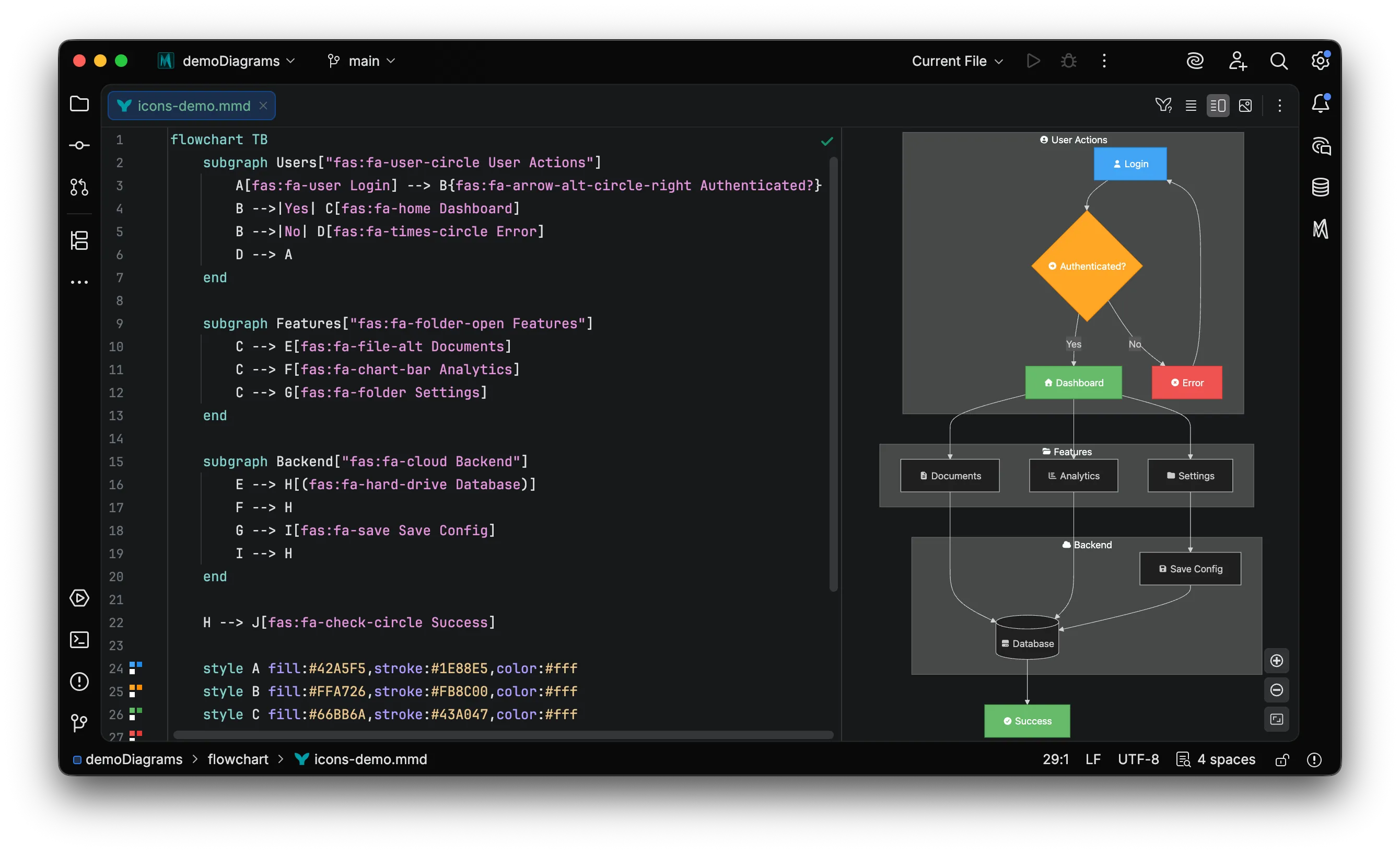
Finding Icons
Section titled “Finding Icons”Icon Picker
Section titled “Icon Picker”Press
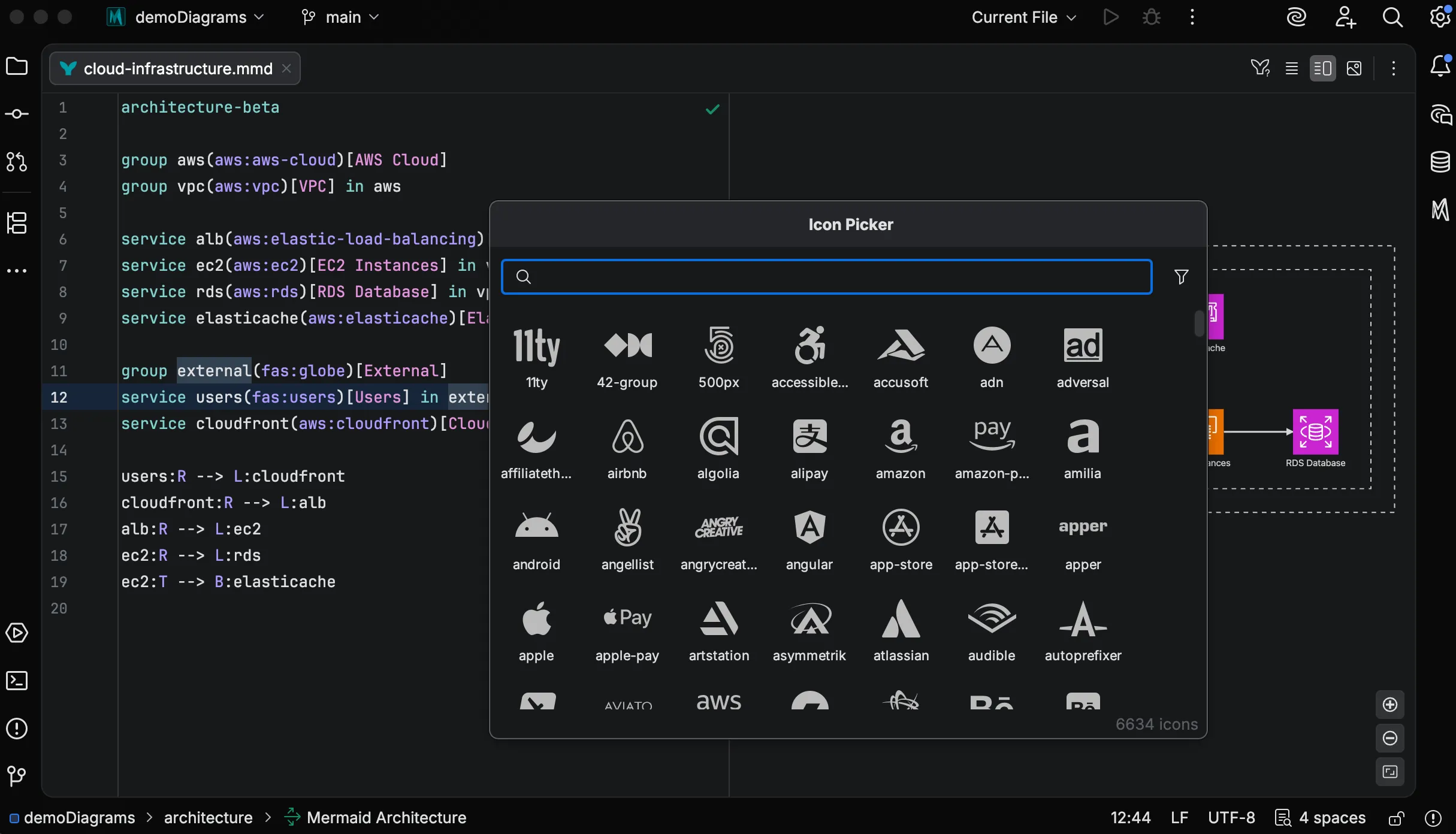
-
Type to search icons by name.
-
Use the dropdown to filter by icon set.
-
Press
Return Return Enter Enter orCommand + C CommandC Control + C CtrlC to copy the icon reference to your clipboard. -
Paste it into your diagram.
The picker supports the standard reference format: <prefix>:<icon-name>, e.g., far:camera.
The pasted value will may need to be manually adjusted to match the format of the diagram type (e.g., adding fa- for Flowcharts).
Mermaid Studio Tool Window
Section titled “Mermaid Studio Tool Window”For a persistent icon browser, open the Mermaid Studio tool window from View > Tool Windows > Mermaid Studio and select the Icons tab.
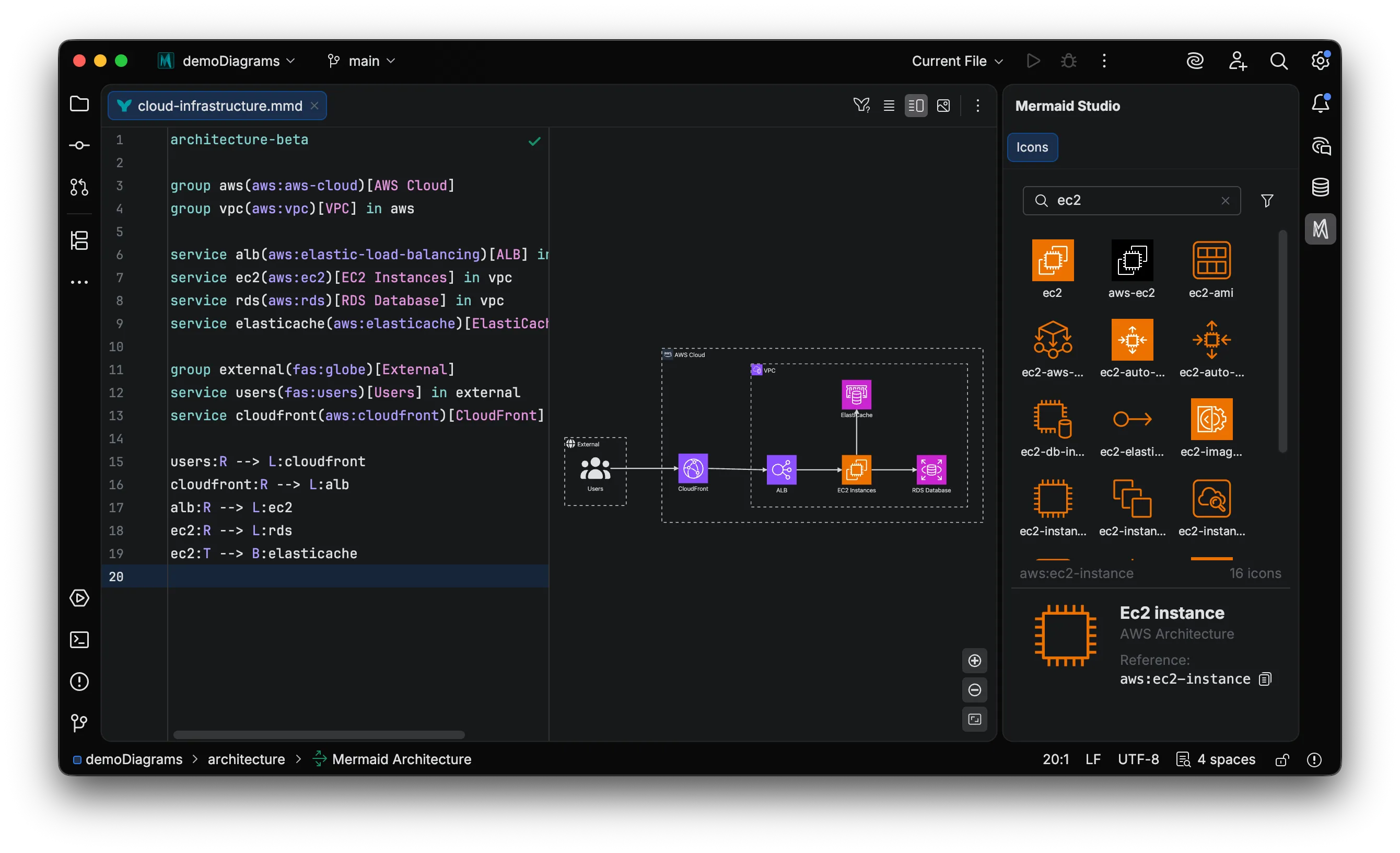
The tool window provides:
- Search and filtering across all enabled icon sets
- Detail panel with larger preview and copy button
Code Completion
Section titled “Code Completion”In Architecture diagrams, press
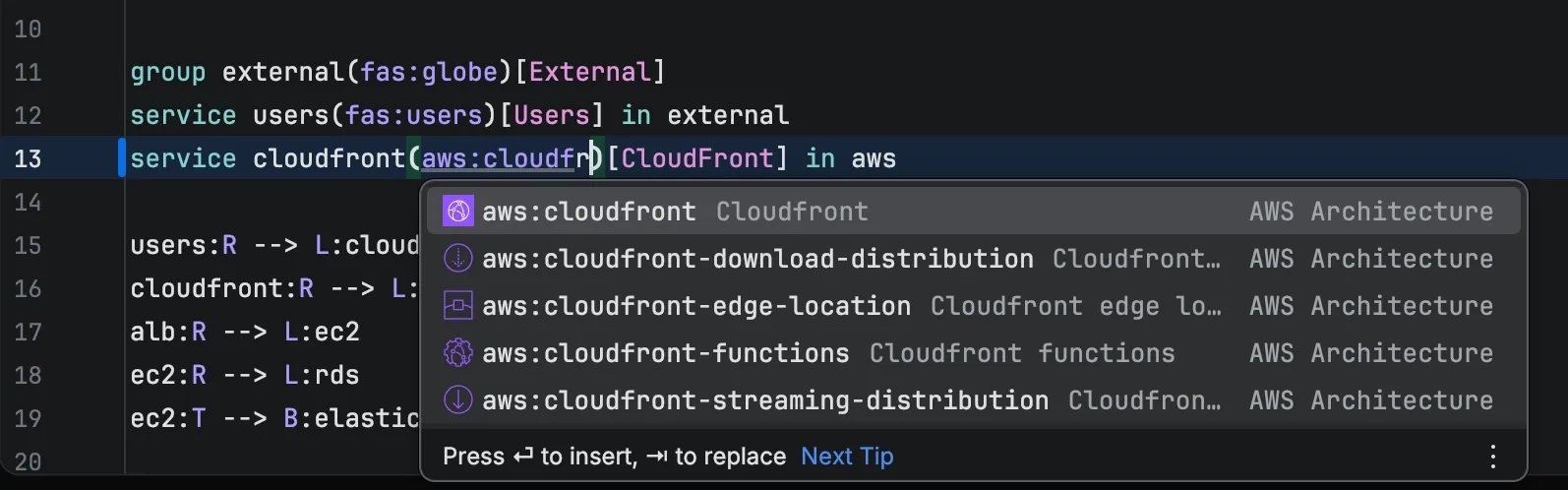
Completions show an icon preview alongside the icon name. When the icon text does not match any known icon, a weak warning is shown.
Downloading Additional Icon Sets
Section titled “Downloading Additional Icon Sets”Mermaid Studio integrates with Iconify , providing access to 200+ icon sets.
-
Open Settings (
Command + Comma Command, Control + Alt + S CtrlAltS ) and navigate to Tools > Mermaid Studio > Icon Sets.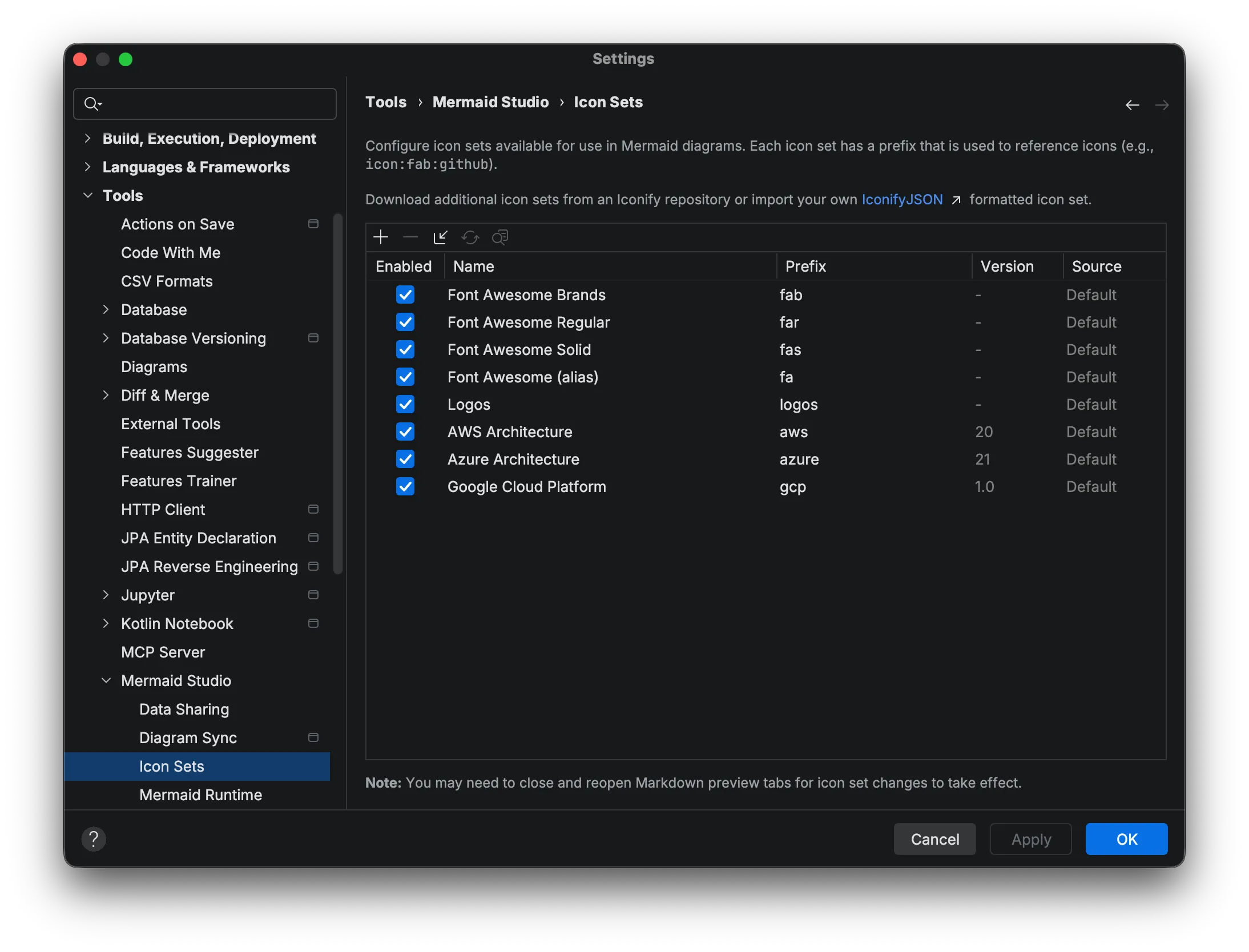
-
Click the
+button to open the Add Icon Sets dialog.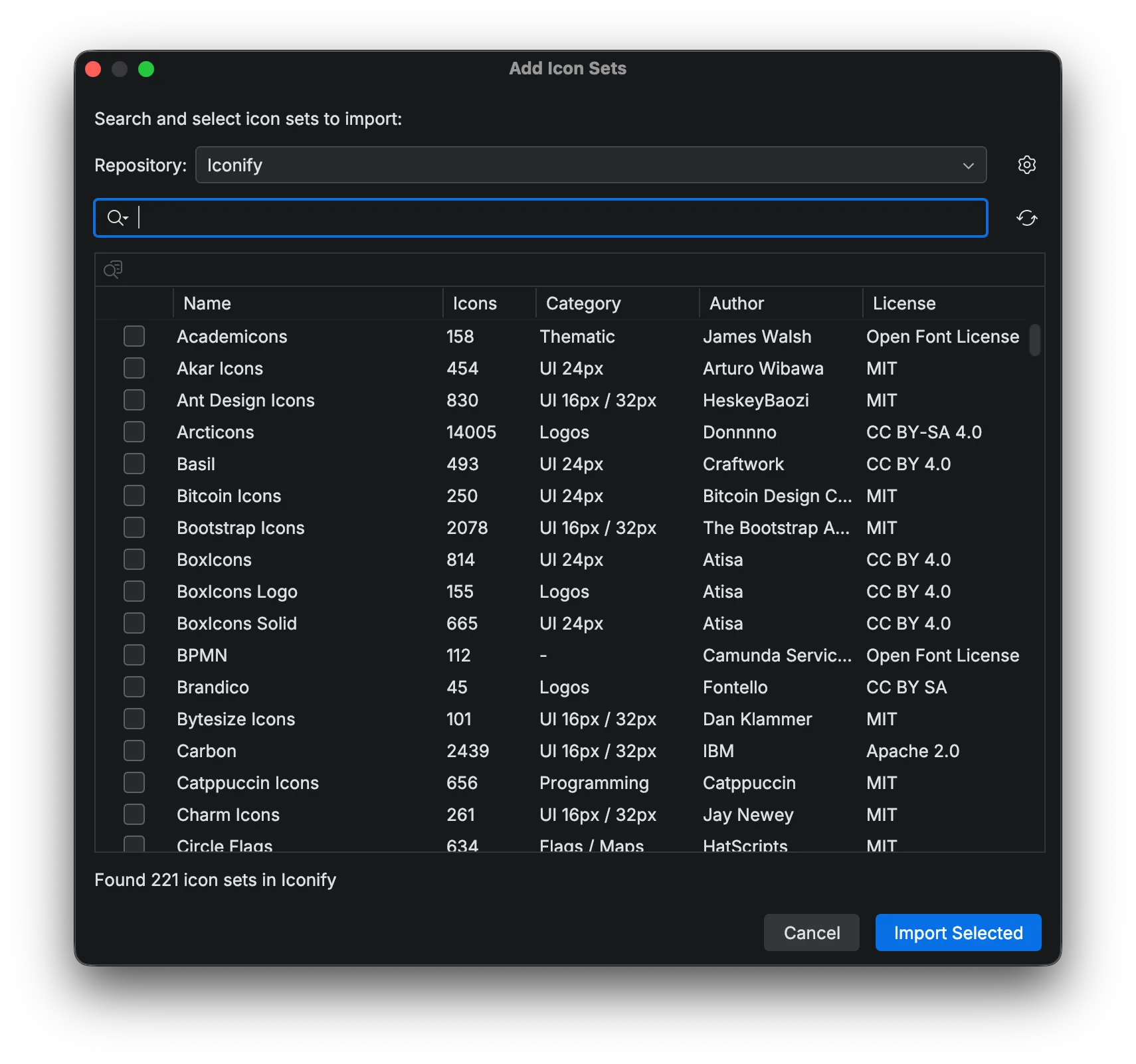
-
Search for icon sets by name or category.
-
Select an icon set and click the preview button in the toolbar to preview its icons.
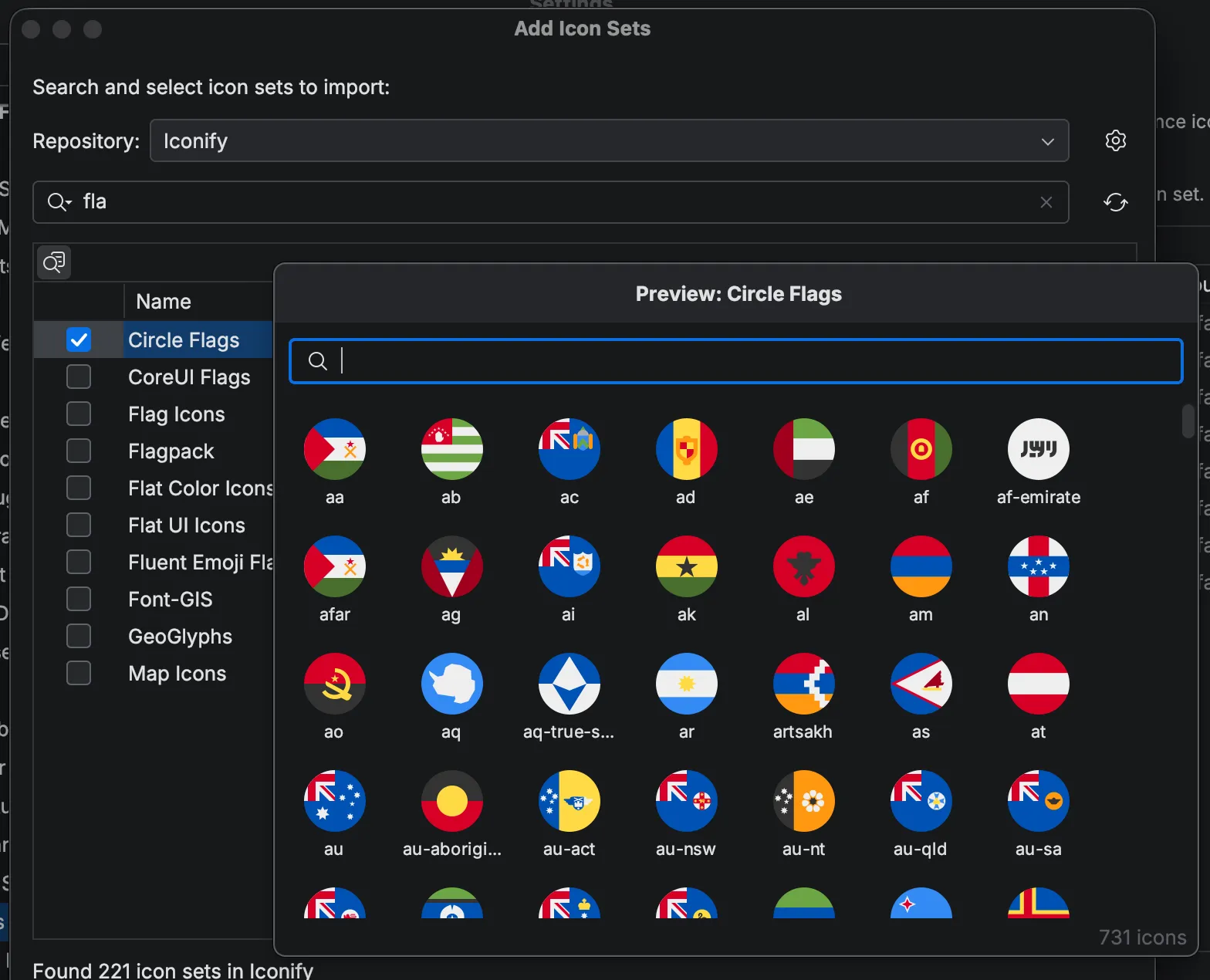
-
Check the icon sets you want to download.
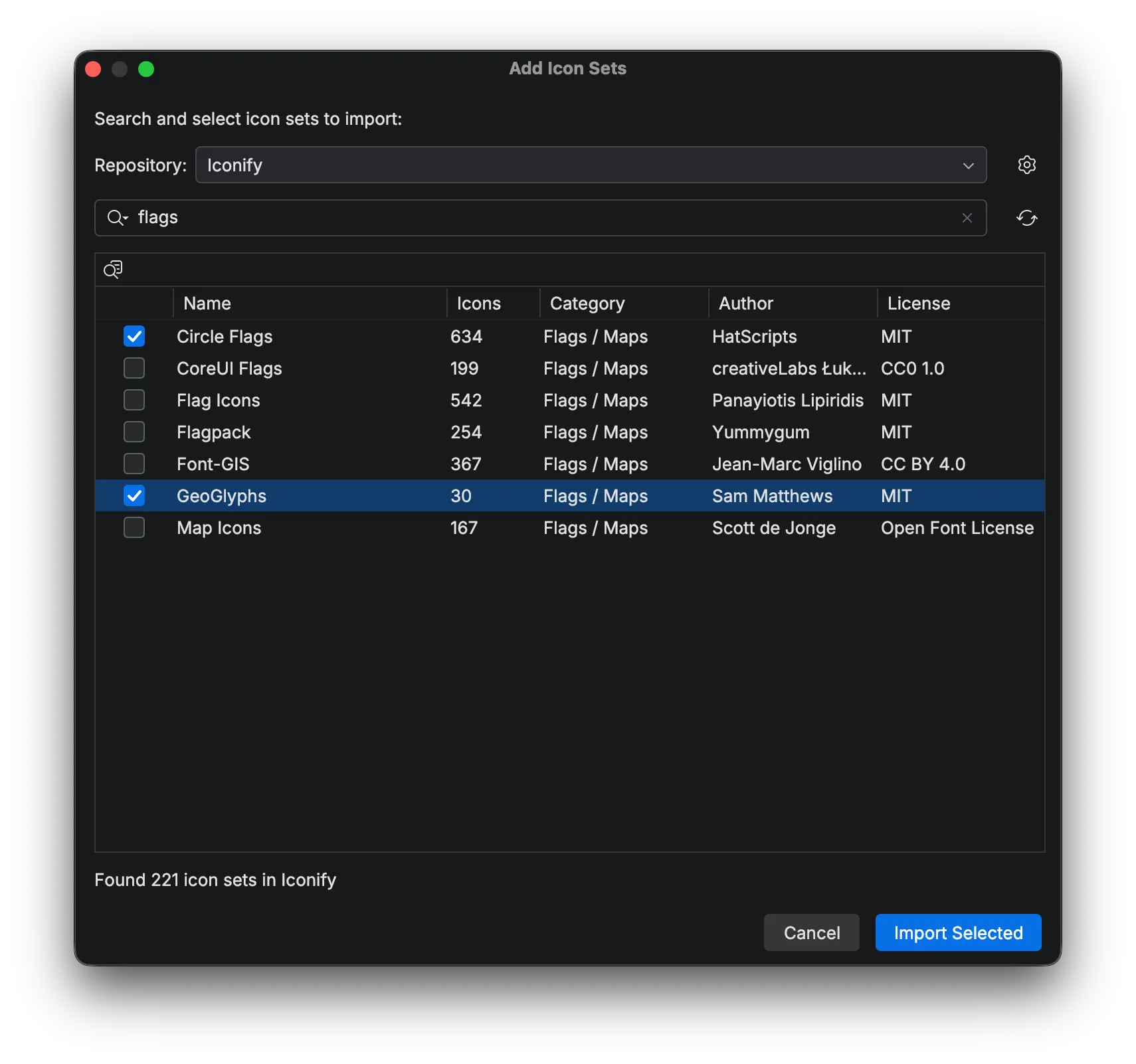
-
Click Import Selected.
Downloaded icon sets appear in the table and are immediately available in your diagrams.
Managing Icon Sets
Section titled “Managing Icon Sets”The Icon Sets settings table shows:
| Column | Description |
|---|---|
| Enabled | Toggle to enable/disable an icon set |
| Name | Display name of the icon set |
| Prefix | The prefix used in diagrams (editable for custom sets) |
| Version | Version from the icon set metadata |
| Source | Origin: Default, Web (downloaded), or User (imported) |
Custom Prefixes
Section titled “Custom Prefixes”Double-click the Prefix cell to change an icon set’s prefix. Each enabled icon set must have a unique prefix.
Importing Local Icon Sets
Section titled “Importing Local Icon Sets”Click Import from File to import a local JSON file in Iconify format.
Removing Icon Sets
Section titled “Removing Icon Sets”Select an icon set and click - to remove it.
Default icon sets cannot be removed.
Custom Repositories
Section titled “Custom Repositories”For enterprise environments or custom icon collections, you can add custom repositories.
Click Manage Repositories in the Add Icon Sets dialog to configure additional sources.
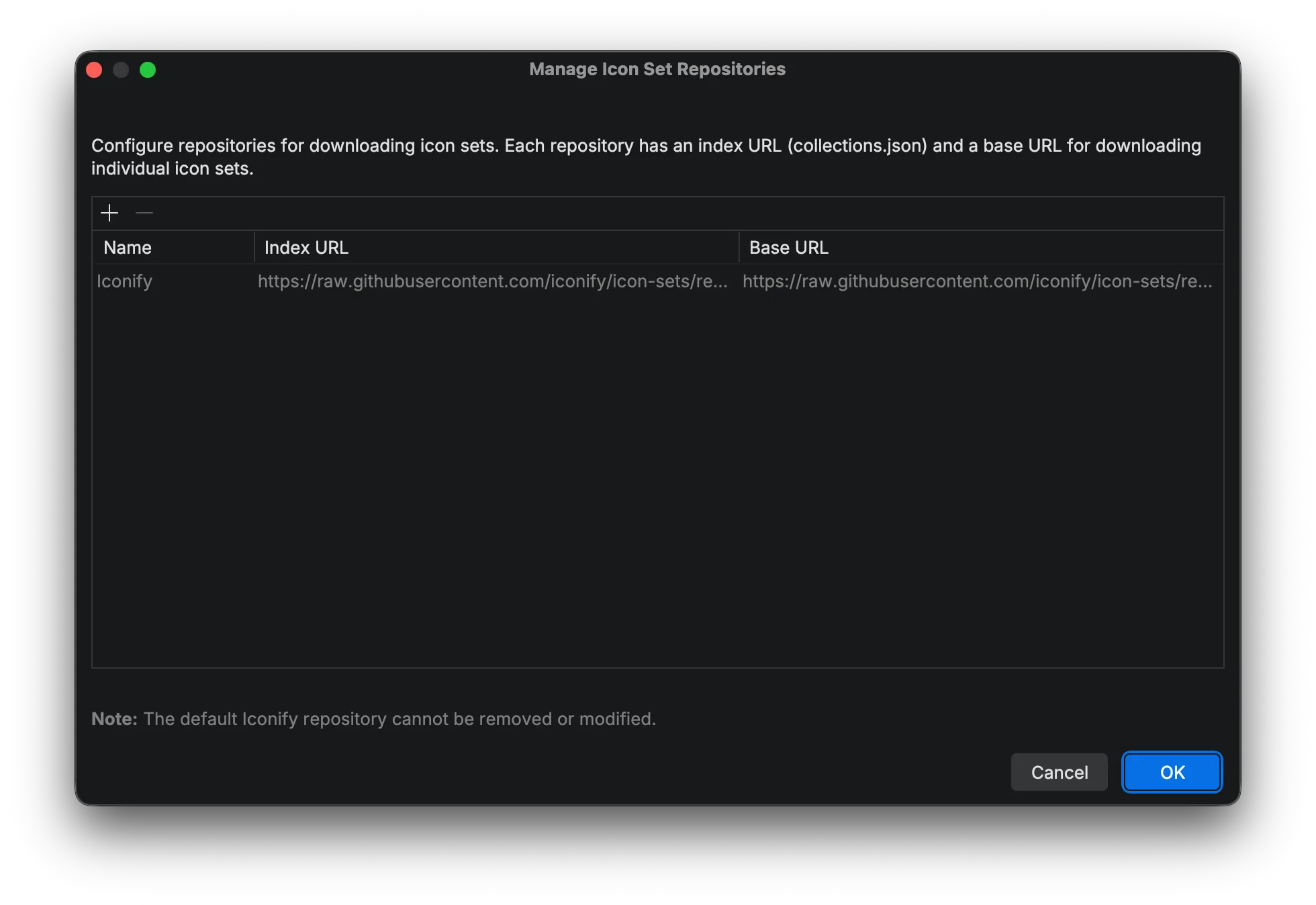
Custom repositories must follow the Iconify JSON format:
- Index URL: URL to the
collections.jsonfile listing available icon sets - Base URL: Base URL for downloading individual icon set JSON files
Troubleshooting
Section titled “Troubleshooting”Icons Not Appearing in Flowcharts
Section titled “Icons Not Appearing in Flowcharts”- Non-FontAwesome icons (like
logos:,mdi:) won’t render in flowcharts due to a Mermaid.js limitation. - Ensure you’re using the Font Awesome format:
<prefix>:fa-<icon-name>, e.g.,fas:fa-camera.
Icons Not Appearing in Mindmaps
Section titled “Icons Not Appearing in Mindmaps”- Mermaid Studio does not support icons in Mindmap diagrams due to lack of support for font-based icons.
Unresolved Icon Warning
Section titled “Unresolved Icon Warning”If an icon reference shows a warning, check that:
- The icon set is enabled in settings
- The icon name is spelled correctly
- Use code completion to find the correct name (where supported)