
Markdown Integration
Last updated:
Mermaid Studio provides complete language support for Mermaid diagrams embedded in Markdown files. Diagrams are rendered live as you type. This is especially useful for README files, documentation, and wikis.
Using Mermaid in Markdown
Section titled “Using Mermaid in Markdown”To add a Mermaid diagram to a Markdown file, use a fenced code block with the mermaid or mmd language identifier:
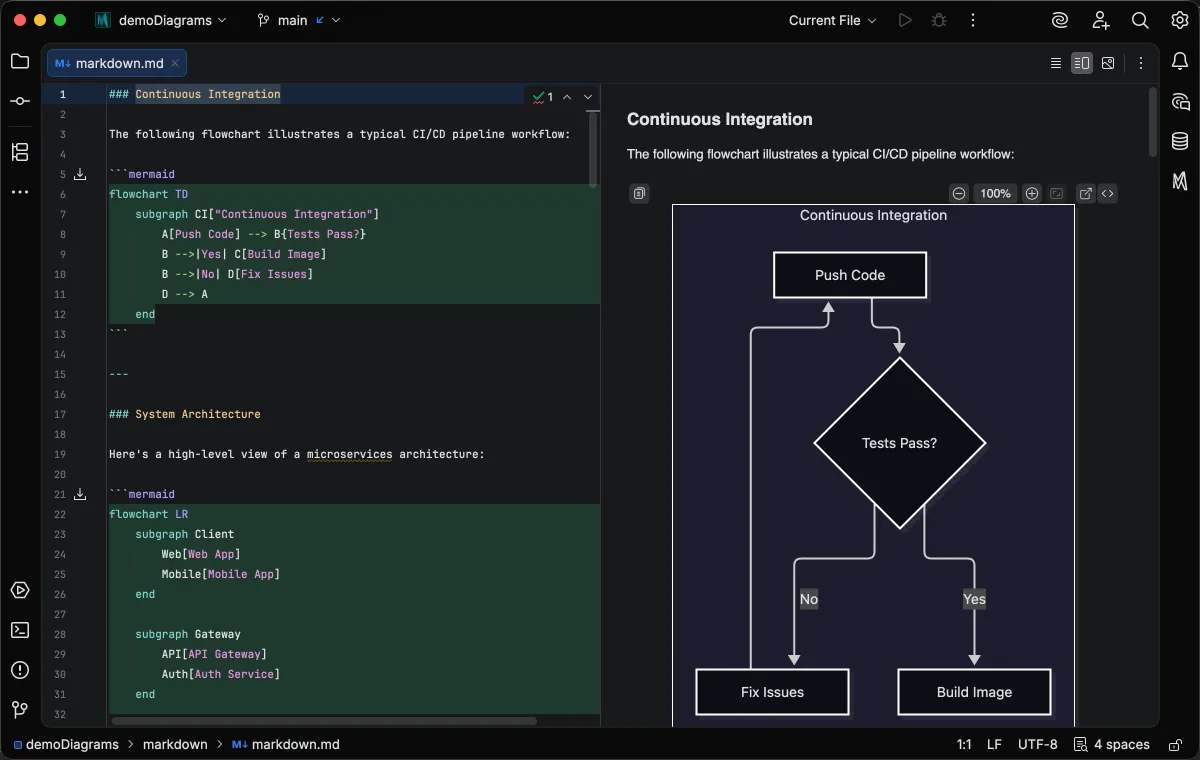
Mermaid Studio recognizes these blocks and provides full editor support.
Mermaid source gutter icon
Section titled “Mermaid source gutter icon”Image artifacts left next to your .mmd source — typically .mmd.svg / .mmd.png files written by Diagram Sync — now show a gutter icon on every Markdown link or image reference that targets them.
Click the icon (or press the Go to Mermaid Source action) to jump from the artifact reference to the source .mmd / .mermaid file.
See Gutter Icons → Mermaid source link for the full behavior.
Exporting Diagrams from Markdown
Section titled “Exporting Diagrams from Markdown”All of Mermaid Studio’s export actions work directly inside Markdown code fences.
Right-click inside a mermaid (or mmd) fenced code block and hover over Export Diagram to access:
- Copy as SVG — copy the diagram as SVG text to the clipboard
- Copy as PNG — copy the diagram as an image to the system clipboard
- Export Diagram… — save the diagram to a file
- Print Diagram… — print the diagram (or save as PDF via your system’s print-to-PDF feature)
Each action targets the Mermaid diagram under the caret, so Markdown files containing multiple Mermaid blocks can export each one independently. The export carries the fence’s own frontmatter (theme and config), and indented fences export as dedented source, so the output matches the inline preview. The export bakes the light or dark variant the IDE theme calls for, the same rule the Markdown preview uses; see Export appearance.
Switching the theme of a code fence
Section titled “Switching the theme of a code fence”Right-click inside a mermaid or mmd code fence and choose Switch Diagram Theme to open a searchable popup of the built-in Mermaid.js themes plus the enabled bundled and custom themes.
The popup’s Light/Dark toggle switches the fence between its light and dark variant.
Picking a theme writes it into that fence’s frontmatter, so each diagram in a Markdown file can carry its own theme.
See Switching themes for the popup’s keyboard shortcuts and what it writes.
Mermaid-in-Markdown Preview Features
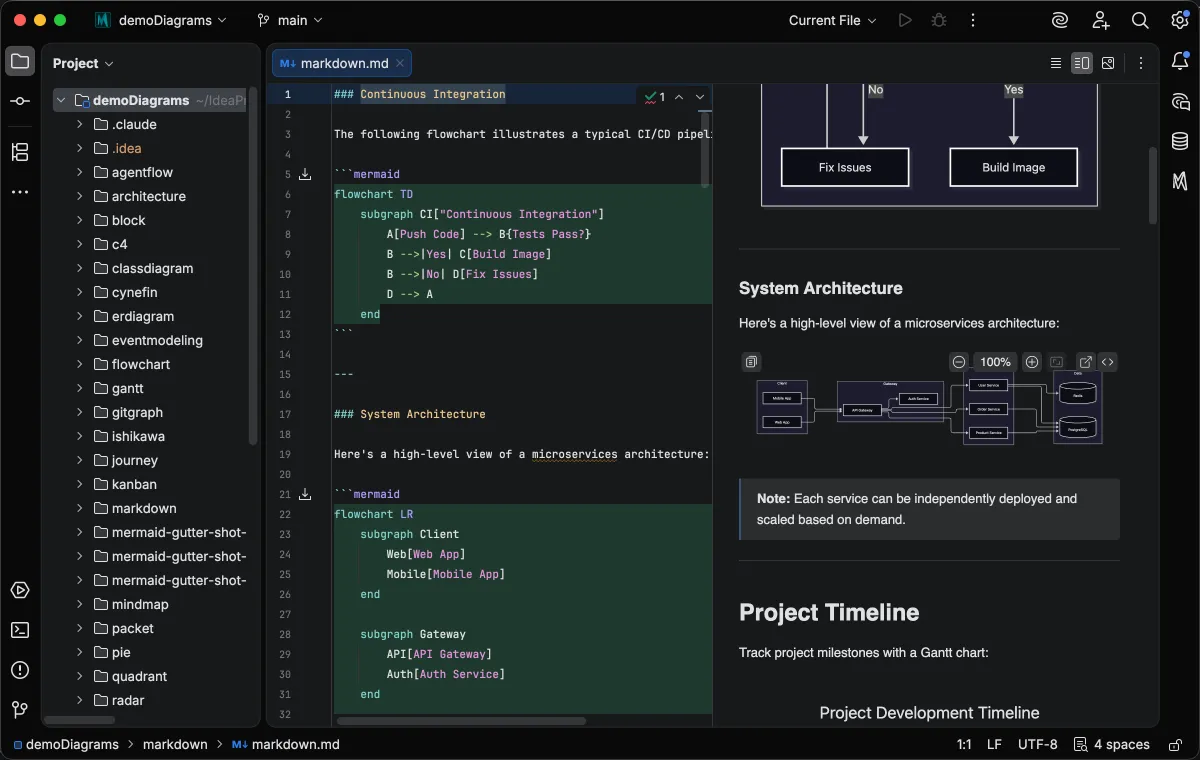
Section titled “Mermaid-in-Markdown Preview Features”Hovering over a Mermaid diagram in the preview panel reveals the following controls:
- Copy Diagram Code — Copy the Mermaid code to the clipboard
- Show Source/Diagram — Toggle between viewing the highlighted Mermaid code and the rendered diagram
- Pop-out Diagram — Open the diagram in a separate window for easier viewing
Zoom and pan a fence
Section titled “Zoom and pan a fence”Hover a diagram to reveal its zoom controls in the top-right corner: Zoom out, a zoom level field, Zoom in, and Fit to preview.
Type a percentage into the field and press
A zoomed diagram scrolls inside its own block, so you keep your place in the document, and middle-click drag pans it just like the standalone preview. If the diagram is focused, you can use the arrow keys to pan as well.
Zoom level is retained for each fence in the document across edits.
Show Source
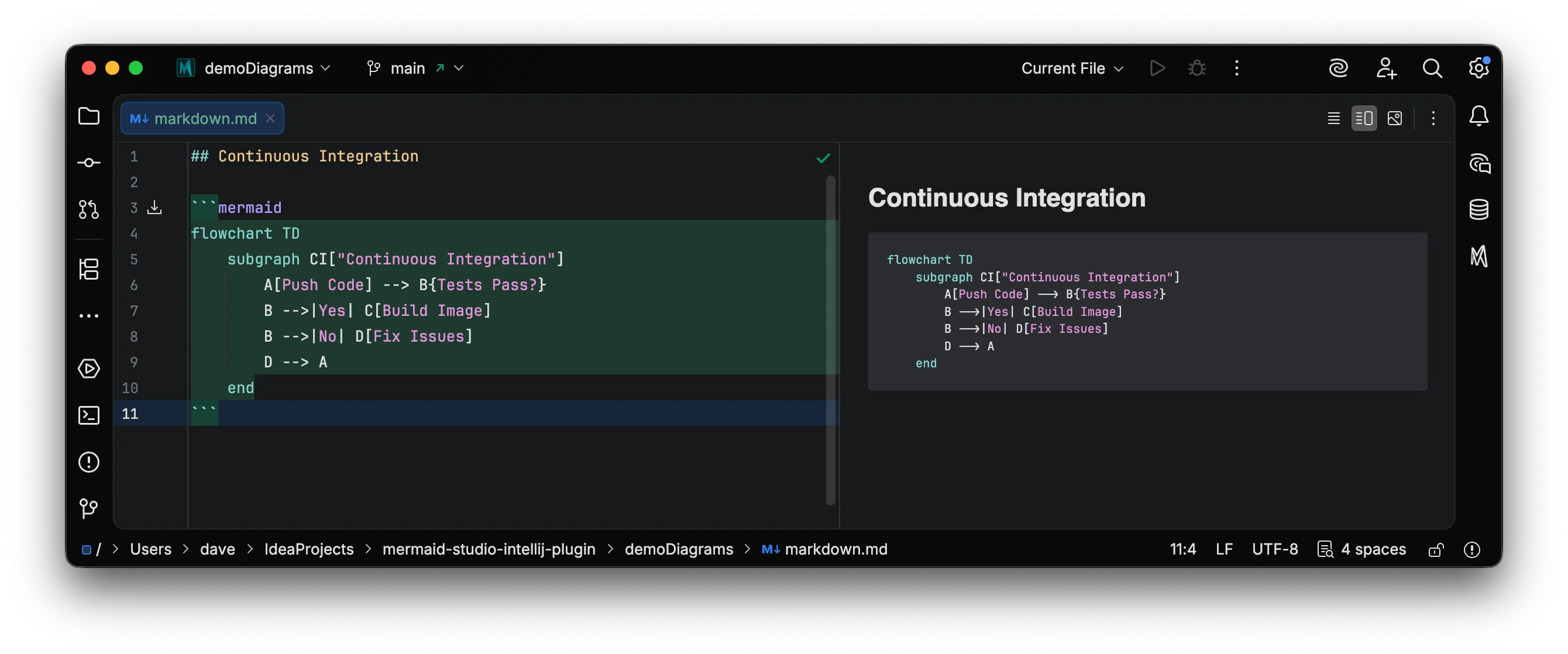
Section titled “Show Source”Clicking the Show Source/Diagram button toggles between the rendered diagram and the Mermaid source code with syntax highlighting.
The source view includes limited syntax highlighting. Some advanced semantic highlighting features may not be available in the preview panel.
Pop-out Diagram
Section titled “Pop-out Diagram”Clicking the Pop-out Diagram button opens the rendered diagram in a separate window with the standalone preview’s zoom and pan controls, including keyboard shortcuts and trackpad gestures.
The popped-out diagram renders as it appears inline.
It follows the IDE theme rather than the standalone preview background setting, while its runtime configuration overrides come from the Preview context.
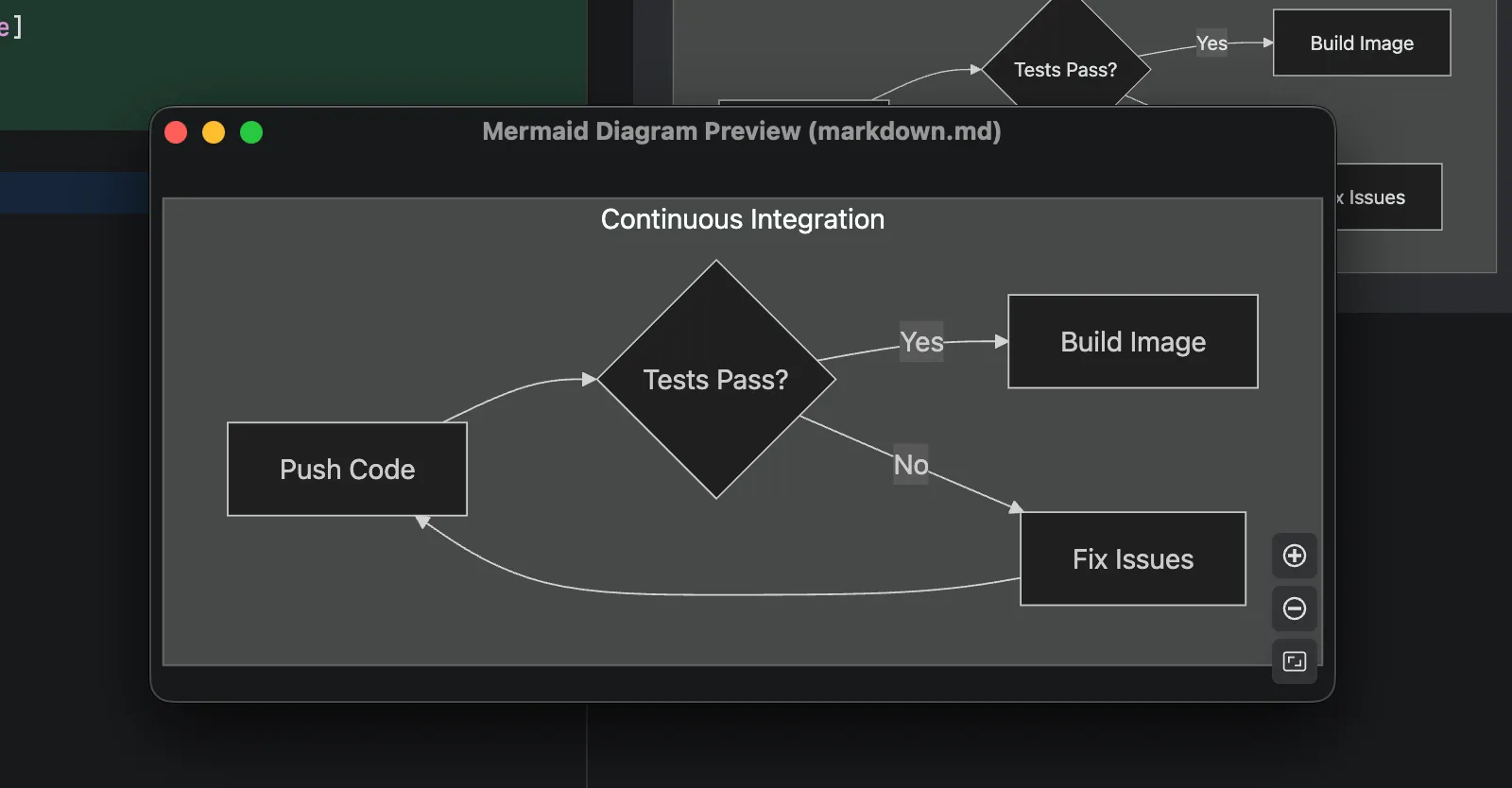
Diagram Settings
Section titled “Diagram Settings”You can configure how diagrams appear in the Markdown preview, including inline display mode and maximum size constraints. See Markdown configuration for details, including a setting to disable Mermaid’s contributions to the platform Markdown preview entirely.
Coexistence with the bundled JetBrains Mermaid plugin
Section titled “Coexistence with the bundled JetBrains Mermaid plugin”JetBrains IDEs from 2026.2 on bundle their own Mermaid plugin, and its Markdown preview rendering overlaps with Mermaid Studio’s.
When both are enabled, Mermaid Studio keeps its editor-side support inside mermaid and mmd code fences (syntax highlighting, completion, validation, and the Element Style pane), but Markdown preview rendering defers to the bundled plugin.
While it does, Mermaid Studio’s preview features are unavailable, including runtime version pinning, icon sets, and the extended layout engines.
A banner on affected Markdown files offers a shortcut to disable the bundled plugin.
Disabling the bundled plugin under Settings > Plugins restores Mermaid Studio’s full preview on the next preview reload, with no IDE restart. Mermaid Studio also shows a one-per-session notification recommending this; see Installation.