Mermaid Runtime
Last updated:
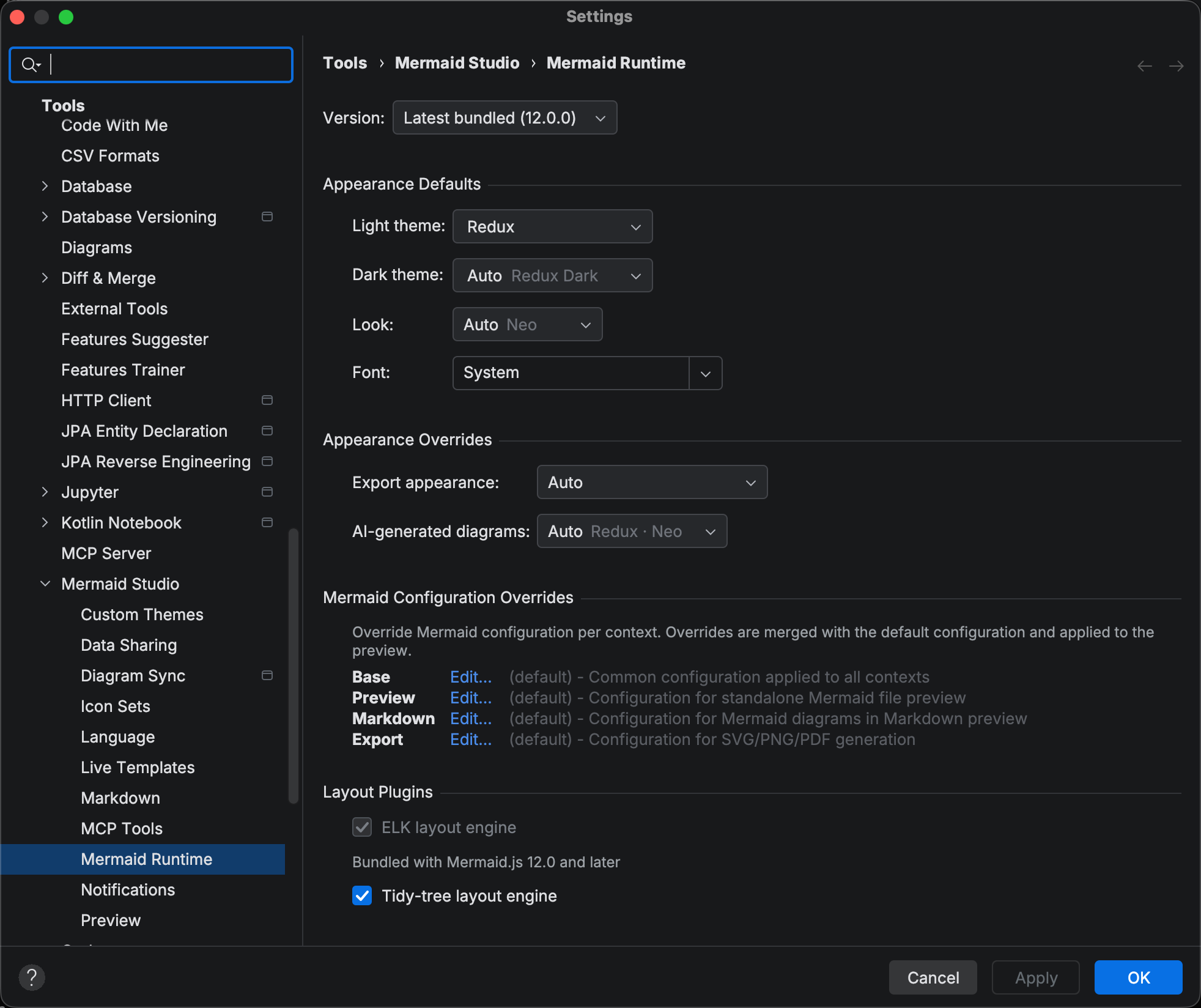
The Mermaid Runtime settings page picks the bundled Mermaid.js version and the theme, look, and font that diagrams get by default.
It also decides how exports and AI-generated diagrams pick their appearance, and holds per-context YAML overrides for any other Mermaid.js configuration.
Open it at Settings > Tools > Mermaid Studio > Mermaid Runtime (
Mermaid.js Version
Section titled “Mermaid.js Version”Mermaid Studio bundles several Mermaid.js versions and renders every diagram with the one selected in the Version dropdown at the top of the page. The default entry, Latest bundled, tracks the newest bundled version. Pick a specific version to pin rendering to it.
Switching the version reparses open .mmd files, so version-gated highlighting and inspections update without closing and reopening the file.
The version also determines which layouts are available: ELK is part of Mermaid.js 12.0 and needs no setup there, and the ELK Box and ELK Rectangle Packing layouts require it (see Layout Plugins).
Bundled Versions
Section titled “Bundled Versions”The bundled Mermaid.js versions are:
- 12.0.0 (default)
- 11.17.2
- 11.16.1
- 11.15.0
- 11.14.0
Removed Versions
Section titled “Removed Versions”| Mermaid.js Version | Removed In |
|---|---|
| 11.16.0 | 2026.3.6 |
| 11.13.0 | 2026.4.2 |
| 11.12.3 | 2026.2.4 |
Each new bundled minor version drops the oldest one, and a patch release replaces the older patch of the same minor. That keeps the plugin download bounded and lets old version-specific code go.
Version Compatibility Hints
Section titled “Version Compatibility Hints”When a diagram type is not supported by the active Mermaid.js version, a banner appears at the top of the editor naming the version it requires, as in the capture below.
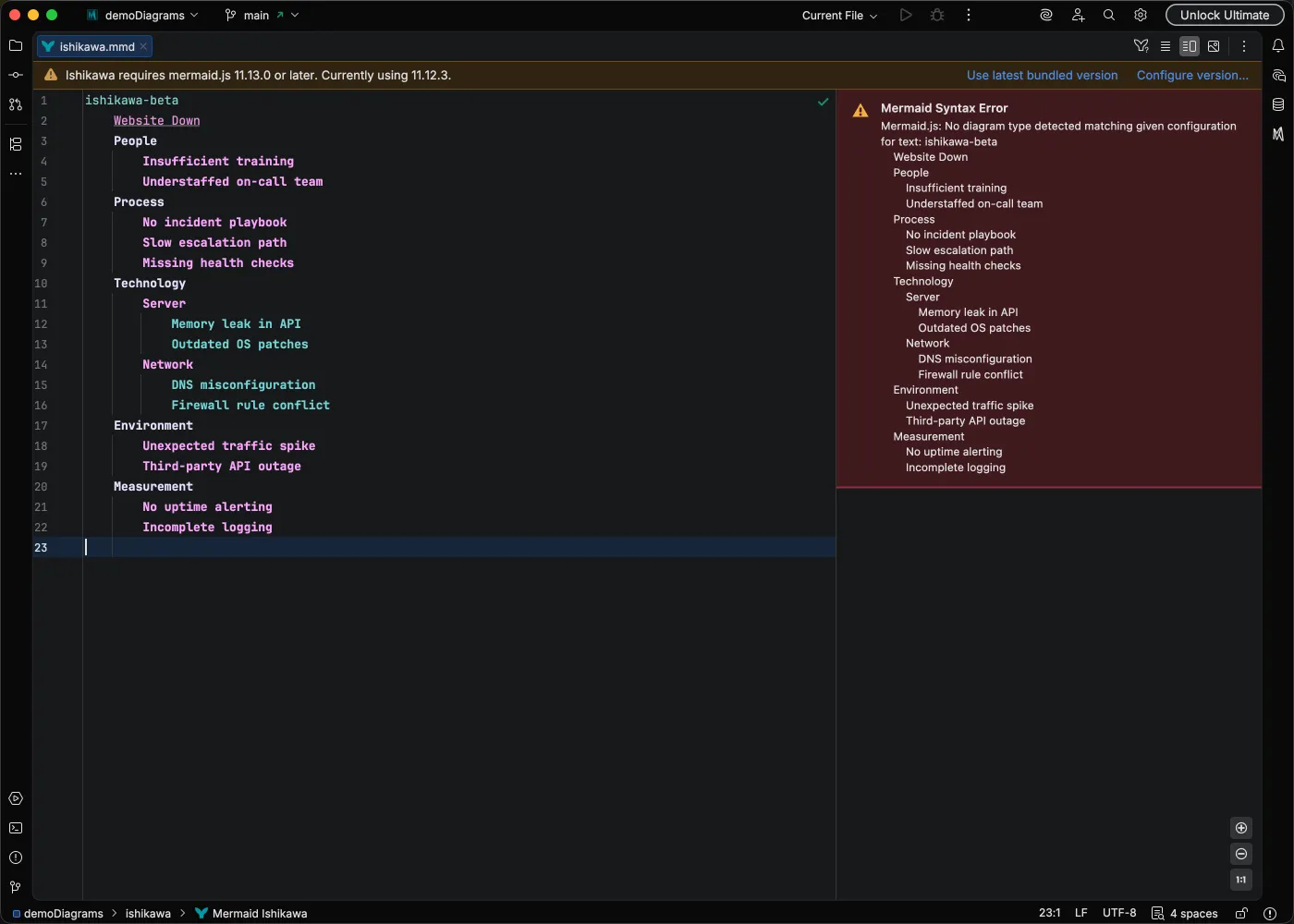
Version-related syntax errors also mention the version mismatch in the error message.
Appearance defaults
Section titled “Appearance defaults”Beyond the per-context override YAML, Mermaid Studio applies a set of adaptive appearance defaults that pick the theme, look, and font for diagrams that do not set their own. Out of the box these render with the Redux theme in light mode and Redux Dark in dark mode, and the choice follows the effective light or dark mode automatically.
The Appearance Defaults group has four dropdowns:
- Light theme — the theme used when a diagram resolves to light mode (default Redux). The dropdown lists every theme under Light Themes and Dark Themes separators, light group first.
- Dark theme — the theme used when a diagram resolves to dark mode (Auto by default). Auto derives the dark pairing of the chosen light theme and shows it as a greyed hint, so with Redux selected above it reads Redux Dark. This list puts Dark Themes first.
- Look — the default rendering style. Auto resolves to Neo for the Neo and Redux families and Classic otherwise, and the hint shows which.
- Font — the default diagram font: Auto, a web-safe preset (System, Verdana, Georgia, or Monospace), or any installed or custom font family.
These defaults apply wherever diagrams render: the live preview, Markdown preview, export, print, and AI-generated output. They rank below the override YAML and per-diagram frontmatter, so any theme, look, or font set in those still wins. Applying a custom theme writes it into the diagram’s frontmatter, so it takes precedence over these defaults like any other frontmatter theme. When a chosen value cannot render on a given diagram type or pinned Mermaid.js version, it steps down silently to the nearest supported theme.
Appearance overrides
Section titled “Appearance overrides”Exports and AI-generated diagrams have no live preview to follow, so the Appearance Overrides group decides which of the defaults above they bake in.
Export appearance
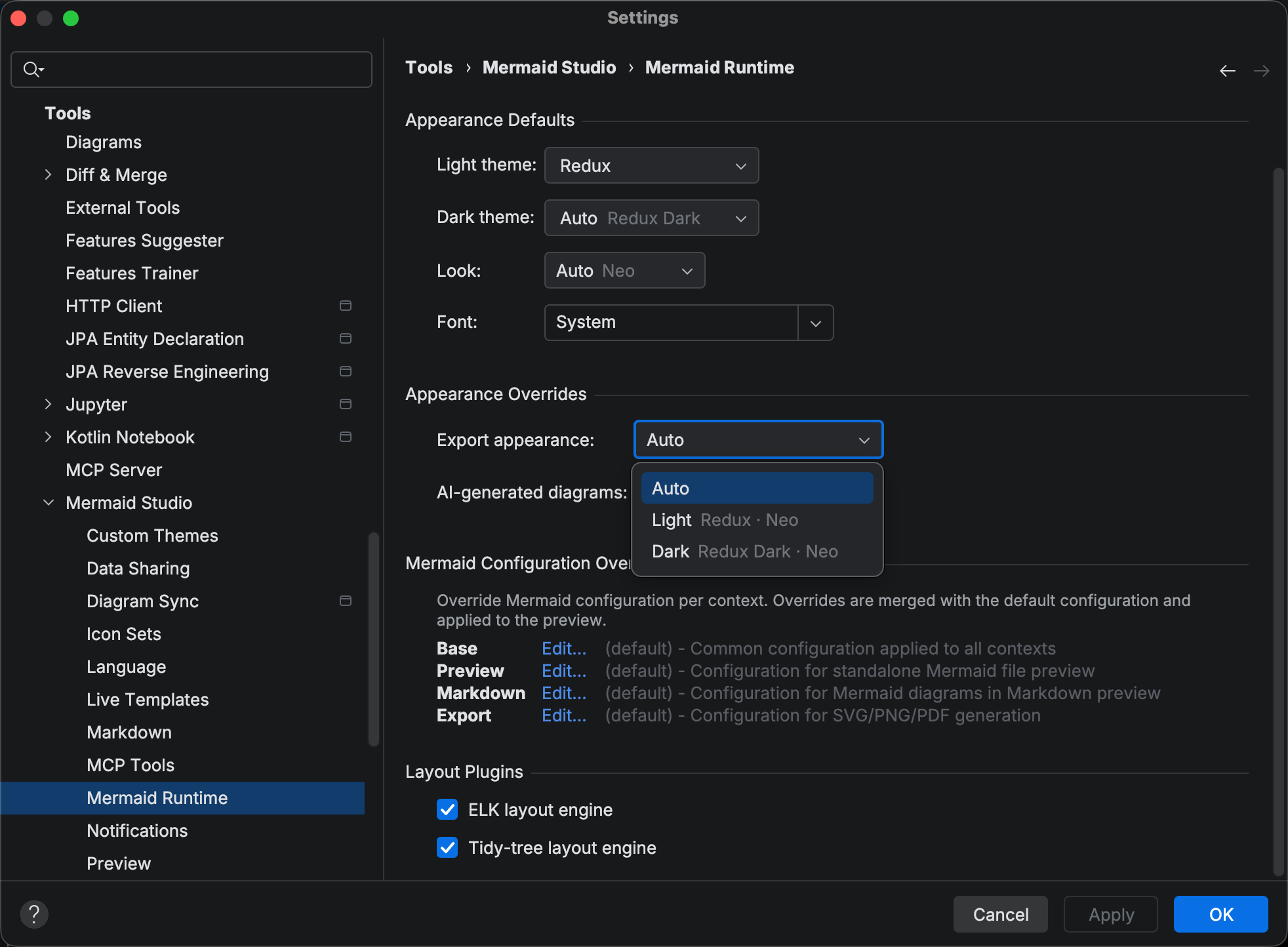
Section titled “Export appearance”Export appearance governs the light or dark variant that export, print, and copy-to-clipboard bake into the artifact. The theme family, look, and font always come from the appearance defaults. This setting only chooses light or dark.
- Auto (default) — bake the variant the preview you export from is showing.
A standalone
.mmdpreview, or its pop-out window, follows the IDE theme under an Auto preview background and the forced canvas under White or Black. A Mermaid code fence in Markdown follows the IDE theme, because Markdown previews ignore the standalone preview background. - Light — always bake the light default.
- Dark — always bake the dark default.
The Light and Dark entries show a greyed hint of the theme and look they resolve to, for example Redux Dark · Neo.
The hint updates as you change the defaults above.
Per-diagram frontmatter still wins over any of these, so a diagram with its own theme: exports with that theme.
See the export page for how this interacts with the export dialog.
AI-generated diagrams
Section titled “AI-generated diagrams”AI-generated diagrams sets the base appearance for diagrams rendered by the MCP tools. Generated diagrams have no preview to match, so this setting picks a theme rather than a light or dark variant. Every preset renders light. An agent can still set its own theme in a diagram’s frontmatter.
- Auto (default) — the configured light theme, look, and font, so generated diagrams match your own. The entry shows a greyed hint of the current result.
- Default classic — the Mermaid.js
defaulttheme with the classic look, which renders the same in any Mermaid renderer. - Default neo — the Mermaid.js
defaulttheme with the neo look.
Most Mermaid.js diagrams in model training data use the default theme, so colors an agent adds with classDef or style without choosing a theme are usually picked to read against it.
If generated diagrams come out with clashing or low-contrast styling under your own theme, switch to one of the Default presets.
Configuration Contexts
Section titled “Configuration Contexts”Mermaid Studio supports four configuration contexts:
| Context | Description |
|---|---|
| Base | Common configuration applied to all contexts |
| Preview | Configuration for standalone .mmd file preview |
| Markdown | Configuration for Mermaid diagrams in Markdown preview |
| Export | Configuration for SVG, PNG, and PDF generation |
Configuration Merge Order
Section titled “Configuration Merge Order”When rendering a diagram, Mermaid Studio merges configuration in the order shown below.
Each layer overrides values from the previous layer, key by key.
For example, if Base sets theme: dark and the Preview context sets theme: forest, previews will use the forest theme while other contexts use dark.
Nested blocks such as flowchart: or themeVariables: combine the same way, so a Preview override that sets flowchart.curve leaves every other flowchart: key from Base in place.
The appearance defaults described above fill in theme, look, and font only when no layer sets them.
Editing Configuration
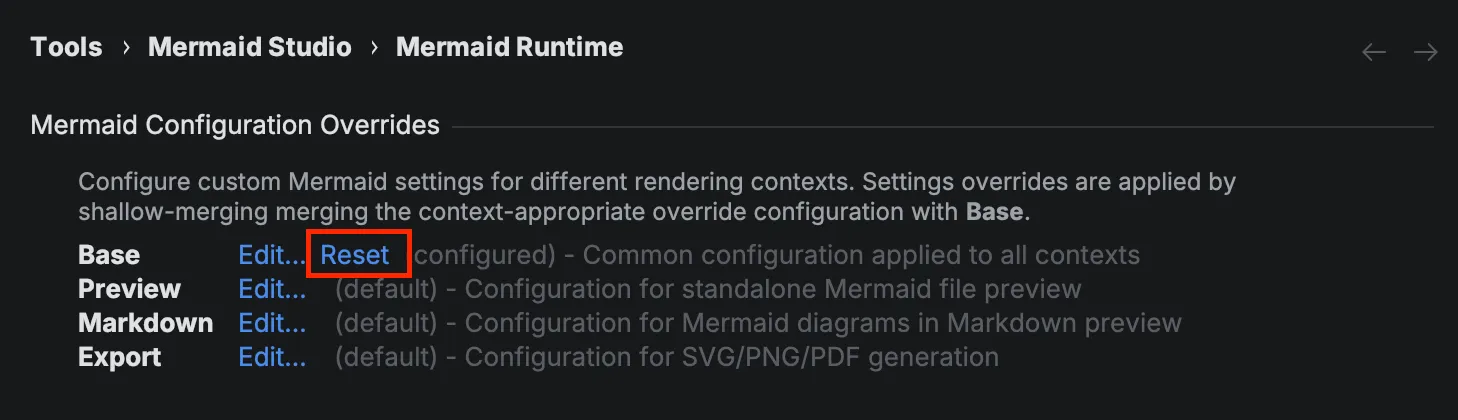
Section titled “Editing Configuration”The Mermaid Configuration Overrides group lists the four contexts, each with an Edit… link, a Reset link, and a status of (default) or (configured). The steps below walk through editing one.
-
Open Settings (
Command + Comma Command, Control + Alt + S CtrlAltS ) and navigate to Tools > Mermaid Studio > Mermaid Runtime. -
Click Edit… next to the context you want to configure.
-
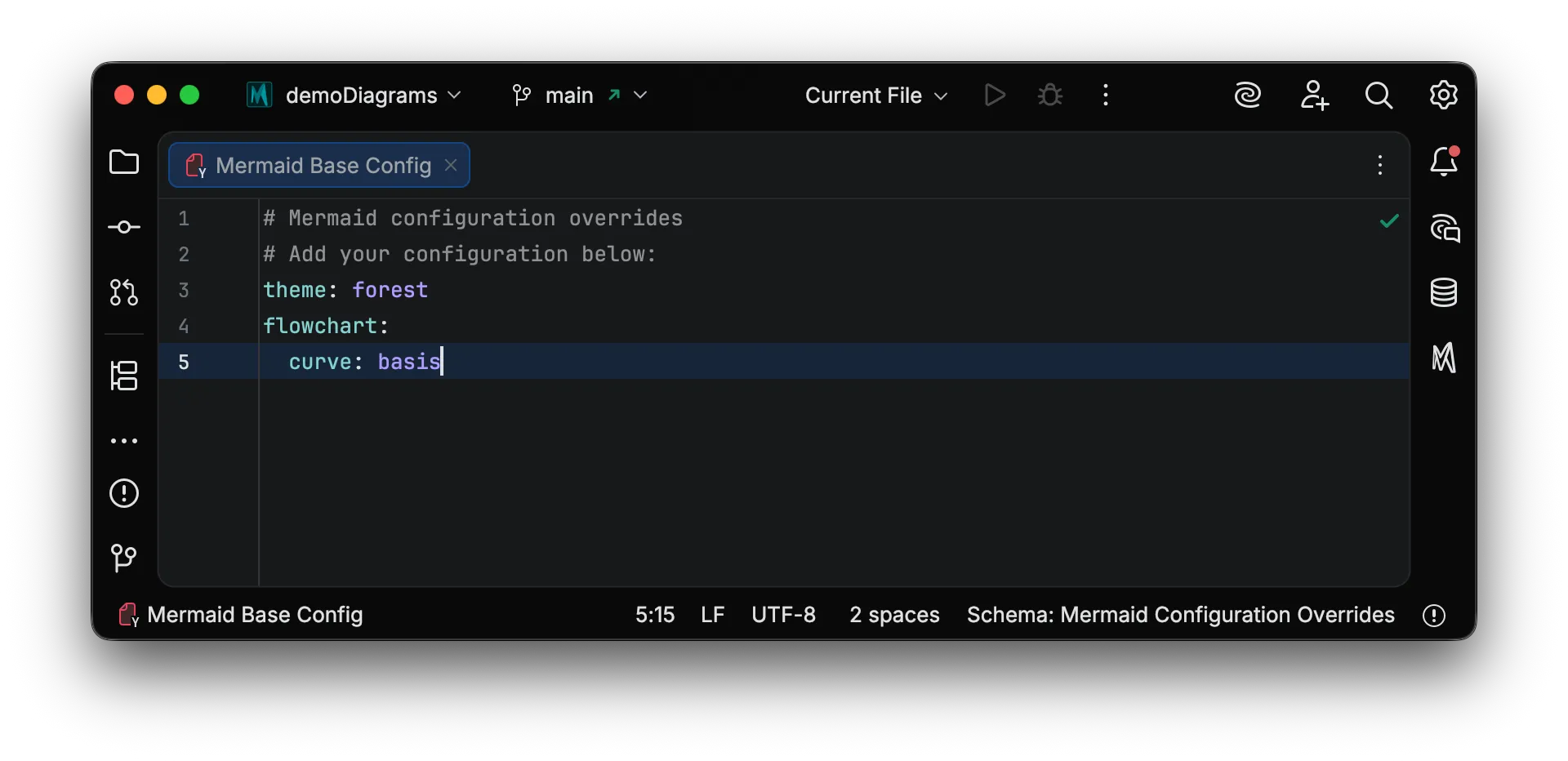
Edit the YAML configuration in the editor tab that opens, shown below with completion active.
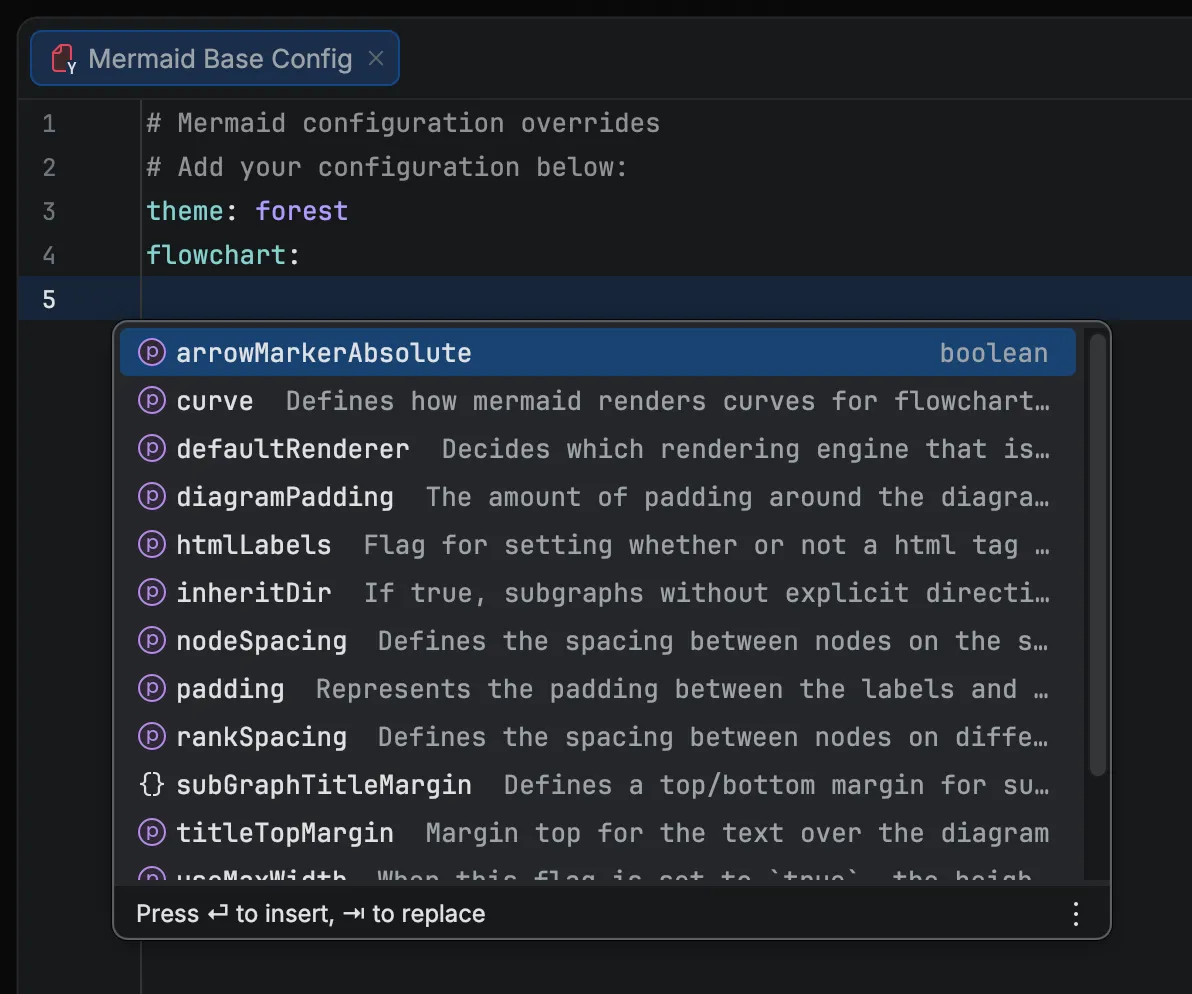
The editor provides JSON schema-based validation and code completion for all available Mermaid.js configuration options, including in Remote Development. See the Mermaid.js configuration docs for the complete list of options.
-
Save (
Command + S CommandS Control + S CtrlS ) or close the tab to apply changes; open previews update immediately.
If the YAML has errors when you save, the plugin applies nothing, keeps the draft in the editor, and shows a notification.
To reset a context to defaults, click Reset next to it, as shown below. An open editor tab for that context refreshes to the reset state.
Configuration Options
Section titled “Configuration Options”The table below lists common configuration keys. The editor provides code completion for all available options, and the full reference is in the Mermaid.js configuration docs.
| Key | Values | Description |
|---|---|---|
theme | default, dark, forest, neutral, base, neo, neo-dark, redux, redux-dark, redux-color, redux-dark-color | Diagram color theme (see Theme and Look compatibility) |
look | classic, handDrawn, neo | Rendering style (see Theme and Look compatibility) |
layout | dagre, elk, ELK algorithms such as elk.stress and elk.mrtree, tidy-tree (mindmaps) | Layout algorithm (see Layout Plugins) |
fontFamily | Any CSS font stack | Font used in diagrams |
You can also configure options for specific diagram types using nested keys like flowchart.curve or sequence.mirrorActors.
Setting theme in an override pins every diagram in that context to one stock theme, as in the YAML and rendered example below.
theme: neutralHand-Drawn Look
Section titled “Hand-Drawn Look”The look key switches the rendering style; the example below pairs the hand-drawn look with the neutral theme and a display font.
look: handDrawntheme: neutralfontFamily: "fantasy"Setting handDrawnSeed ensures consistent rendering across previews.
Theme and Look compatibility
Section titled “Theme and Look compatibility”The base themes (default, dark, forest, neutral, base) and the classic look apply to every diagram type.
All other theme and look values depend on explicit upstream styling in Mermaid.js, and are only applied to the diagram types where that styling exists.
Mermaid Studio’s Appearance menu filters its options to match, so you will only see values that actually render with distinct styling on the current diagram.
Setting an unsupported value on a diagram type still renders; the diagram simply falls back to its standard colors or rendering style.
The two tabs below list the diagram-specific theme and look values and the diagram types that receive custom styling for each.
Use the Themes tab to see which diagrams the Neo and Redux color palettes apply to, and the Looks tab to see which diagrams support the handDrawn and neo rendering styles.
The matrix below lists the diagram types that upstream Mermaid.js styles for each neo or redux family theme.
| Diagram | neo | neo-dark | redux | redux-dark | redux-color | redux-dark-color |
|---|---|---|---|---|---|---|
| Flowchart | ✓ | ✓ | ✓ | ✓ | ✓ | ✓ |
| Sequence | ✓ | ✓ | ✓ | ✓ | ✓ | ✓ |
| Class | ✓ | ✓ | ✓ | ✓ | ✓ | ✓ |
| State | ✓ | ✓ | ✓ | ✓ | ✓ | ✓ |
| ER | ✓ | ✓ | ✓ | ✓ | ✓ | ✓ |
| Git Graph | ✓ | ✓ | ✓ | ✓ | ✓ | ✓ |
| Mindmap | ✓ | ✓ | ✓ | ✓ | ✓ | ✓ |
| Timeline | ✓ | ✓ | ✓ | ✓ | ✓ | ✓ |
| Requirement | ✓ | ✓ | ✓ | ✓ | ✓ | ✓ |
| Swimlane | ✓ | ✓ | ✓ | ✓ | ✓ | ✓ |
| Block | ✓ | ✓ | ✓ | ✓ | ✓ | ✓ |
| Venn | ✓ | ✓ | ✓ | ✓ | ✓ | ✓ |
| Use Case | ✓ | ✓ | ✓ | ✓ | ✓ | ✓ |
| Agentflow | ✓ | ✓ | ✓ | ✓ | ✓ | ✓ |
| Railroad | ✓ | ✓ | ✓ | ✓ |
The redux-color and redux-dark-color themes paint each item in its own color on Mermaid.js 12.0; earlier versions render them with the Redux family’s fixed colors.
Diagram types not listed support only the base themes (default, dark, forest, neutral, base).
The look value controls the overall rendering style.
classic is the default clean-line style and applies to every diagram type.
Hand Drawn produces a sketchy, rough-edged look (paired well with the neutral theme), and Neo, new in Mermaid.js 11.14.0, adds drop shadows and softer shape padding.
The table below shows which diagram types upstream Mermaid.js styles for each non-default look.
| Diagram | neo | handDrawn |
|---|---|---|
| Flowchart | ✓ | ✓ |
| Sequence | ✓ | |
| Class | ✓ | ✓ |
| State | ✓ | ✓ |
| ER | ✓ | ✓ |
| Git Graph | ✓ | |
| Mindmap | ✓ | ✓ |
| Timeline | ✓ | |
| Requirement | ✓ | ✓ |
| Swimlane | ✓ | ✓ |
| Block | ✓ | ✓ |
| Use Case | ✓ | ✓ |
| Agentflow | ✓ | ✓ |
| Ishikawa | ✓ | |
| Venn | ✓ |
Diagram types not listed support only the classic look.
A theme and look are commonly set together, as in the override below.
theme: neo-darklook: neoDiagram-Specific Options
Section titled “Diagram-Specific Options”Nest options under the diagram type key to target a specific diagram, as in the example below.
flowchart: curve: stepPer-diagram theme, look, and layout
Section titled “Per-diagram theme, look, and layout”On Mermaid.js 12.0, theme, look, and layout also work inside a diagram type block, so a single override can give flowcharts their own appearance while every other diagram uses the global value.
In the override below, flowcharts render with the Redux Dark theme and ELK’s Mr. Tree layout, and everything else renders with the neutral theme.
theme: neutralflowchart: theme: redux-dark layout: elk.mrtreeWithin a layer, the diagram-type key wins over the global one; earlier Mermaid.js versions ignore it.
Layout Plugins
Section titled “Layout Plugins”Mermaid Studio bundles layout engines beyond dagre, such as ELK and tidy-tree.
Turn them on in the Layout Plugins group at the bottom of the Mermaid Runtime settings where needed, then pick one from the preview’s Layout menu or set layout: in your configuration or frontmatter.
ELK Layout Engine
Section titled “ELK Layout Engine”ELK (Eclipse Layout Kernel) provides layered, force-directed, and tree layouts for flowcharts and the other diagram types with a Layout menu, such as class and state diagrams.
Beyond the default layered elk layout, you can choose algorithms such as elk.stress, elk.force, and elk.mrtree; the Layout menu lists every one the selected version offers.
On Mermaid.js 12.0, ELK is part of Mermaid.js and is the default layout, so the ELK layout engine checkbox shows checked and disabled.
These diagram types render with ELK there when they set no layout; set layout: dagre to keep the dagre arrangement.
The elk.box and elk.rectpacking algorithms require Mermaid.js 12.0.
On an 11.x version, turn ELK on first:
- Check ELK layout engine in the Mermaid Runtime settings
- Set
layout: elk(or another ELK algorithm) in your configuration or frontmatter
Tidy-Tree Layout
Section titled “Tidy-Tree Layout”Tidy-tree provides optimized tree layout for hierarchical diagrams. Currently supported only in mindmap diagrams.
- Check Tidy-tree layout engine in the Mermaid Runtime settings
- Set
layout: tidy-treein your configuration or frontmatter
Layout plugins may increase preview loading time and memory usage.
Frontmatter Configuration
Section titled “Frontmatter Configuration”You can also configure individual diagrams using YAML frontmatter, which takes precedence over runtime configuration overrides, as in the example below.
---config: flowchart: curve: cardinal---flowchart LR A[Start] --> B{Decision} B -->|Yes| C[Action] B -->|No| D[Skip] C --> E[Done] D --> EThe legacy init directive syntax (e.g., %%{init{...}}) is generally unsupported, but can easily be converted to frontmatter
in the editor using the provided intention.
Example Configuration
Section titled “Example Configuration”The config editor supports YAML with schema-based validation and code completion, as shown in the capture below.