
Block Diagram
Last updated:
Mermaid Studio provides full language support for Block diagrams inside IntelliJ-based IDEs, turning them into a first-class option for system architecture overviews, component diagrams, and high-level technical documentation. Block diagrams use a column-based layout to visualize system components and their relationships.
Syntax Highlighting
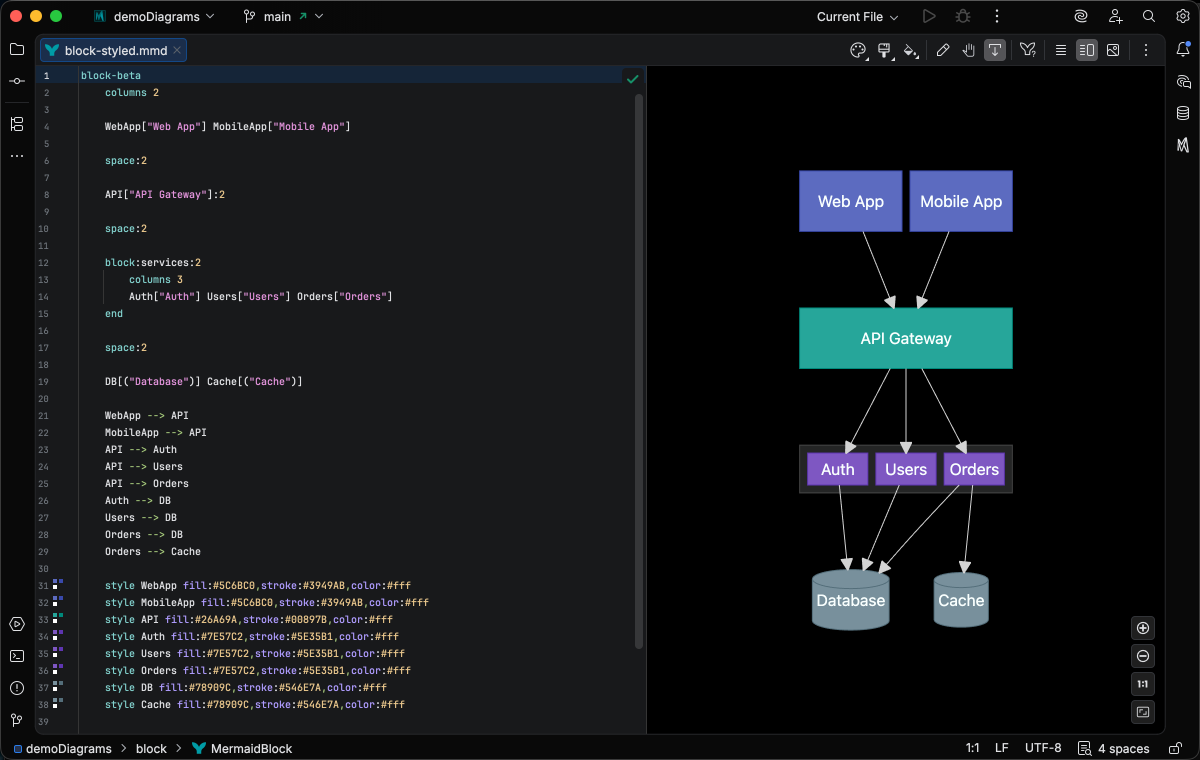
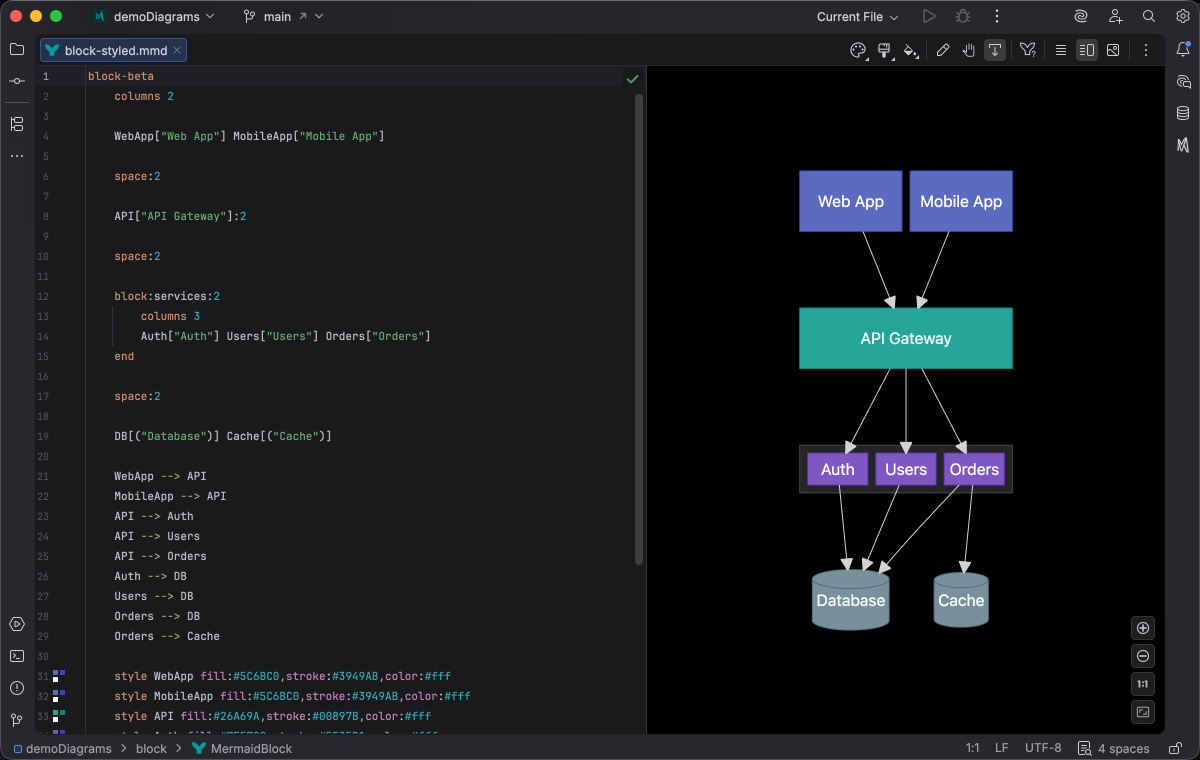
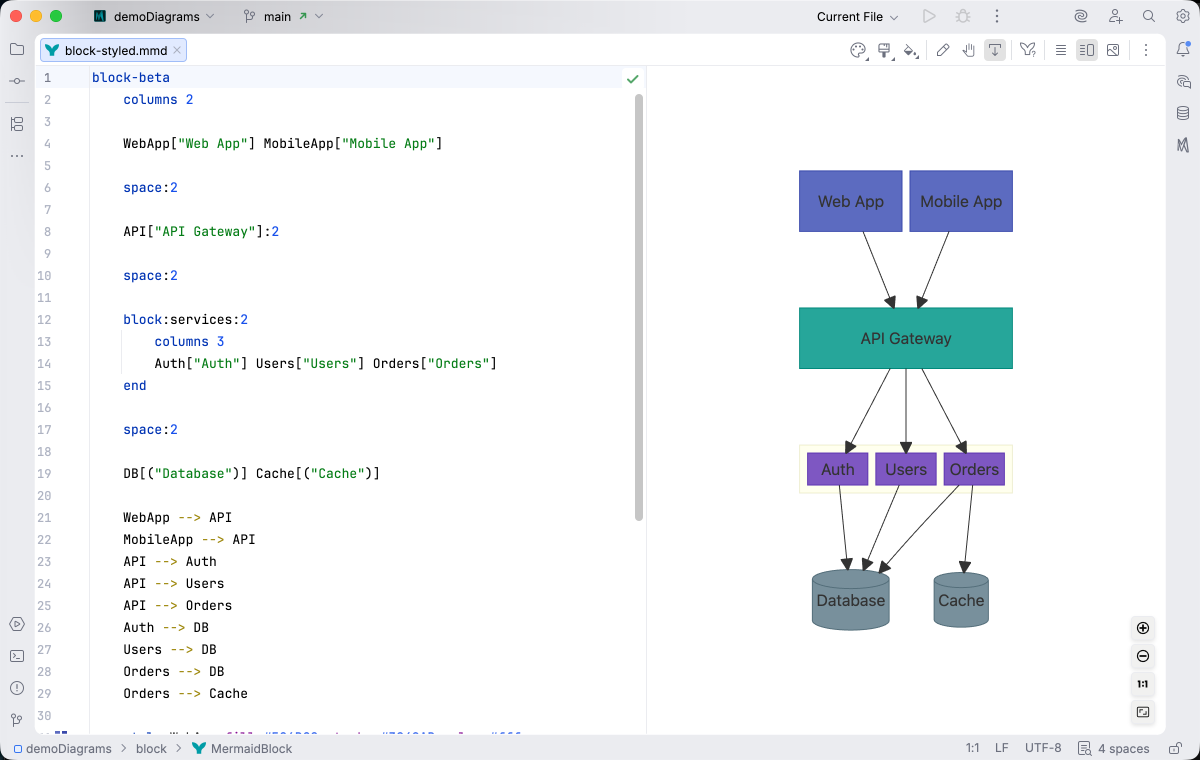
Section titled “Syntax Highlighting”Syntax highlighting integrates directly with IntelliJ’s color scheme system, so diagram colors always match your editor theme.
IDE Support
Section titled “IDE Support”The summary below shows the IDE support Mermaid Studio ships for block diagrams, grouped by capability.
Folding lets you collapse and expand structural blocks of the diagram source (subgraphs, frontmatter, multi-line strings) directly in the editor gutter. It keeps long diagrams navigable without forcing you to scroll past detail you don’t need right now.
Use the gutter triangles, Code → Folding, or the standard JetBrains shortcuts (
When the cursor sits next to a bracket, brace, or paren, Mermaid Studio highlights its matching pair across the whole diagram and lets you jump between them. This is especially valuable in nested syntax (subgraph blocks, JSON-style style strings, multi-shape labels) where it’s easy to lose track of which closer goes with which opener.
The line-comment action (
When you type a quote character to start a string, Mermaid Studio inserts the matching closing quote and places the cursor between them. Backspacing through an empty pair removes both characters at once. This keeps quoted labels balanced and reduces fiddly cursor work.
The formatter rewrites your diagram source to a canonical layout (consistent indentation, alignment of multi-line links, normalized whitespace around operators) without changing semantics.
It also clears up the whitespace mistakes that the Mermaid.js parser is picky about, normalizing spacing between tokens so the parser accepts the diagram on the first read instead of throwing a confusing syntax error.
Run it with Code → Reformat Code (
Pressing
A dedicated Grammar-Kit parser backs the highlighting, so tokens are colored by what they mean in the diagram (a type reference versus a label versus a style), not just what they look like. The same parser validates the syntax as you type, flagging malformed statements in place instead of letting one mistake cascade through the file.
This is the foundation richer features build on; the same grammar drives completions, refactoring, and inspections.
Per-diagram annotators apply rule-based highlighting above the lexer and parser, running on every keystroke and painting their results directly in the editor. Mermaid Studio uses them across the full range the platform supports: highlighting that token types alone cannot decide (coloring a reference by what it resolves to), semantic errors and warnings (an edge pointing at an undefined node, an invalid direction value), and inline cues such as marking duplicate labels. Unlike inspections (configurable checks listed in Settings), annotators are always on, whether a rule ends in a color or a warning.
As you type, Mermaid Studio offers context-aware suggestions filtered to what’s valid at the cursor: node shapes, arrow types, keywords, icon names, identifiers, frontmatter keys, theme variables, and more. Completions cut down on typos and make the diagram syntax self-documenting.
Completion and validation for the YAML frontmatter block above the diagram body, driven by the diagram type’s slice of the Mermaid.js config schema. Config keys, enum values, and color properties complete as you type, and unknown or mistyped keys are flagged in place.
Hex, named, and rgb()/hsl() colors in style declarations get a small color swatch rendered in the gutter.
Click the swatch to open the IntelliJ color picker and pick a new value, and the source updates in place.
Inspections are static analyzers that run continuously and surface problems as you edit: duplicate IDs, undefined references, malformed syntax, deprecated patterns, missing required fields. Each inspection has a configurable severity (error, warning, info), can be suppressed inline, and most ship with a quick fix that resolves the issue with one keystroke.
This is where most of the editorial intelligence lives: a diagram type with rich inspections is much harder to break in subtle ways.
Rename refactoring (
Find Usages (
Code Vision renders small inline indicators above declarations, typically reference counts (“5 references”, “3 inbound edges”), so you can see at a glance how connected an element is without running Find Usages. Click an indicator to jump to the references list.
The Structure tool window (
Bundled and user-authored color themes with light and dark variants that apply to this diagram type from the Appearance menu or the Switch Diagram Theme action. Applying a theme writes the resolved theme variables into the diagram’s frontmatter, so the file renders the same outside the IDE.
Completions cover block types, arrow operators, CSS properties and values, class names, and node references. Quick fixes split edge chains, quote edge labels, and convert Markdown strings, and pressing Enter after a composite block header indents the next line automatically.
Quick Syntax Reference
Section titled “Quick Syntax Reference”Layout
Section titled “Layout”block columns 3
A["API"] B["Web"] C["DB"]
%% Span multiple columns D["Wide Block"]:2 spacecolumns N- Set the number of columns (orcolumns auto)id:N- Make a block span N columnsspaceorspace:N- Insert empty cells for spacing
Node Shapes
Section titled “Node Shapes”| Syntax | Shape |
|---|---|
id["Label"] | Rectangle |
id("Label") | Rounded rectangle |
id(("Label")) | Circle |
id((("Label"))) | Double circle |
id{"Label"} | Diamond |
id{{"Label"}} | Hexagon |
id(["Label"]) | Stadium/pill |
id[["Label"]] | Subroutine |
id[("Label")] | Cylinder |
id[/"Label"/] | Lean right |
id[\"Label"\] | Lean left |
id[/"Label"\] | Trapezoid |
id[\"Label"/] | Inverted trapezoid |
id>"Label"] | Arrow rectangle |
id<["Label"]>(right, down) | Block arrow |
Connections
Section titled “Connections”| Syntax | Description |
|---|---|
--> | Arrow |
--- | Line (no arrowhead) |
--"label"--> | Arrow with label |
<--> | Bidirectional arrow |
-.-> | Dotted arrow |
--o | Circle endpoint |
--x | Cross endpoint |
---> | Long arrow |
Composite Blocks
Section titled “Composite Blocks”Composite blocks group nested blocks together with their own layout:
block  columns 3
  block:clients:3      columns 2      web["Web App"]      mobile["Mobile App"]  end
  gateway["API Gateway"]:3
  block:services:3      columns 3      auth["Auth"]      orders["Orders"]      billing["Billing"]  end
  block:data:3      columns 3      cache[("Cache")]      db[("Database")]      queue[["Queue"]]  end
  web --> gateway  mobile --> gateway  gateway --> auth  gateway --> orders  gateway --> billing  auth --> cache  orders --> db  billing --> queue
Styling
Section titled “Styling”block columns 2
A["Primary"] B["Secondary"]
%% Define CSS classes classDef primary fill:#4CAF50,color:#fff,stroke:#388E3C classDef secondary fill:#2196F3,color:#fff
%% Apply classes class A primary class B secondary
%% Inline style style A stroke-width:2pxclassDef name properties- Define a reusable CSS classclassDef default properties- Set default styling for all blocksclass id1,id2 className- Apply a class to one or more blocksstyle id properties- Apply inline CSS to a specific block
For complete syntax details, see the Mermaid.js Block Diagram documentation.