
Markdown
Last updated:
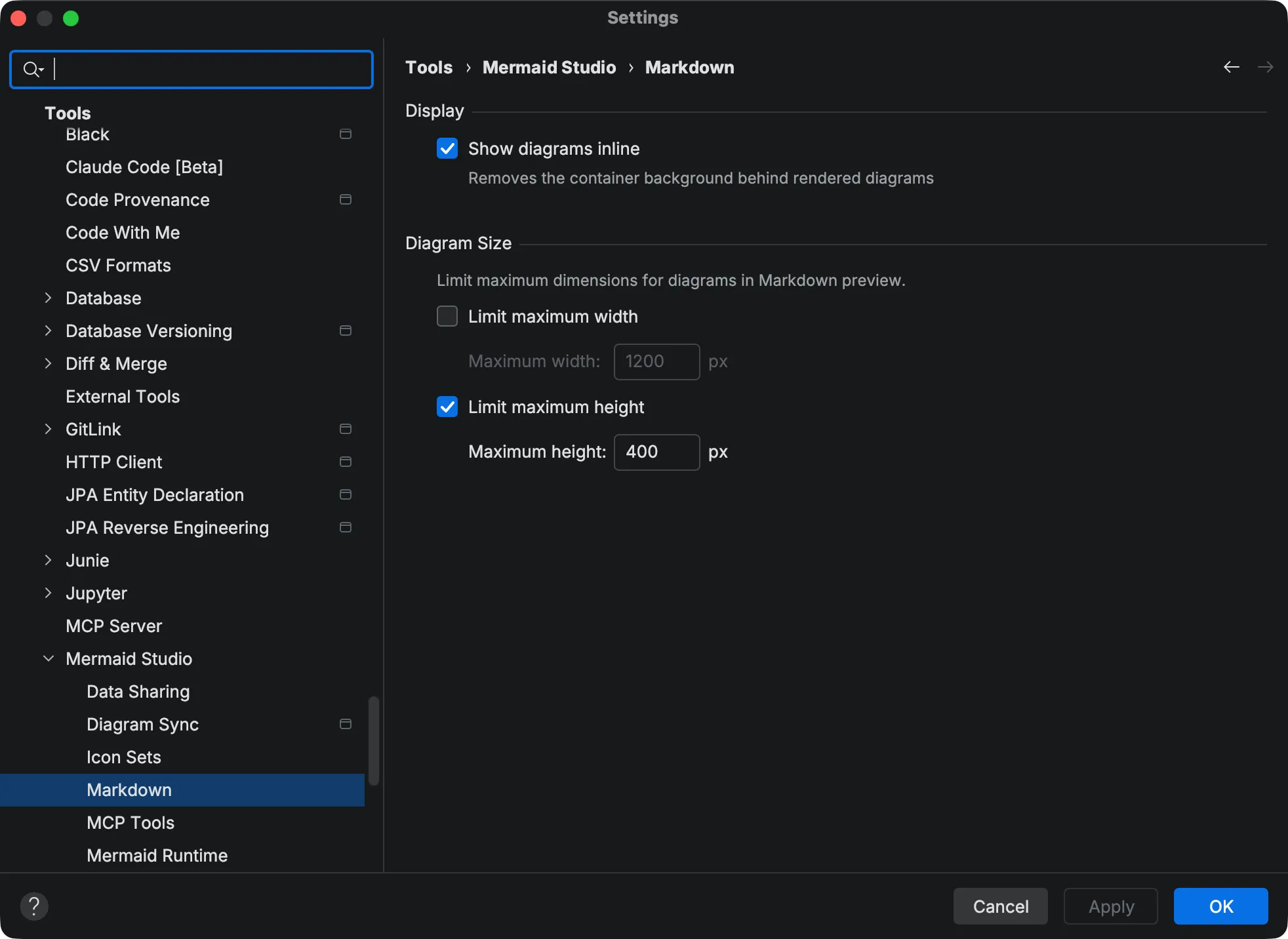
Configure how Mermaid diagrams appear in the Markdown preview at Settings > Tools > Mermaid Studio > Markdown.
Disable Mermaid contributions to Markdown preview
Section titled “Disable Mermaid contributions to Markdown preview”The Enable Mermaid in Markdown preview toggle controls whether Mermaid Studio renders diagrams inside the platform Markdown preview at all.
With the toggle off, ```mermaid (and ```mmd) fences stay rendered as plain code blocks by the platform Markdown plugin, exactly as if Mermaid Studio weren’t installed.
This is useful when you’d rather use a different Mermaid renderer alongside the plugin, or when you only need the Mermaid editor support (highlighting, completion, refactoring) without the in-Markdown preview overhead.
When you toggle the setting, every open Markdown editor hot-swaps in place with no IDE restart needed, and your scroll position and tab focus survive.
Inline Display
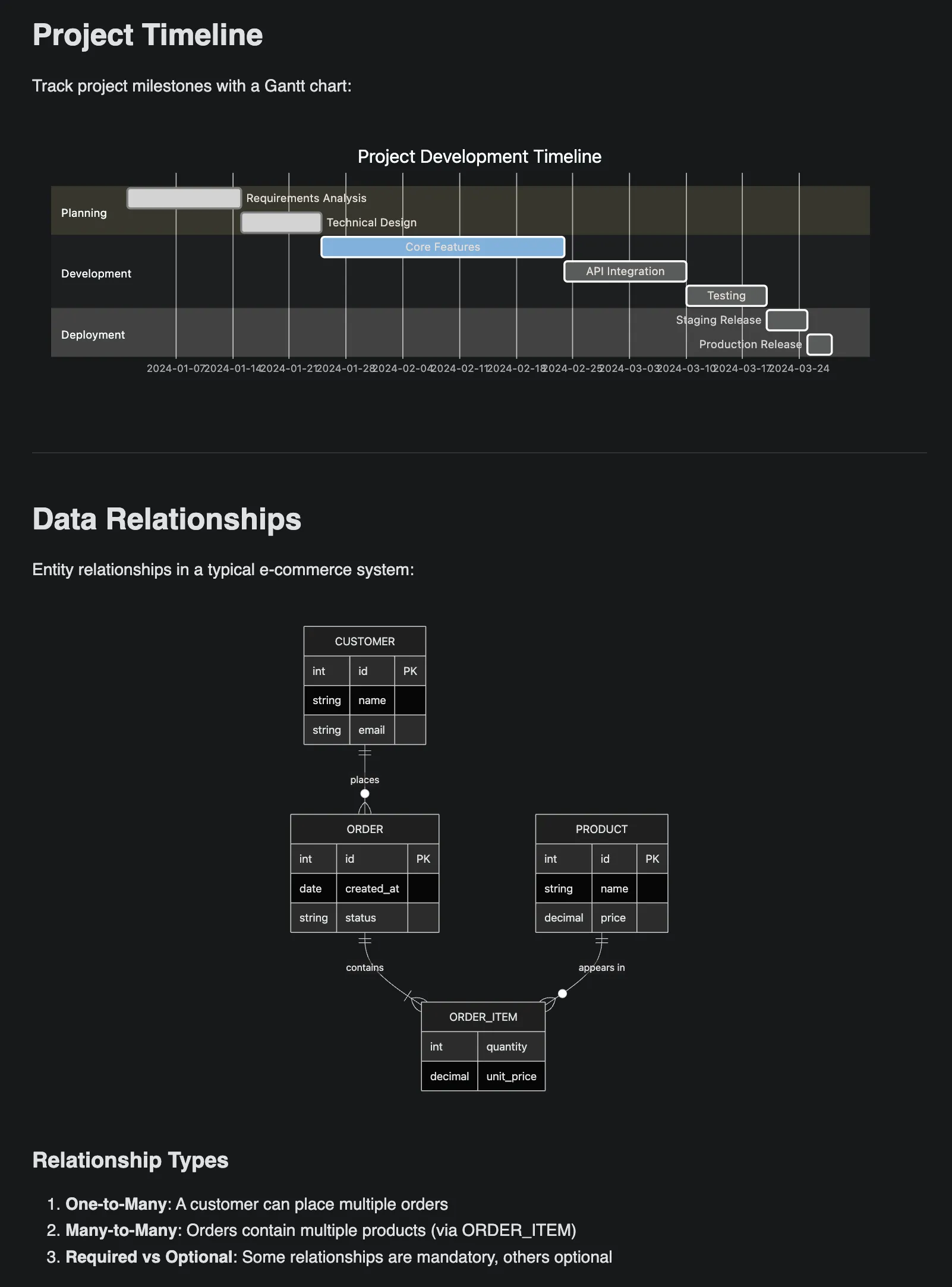
Section titled “Inline Display”By default, rendered diagrams display inline, blending directly into the page with no container chrome or background. Turn off Show diagrams inline to wrap each diagram in a container with a subtle background instead; the source and error views keep their container either way.
Maximum Diagram Size
Section titled “Maximum Diagram Size”Large diagrams can dominate the preview and make it difficult to read surrounding content. Use the size limits to constrain diagram dimensions:
| Setting | Default | Description |
|---|---|---|
| Limit maximum width | Off | When enabled, constrains diagram width to the specified pixel value |
| Maximum width | 1200 px | Maximum width in pixels (100 - 20,000) |
| Limit maximum height | Off | When enabled, constrains diagram height to the specified pixel value |
| Maximum height | 800 px | Maximum height in pixels (100 - 20,000) |
Diagrams that exceed the configured limits are scaled down proportionally. Diagrams smaller than the limits are not affected.
Settings take effect immediately in all open Markdown previews.