
Formatting
Last updated:
Mermaid Studio can automatically format your diagram code to improve readability and apply a consistent indentation and spacing style. Reformatting will also fix many minor syntax issues caused by missing or misplaced whitespace.
Reformatting a diagram
Section titled “Reformatting a diagram”Press
Reformat inside Markdown fences
Section titled “Reformat inside Markdown fences”Reformatting a Markdown host file also reformats every Mermaid diagram embedded in a ```mermaid (or ```mmd) code fence in that file, including fences nested under list items and fences whose body starts with a YAML frontmatter block. Place the caret inside a single fence and reformat to narrow the scope to just that fence; reformat the whole file to format every fence at once.
Indent-aware line comments
Section titled “Indent-aware line comments”Comment with Line Comment (%% at each line’s existing indent rather than at column 0, so comment markers line up with the surrounding code.
Code Style settings
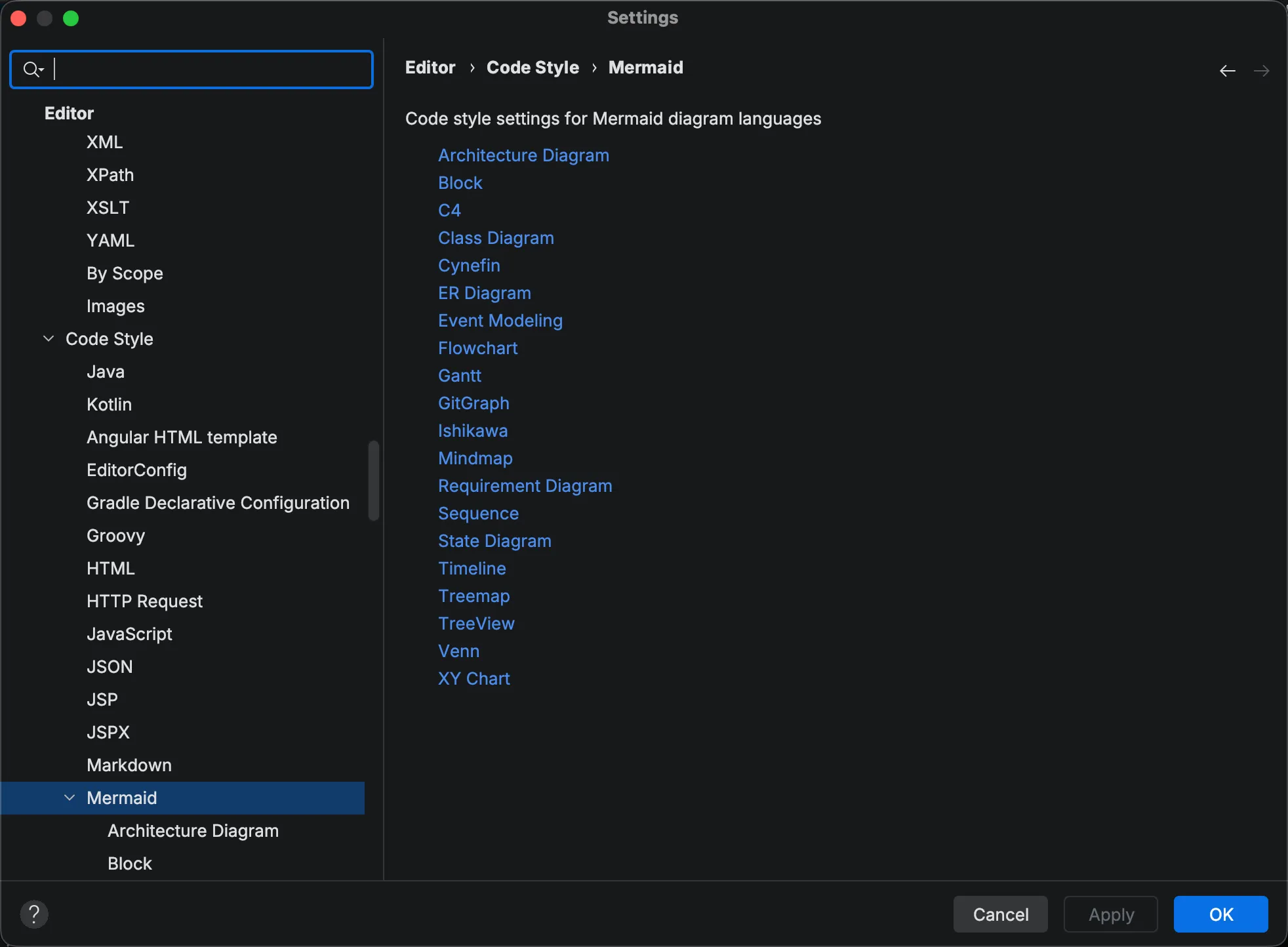
Section titled “Code Style settings”Each supported diagram type has its own page under Settings > Editor > Code Style > Mermaid Studio. The pages share the same general controls (indent size, tab vs. space, base indent below the diagram-type keyword) and add per-language options where they’re useful (e.g. flowchart’s multiline-string alignment, mindmap’s ::icon / :::class line splitting).
Default base indent
Section titled “Default base indent”As of 2026.2.4, the default base indent is 1 level below the diagram-type keyword across the major formatters. Content sits one indent level inside the diagram body, matching the canonical layout used in upstream Mermaid.js documentation:
flowchart LR A --> B B --> CIf you prefer the previous flush-left layout, set the Base indent to 0 for the language under Code Style > Mermaid > (language). The setting is per-language, so you can keep flowcharts indented and class diagrams flush-left if you like.
After upgrading from 2026.2.3 or earlier, running Reformat Code on existing diagrams will indent their content by one level. Adjust the per-language base indent before reformatting if you want to preserve the existing layout.
Supported diagram types
Section titled “Supported diagram types”The diagram types below have a dedicated formatter; the list is generated from the plugin’s feature report, so it tracks each release.
Other diagram types fall back to a no-op formatter that preserves the existing layout.