
Your First Diagram
Last updated:
This guide walks you through creating your first Mermaid diagram with Mermaid Studio. You’ll use the built-in sample picker to start from a working diagram, then explore the editor features that help you build on it.
Create a Mermaid file
Section titled “Create a Mermaid file”-
Right-click on a folder in your project and select New > File.
-
Name it
diagram.mmd(or use the.mermaidextension). -
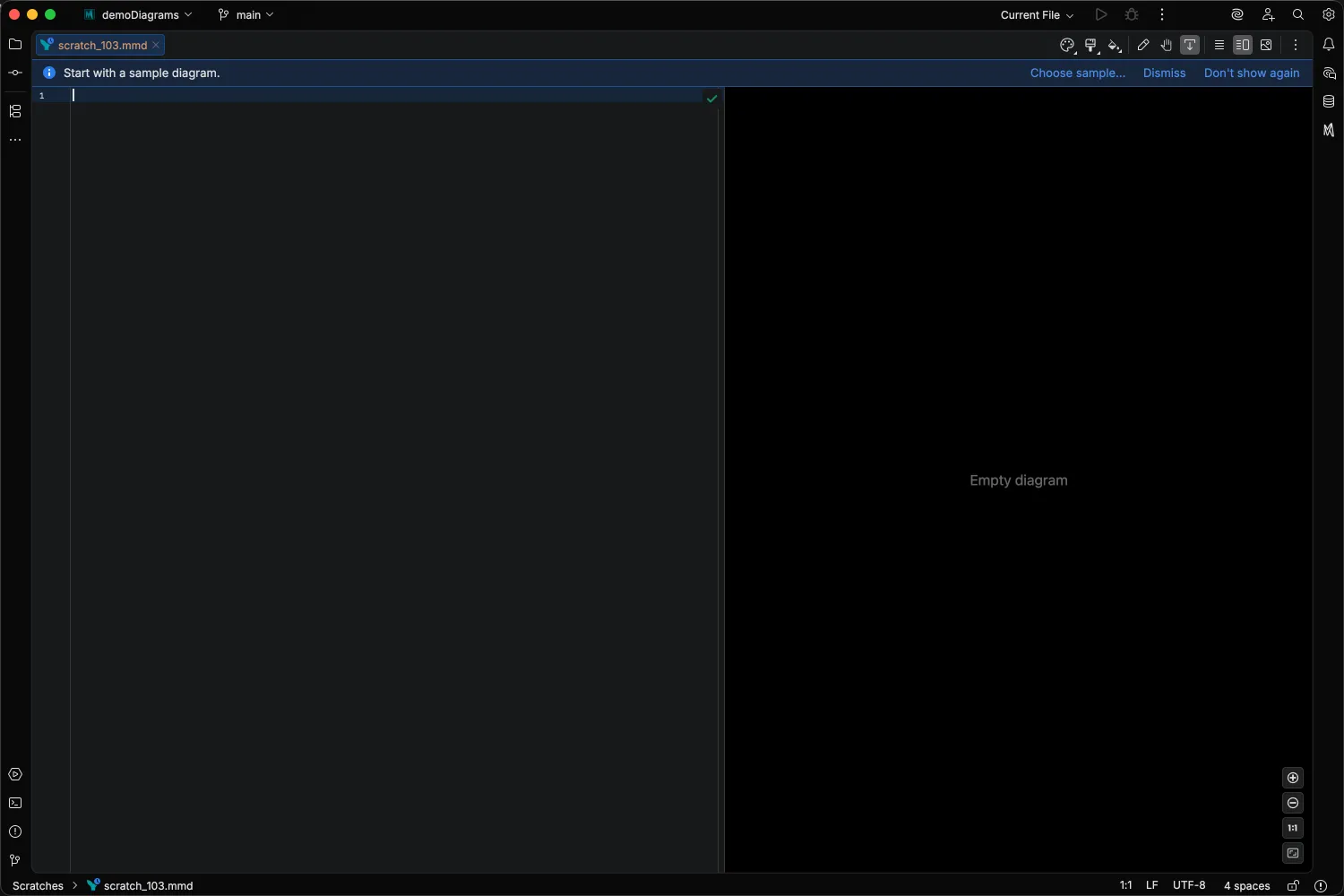
The editor opens with a split view: code on the left, live preview on the right.
Pick a sample diagram
Section titled “Pick a sample diagram”Because the file is empty, a dismissible banner appears at the top of the editor inviting you to start from a sample.
-
Click Choose sample… in the banner (or press
Option + Shift + S OptionShiftS Alt + Shift + S AltShiftS at any time). -
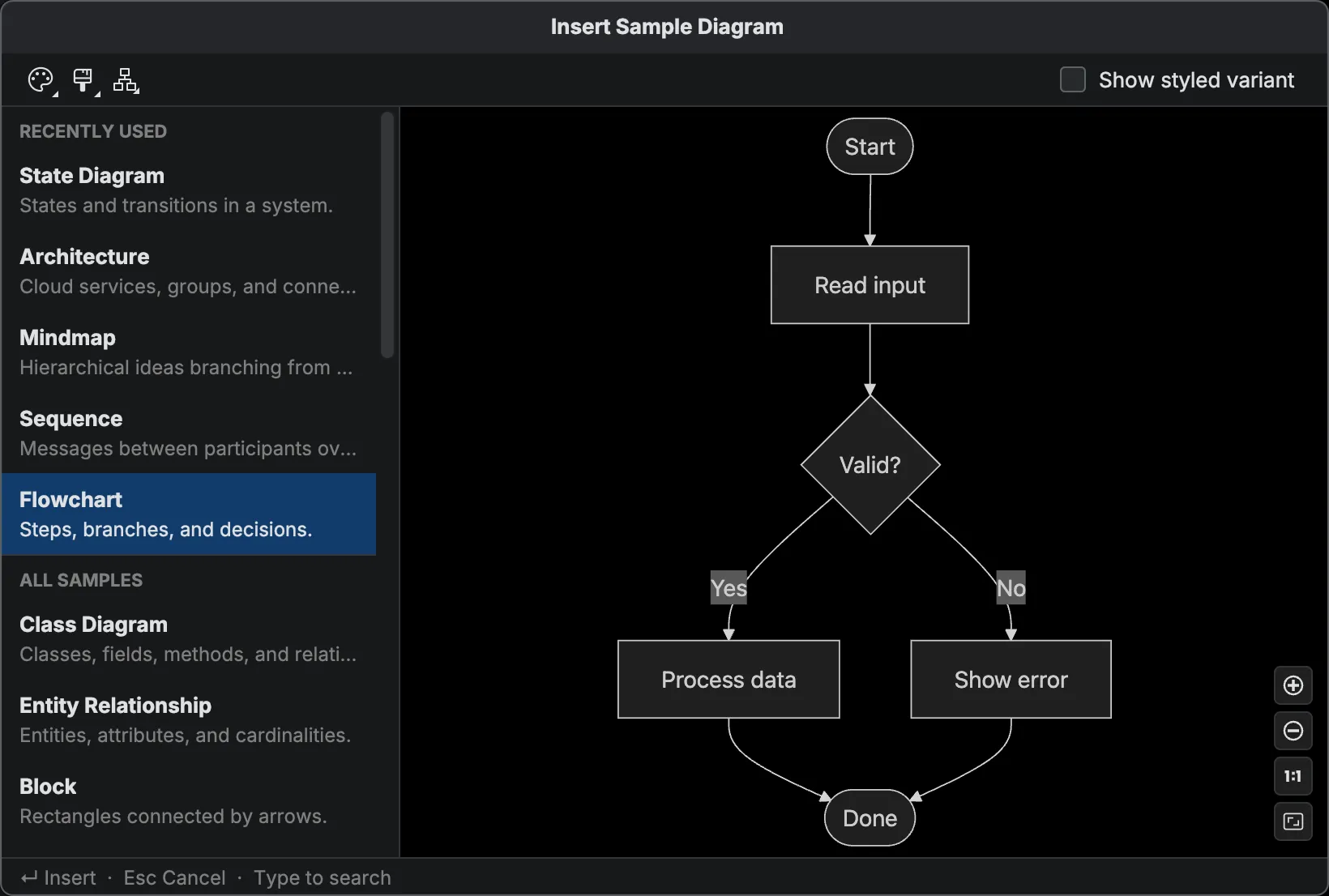
The sample picker opens with a list of diagram types on the left and a live preview on the right. Use the arrow keys or click to browse — the preview updates as you move through the list.
-
Select Flowchart and press
Enter Enter Enter Enter to insert it.
Explore the editor
Section titled “Explore the editor”With the flowchart sample in place, take a moment to look around:
- Syntax highlighting — keywords, node labels, arrow operators, and styles are color-coded.
- Live preview — the diagram on the right updates automatically as you edit the code on the left.
- Code completion — start typing inside the diagram body and press
Control + Space CtrlSpace Control + Space CtrlSpace to see contextual suggestions for syntax, node references, and more. - Error detection — introduce a typo and the editor underlines the problem with a description and, where available, a quick fix.
Try changing a node label, adding a new arrow, or rewiring a connection to see the preview update in real time.
Try other diagram types
Section titled “Try other diagram types”Mermaid Studio supports more than 20 diagram types.
To explore them, open the sample picker again with
- Sequence Diagram — model interactions between participants with arrows and messages.
- Class Diagram — define classes, attributes, and relationships.
- State Diagram — map out states and transitions for a system or workflow.
- Mindmap — organize ideas in a radial tree.
Each sample is a self-contained, valid diagram you can start editing immediately.
Next steps
Section titled “Next steps”- Sample Diagram Picker — full reference for the picker, styling toolbar, and recently-used samples
- Markdown Integration — embed diagrams in Markdown files
- MCP Tools — generate and validate diagrams with AI agents
- Export Diagrams — save diagrams as PNG or SVG
- All Diagram Types — the full catalog