
Export Diagrams
Last updated:
Mermaid Studio lets you export your diagrams as image files for use in documentation, presentations, or anywhere else you need them.
Export Formats
Section titled “Export Formats”You can export diagrams in two formats:
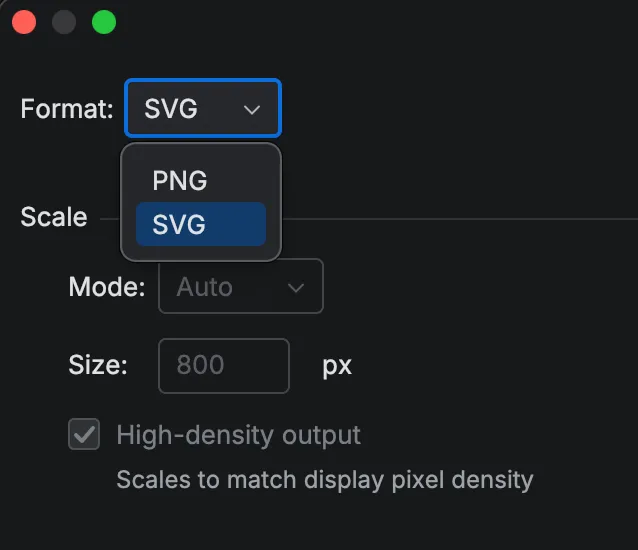
- PNG: Raster image format, best for presentations and general use
- SVG: Vector format, scales perfectly at any size
The Export Diagram Menu
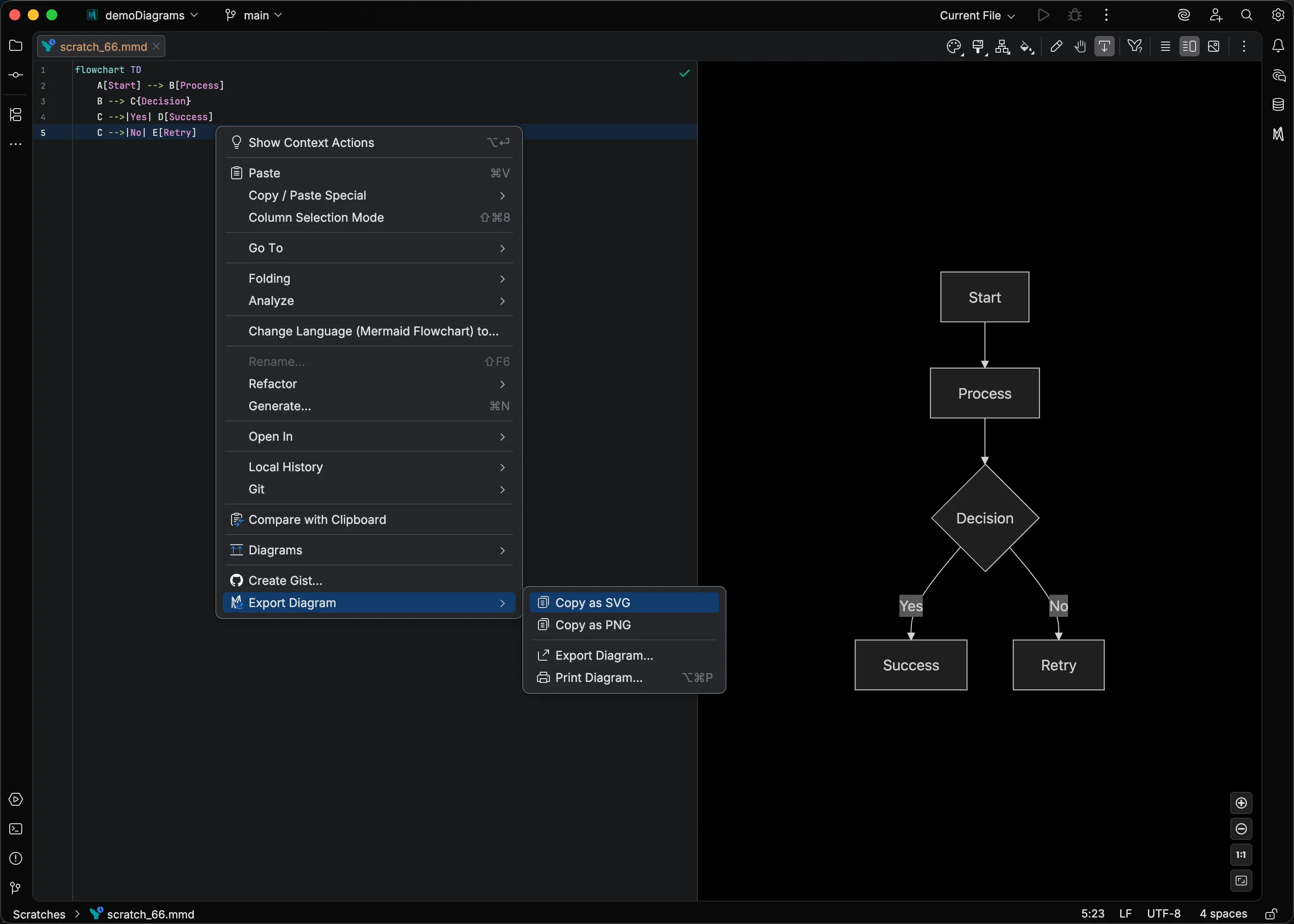
Section titled “The Export Diagram Menu”All export actions are grouped under a single Export Diagram submenu in the editor context menu. Right-click inside a Mermaid file (or inside a Mermaid code fence in a Markdown file) and hover over Export Diagram to reveal:
- Copy as SVG — copy the diagram as SVG text to the clipboard
- Copy as PNG — copy the diagram as an image to the system clipboard
- Export Diagram… — open the export dialog to save to a file
- Print Diagram… — send the diagram to a printer (see Printing)
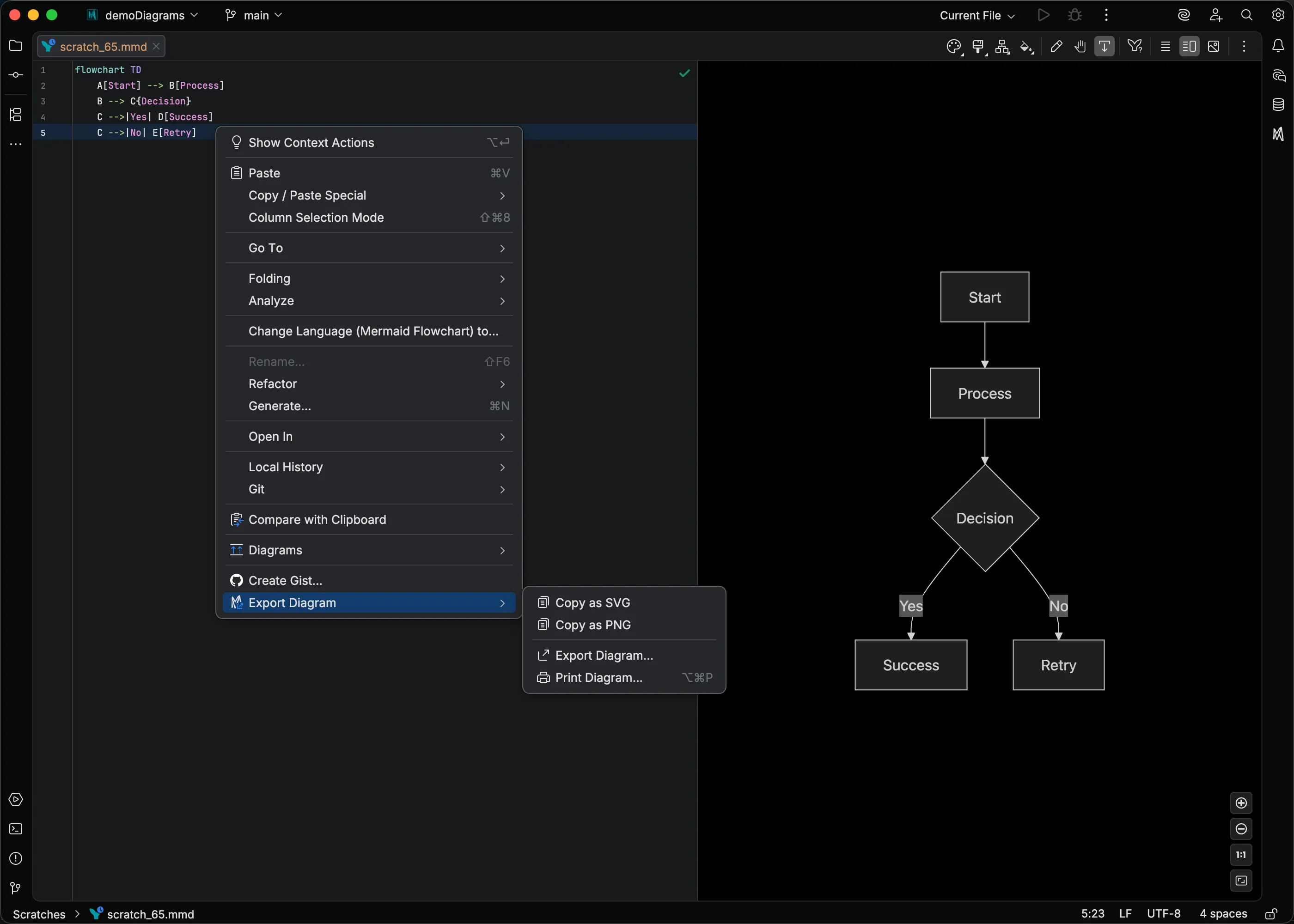
The submenu is only shown for Mermaid files and Mermaid code fences in Markdown; it is hidden in unrelated files.
Export to File
Section titled “Export to File”To export a diagram:
-
Open your Mermaid file in the editor.
-
Right-click and choose Export Diagram > Export Diagram…
-
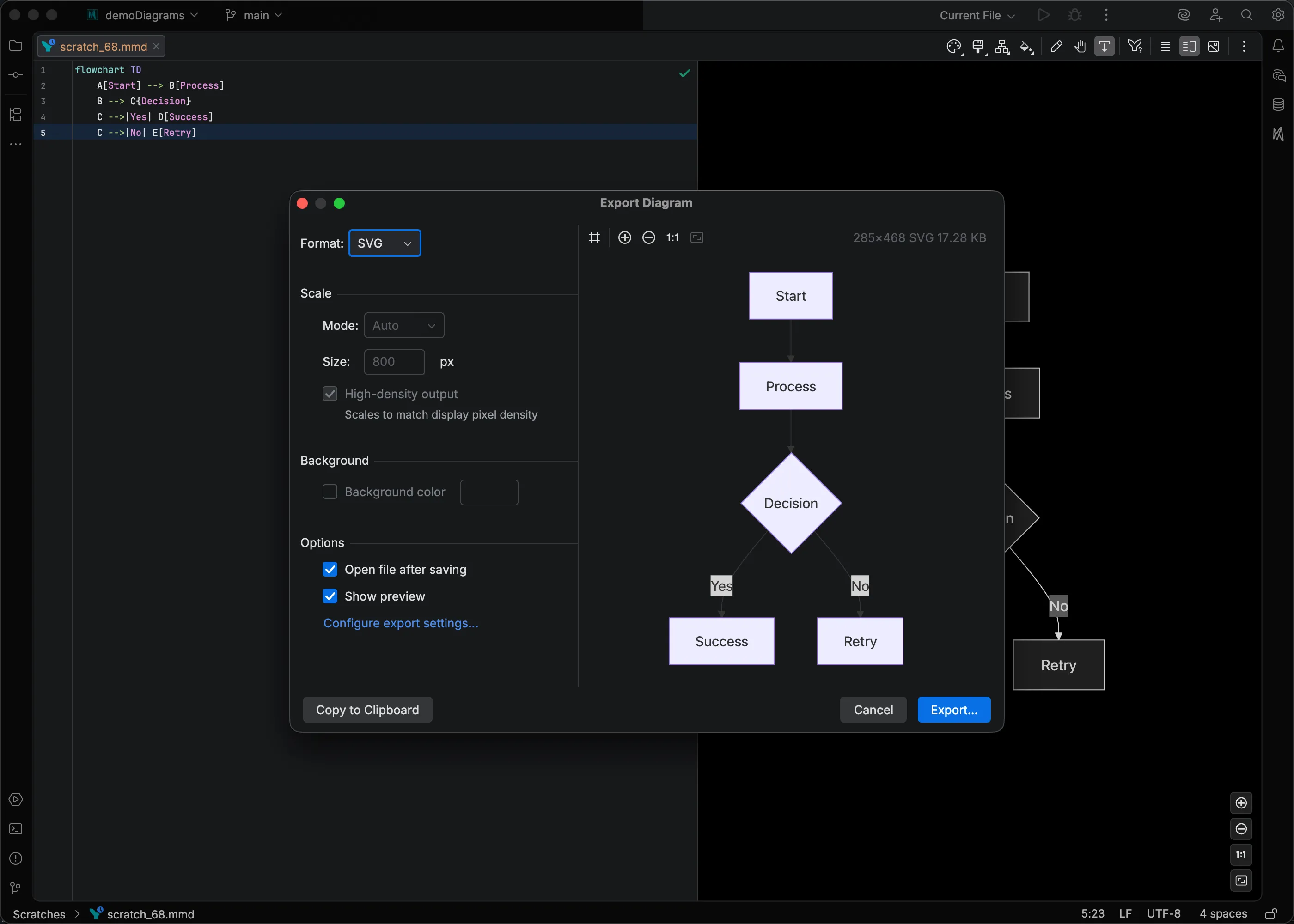
Select your format (PNG or SVG) from the Format dropdown.
-
Configure scale and options as needed.
-
Click Export… and choose where to save the file.
The diagram is exported and saved to your chosen location. If you enabled Open file after saving, it will open automatically in the IDE.
Export Options
Section titled “Export Options”The Scale settings control the output image dimensions. These options apply to PNG exports only.
Mode
- Auto: Uses the diagram’s natural size at your display’s native resolution
- Width: Specify a fixed width in pixels (height adjusts proportionally)
- Height: Specify a fixed height in pixels (width adjusts proportionally)
Size: Enter the pixel dimension when using Width or Height mode.
High-density output: When enabled, scales the image to match your display’s pixel density for sharper results on HiDPI screens. This option is disabled when using Auto mode (which always uses native resolution).
Background
Section titled “Background”The Background settings control whether a background color is baked into the exported PNG. This option applies to PNG exports only.
Background color: When enabled, fills the image background with the selected color instead of leaving it transparent. Click the color swatch to choose a different color.
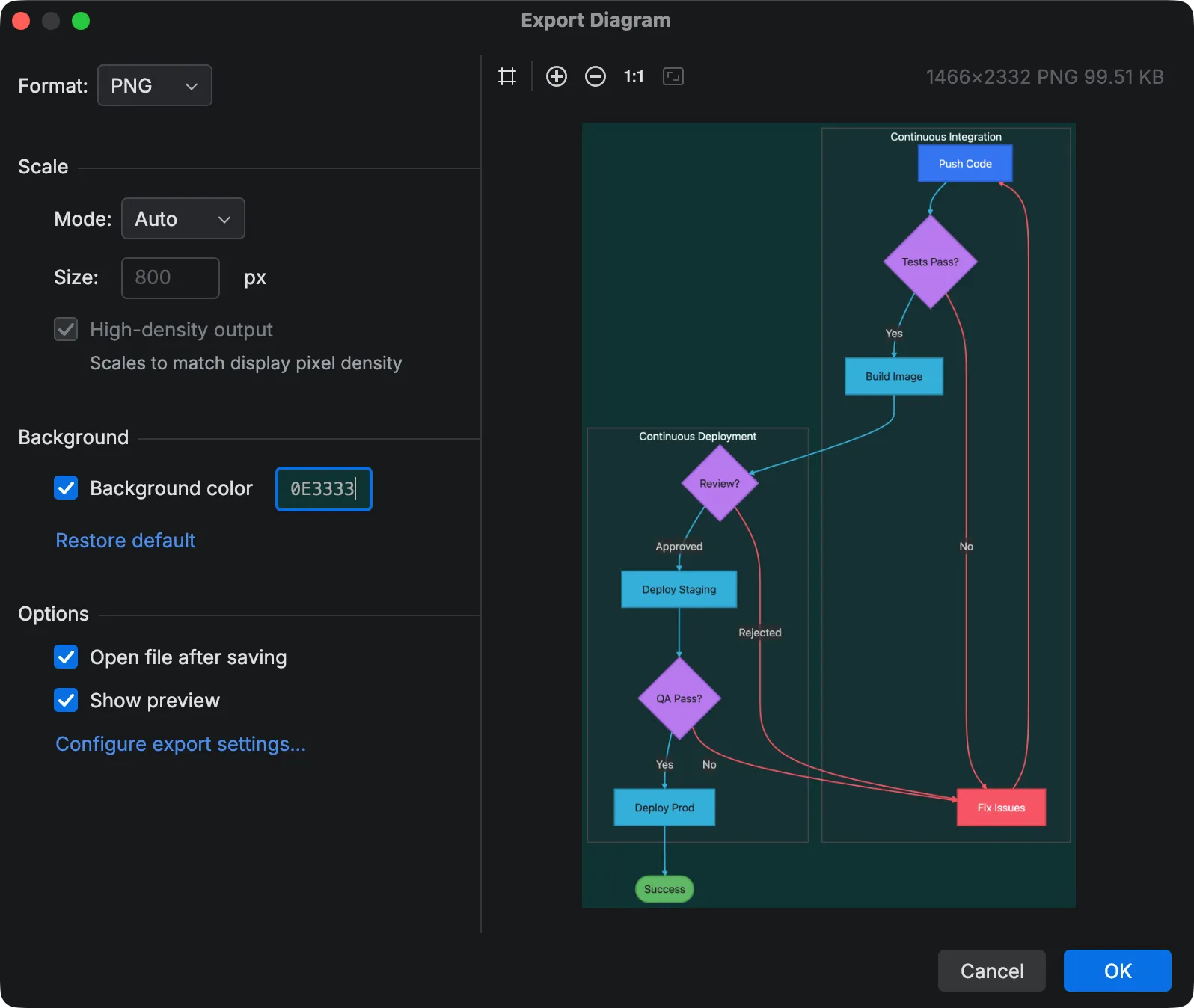
The default color is based on the diagram’s effective Mermaid theme: black for the dark theme, white for all others.
The theme is resolved from the diagram’s frontmatter first, then your export settings.
Options
Section titled “Options”Open file after saving: Automatically opens the exported file in the IDE after saving.
Show preview: Toggle the live preview panel on the right side of the dialog.
Configure export settings…: Opens the Mermaid Runtime configuration where you can set a default theme for exports.
Live Preview
Section titled “Live Preview”The export dialog includes a live preview panel that shows exactly how your diagram will look when exported. The preview updates automatically as you change settings.
Preview toolbar:
- Grid: Toggle a checkerboard pattern to visualize transparency
- Zoom controls: Zoom in, zoom out, and fit to window
The metadata bar shows the current dimensions, format, and file size of the rendered image.
Copy to Clipboard
Section titled “Copy to Clipboard”Mermaid Studio offers three ways to copy a diagram without saving it to disk.
Copy as SVG
Section titled “Copy as SVG”Right-click in the editor and choose Export Diagram > Copy as SVG. The SVG markup is placed on the clipboard so you can paste it into document editors, graphic design software, or anywhere else that accepts SVG.
Copy as PNG
Section titled “Copy as PNG”Right-click in the editor and choose Export Diagram > Copy as PNG. The diagram is rendered to a PNG image and placed on the system clipboard as an image, ready to paste into Slack, email, documents, image editors, or any application that accepts images.
This action uses your default export settings (not the settings from the Export Diagram dialog); use Export Diagram… if you want to adjust scale or background before copying.
Copy from the Export dialog
Section titled “Copy from the Export dialog”The Export Diagram… dialog also includes a Copy to Clipboard button on the left side of the button bar. It copies the currently rendered content (PNG or SVG) to the clipboard using the exact settings you have configured in the dialog (format, scale, background color, and so on), then closes the dialog. Use this when you want to tweak export settings before copying rather than saving to a file.
A notification confirms when the diagram has been copied.
Theme Selection
Section titled “Theme Selection”Exported diagrams use Mermaid’s default theme unless you specify a different one.
To export a diagram with a specific theme, set the config.theme property in your diagram’s frontmatter block.
You can also set a default theme for all exports in the export settings.
---config: theme: forest---flowchart TD A[Start] --> B{Is it working?} B -->|Yes| C[Great!] B -->|No| D[Fix it]Configuring Export Settings
Section titled “Configuring Export Settings”To set a default theme or other Mermaid configuration options for all exports:
-
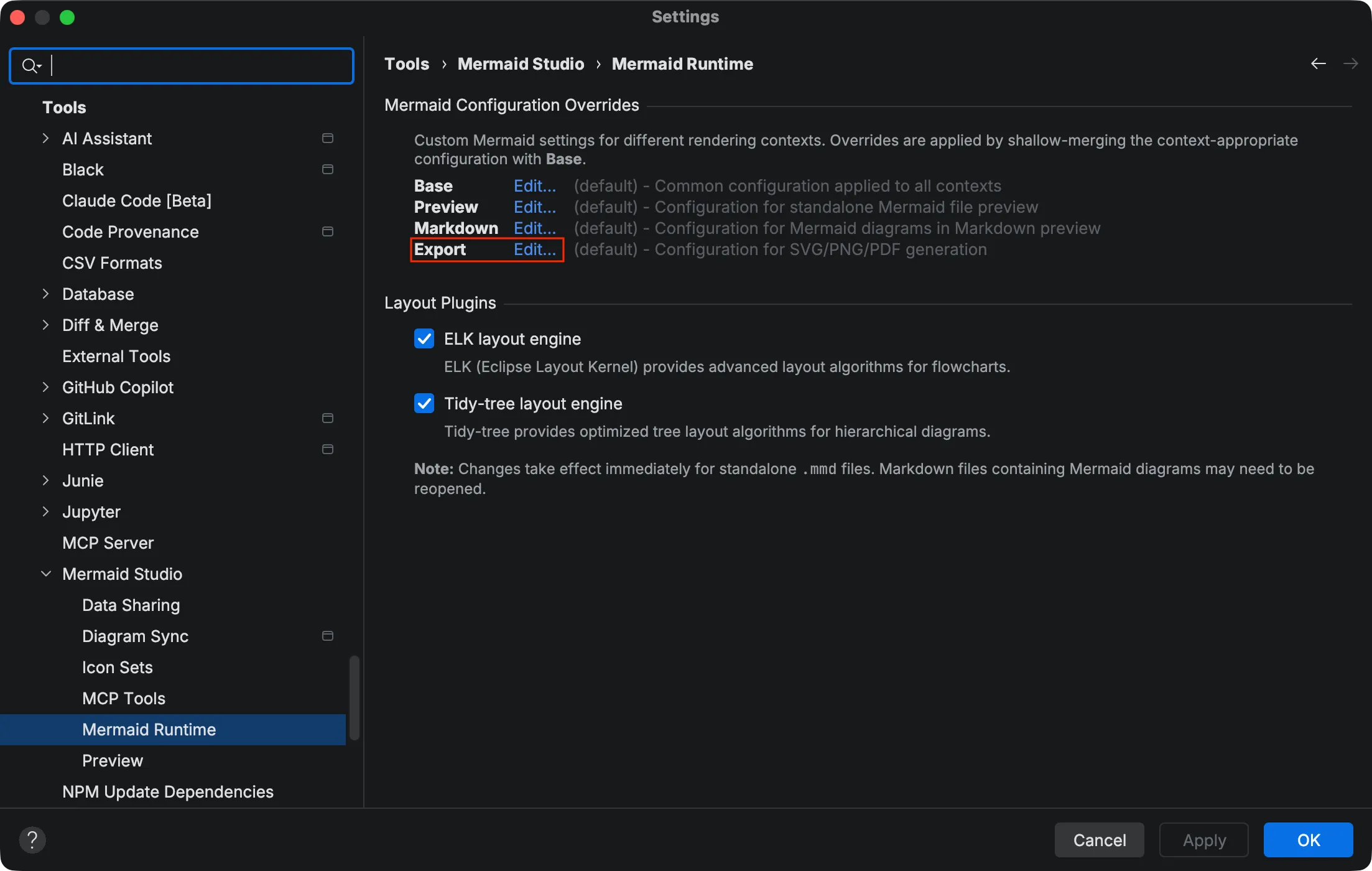
Go to Settings > Tools > Mermaid Studio > Mermaid Runtime.
-
Click Edit… next to Export.
-
Edit the YAML to set your preferred options, such as the
themeproperty.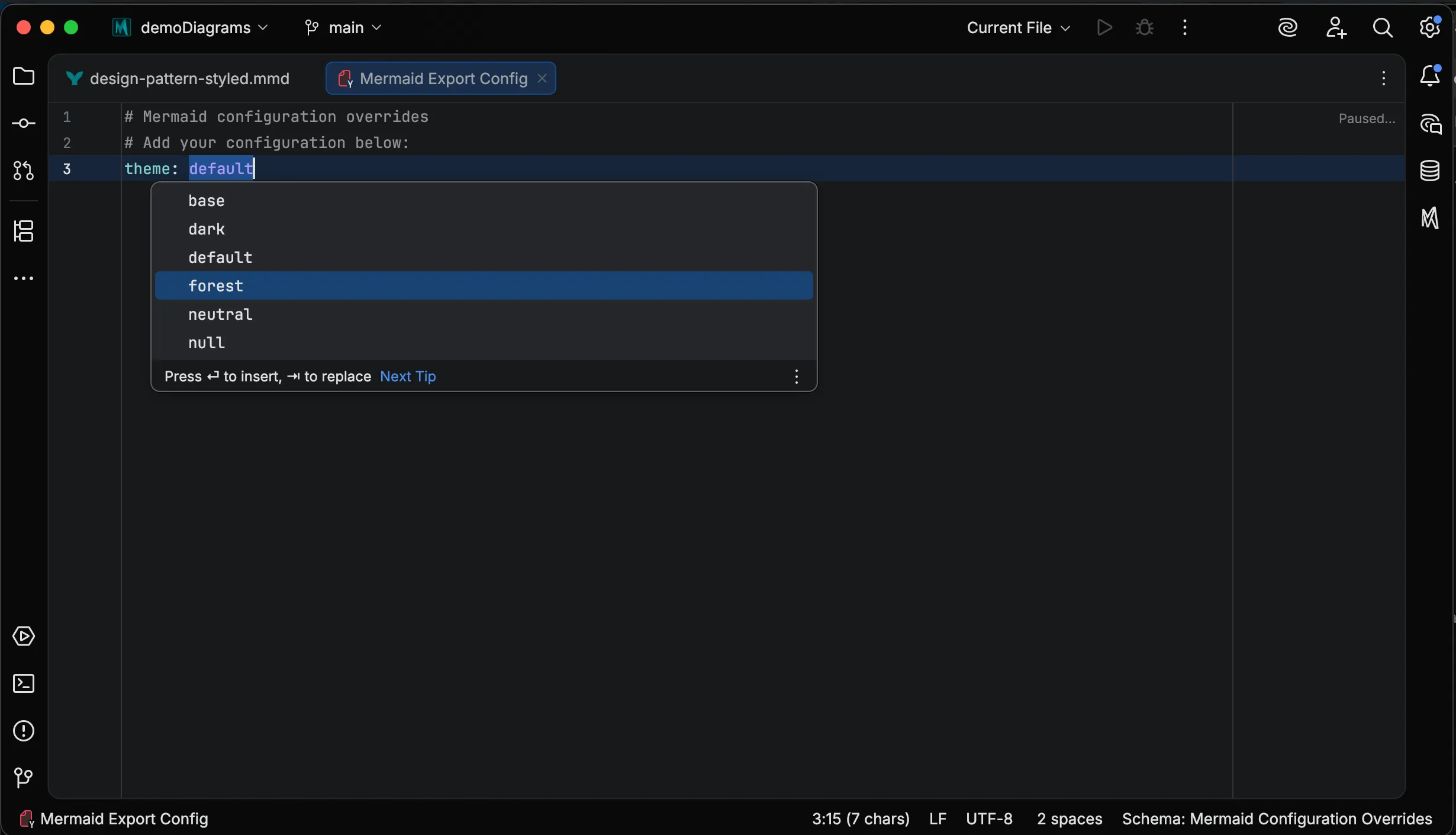
-
Save or close the editor to apply the changes.
You can also access this configuration directly from the export dialog by clicking Configure export settings….