
Venn Diagram
Last updated:
Mermaid Studio provides language support for Venn diagrams inside IntelliJ IDEA and other JetBrains IDEs. Venn diagrams show logical relationships between sets using overlapping circles, which makes them useful for comparing groups, illustrating shared characteristics, and visualizing set operations like unions and intersections.
Syntax Highlighting
Section titled “Syntax Highlighting”Syntax highlighting integrates directly with IntelliJ’s color scheme system, so diagram colors always match your editor theme.
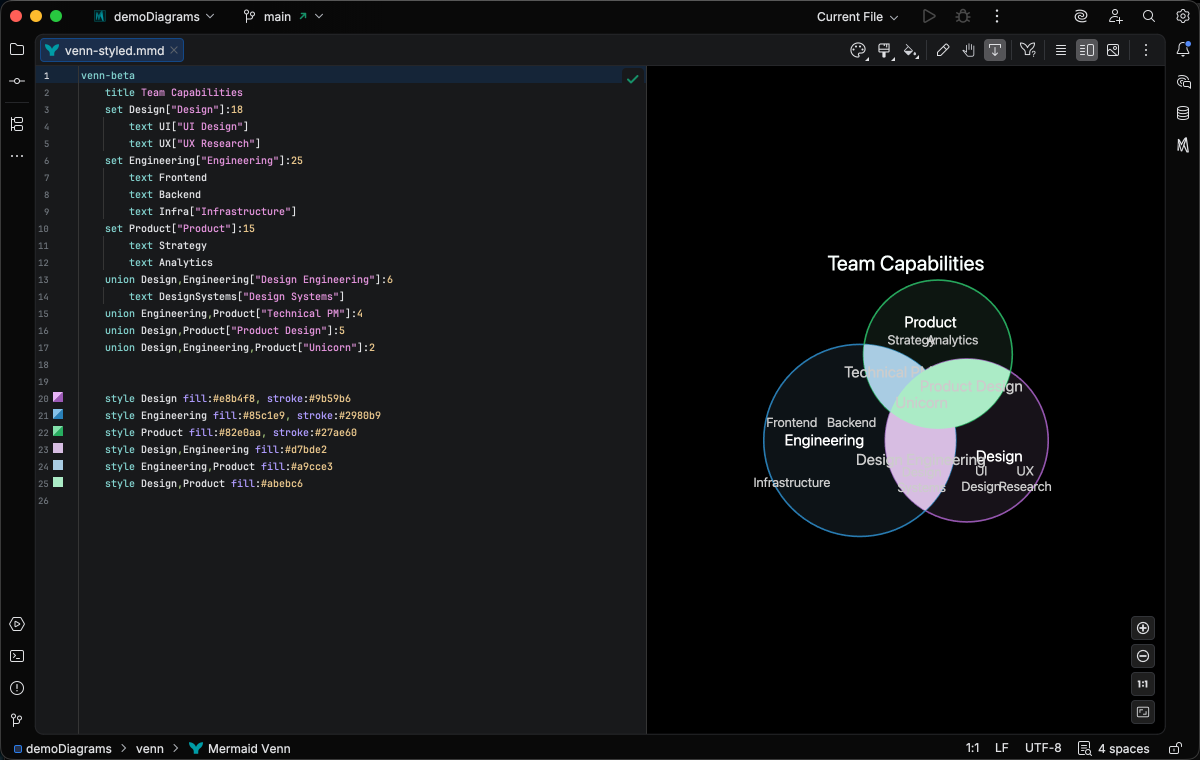
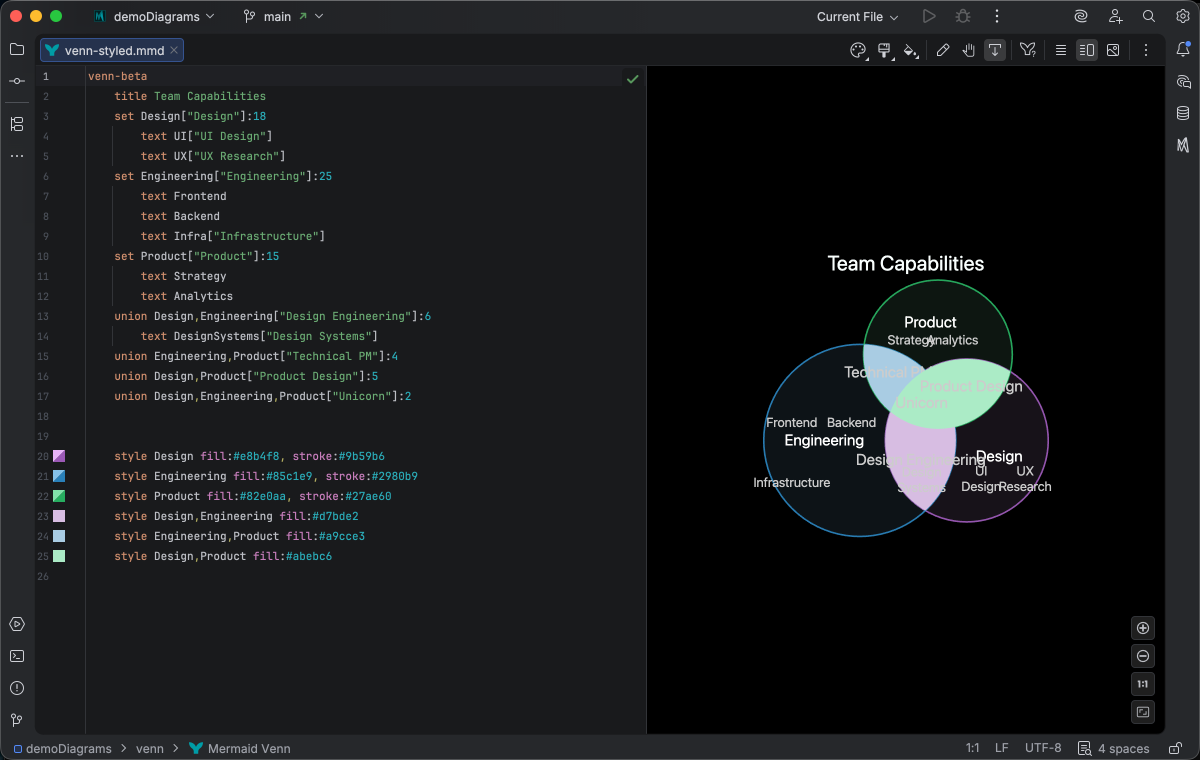
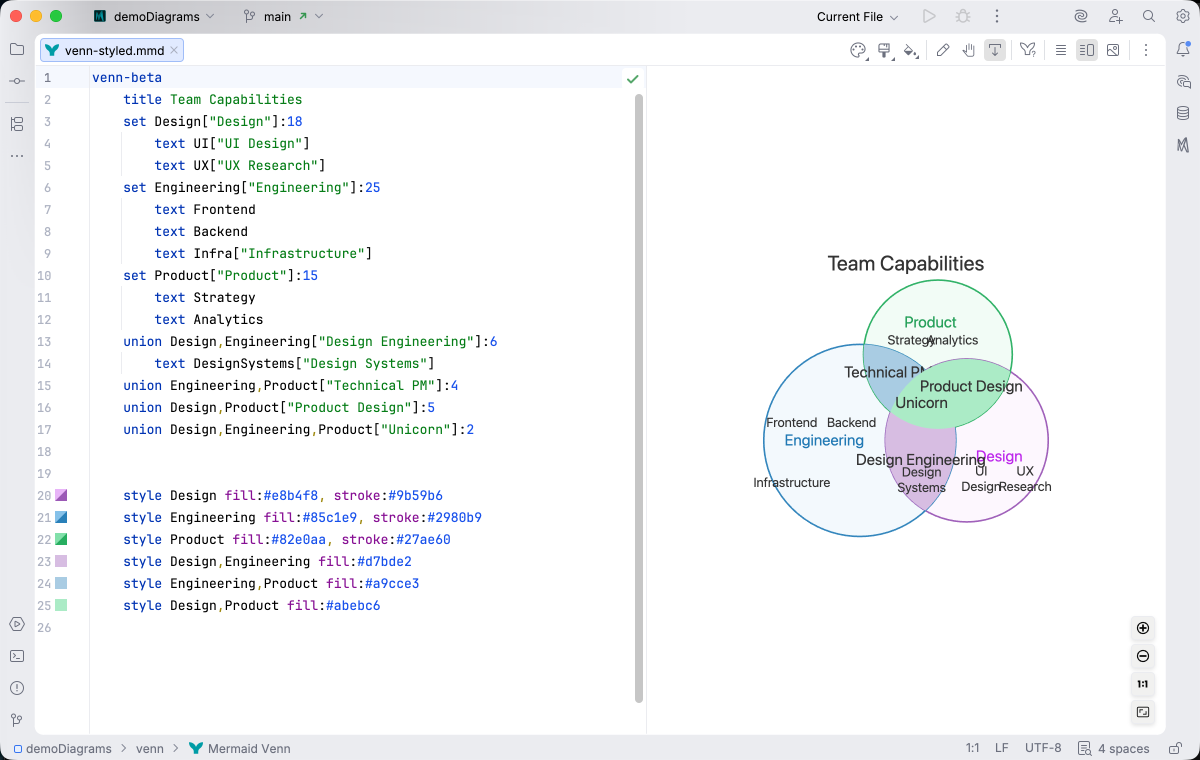
IDE Support
Section titled “IDE Support”The summary below shows the IDE support Mermaid Studio ships for Venn diagrams, grouped by capability.
Folding lets you collapse and expand structural blocks of the diagram source (subgraphs, frontmatter, multi-line strings) directly in the editor gutter. It keeps long diagrams navigable without forcing you to scroll past detail you don’t need right now.
Use the gutter triangles, Code → Folding, or the standard JetBrains shortcuts (
When the cursor sits next to a bracket, brace, or paren, Mermaid Studio highlights its matching pair across the whole diagram and lets you jump between them. This is especially valuable in nested syntax (subgraph blocks, JSON-style style strings, multi-shape labels) where it’s easy to lose track of which closer goes with which opener.
The line-comment action (
The formatter rewrites your diagram source to a canonical layout (consistent indentation, alignment of multi-line links, normalized whitespace around operators) without changing semantics.
It also clears up the whitespace mistakes that the Mermaid.js parser is picky about, normalizing spacing between tokens so the parser accepts the diagram on the first read instead of throwing a confusing syntax error.
Run it with Code → Reformat Code (
A dedicated Grammar-Kit parser backs the highlighting, so tokens are colored by what they mean in the diagram (a type reference versus a label versus a style), not just what they look like. The same parser validates the syntax as you type, flagging malformed statements in place instead of letting one mistake cascade through the file.
This is the foundation richer features build on; the same grammar drives completions, refactoring, and inspections.
Per-diagram annotators apply rule-based highlighting above the lexer and parser, running on every keystroke and painting their results directly in the editor. Mermaid Studio uses them across the full range the platform supports: highlighting that token types alone cannot decide (coloring a reference by what it resolves to), semantic errors and warnings (an edge pointing at an undefined node, an invalid direction value), and inline cues such as marking duplicate labels. Unlike inspections (configurable checks listed in Settings), annotators are always on, whether a rule ends in a color or a warning.
As you type, Mermaid Studio offers context-aware suggestions filtered to what’s valid at the cursor: node shapes, arrow types, keywords, icon names, identifiers, frontmatter keys, theme variables, and more. Completions cut down on typos and make the diagram syntax self-documenting.
Completion and validation for the YAML frontmatter block above the diagram body, driven by the diagram type’s slice of the Mermaid.js config schema. Config keys, enum values, and color properties complete as you type, and unknown or mistyped keys are flagged in place.
Hex, named, and rgb()/hsl() colors in style declarations get a small color swatch rendered in the gutter.
Click the swatch to open the IntelliJ color picker and pick a new value, and the source updates in place.
Inspections are static analyzers that run continuously and surface problems as you edit: duplicate IDs, undefined references, malformed syntax, deprecated patterns, missing required fields. Each inspection has a configurable severity (error, warning, info), can be suppressed inline, and most ship with a quick fix that resolves the issue with one keystroke.
This is where most of the editorial intelligence lives: a diagram type with rich inspections is much harder to break in subtle ways.
The Structure tool window (
Bundled and user-authored color themes with light and dark variants that apply to this diagram type from the Appearance menu or the Switch Diagram Theme action. Applying a theme writes the resolved theme variables into the diagram’s frontmatter, so the file renders the same outside the IDE.
Quick Syntax Reference
Section titled “Quick Syntax Reference”venn-beta title Software Skills
set Frontend["Frontend Dev"]:20 text React text CSS["Styling"]
set Backend["Backend Dev"]:15 text Node["Node.js"]
set DevOps:10
union Frontend,Backend["Fullstack"]:5 union Backend,DevOps["SRE"]:3 union Frontend,Backend,DevOps:1
style Frontend fill:#ff6b6b style Backend fill:#4ecdc4Key elements:
- Start with
venn-beta - Define sets with
set <id>["label"]:size - Define unions (intersections) with
union <id1>,<id2>["label"]:size - Place text items inside sets or unions with indented
textstatements:text <value>["label"] - Style sets or unions with
style <target> fill:#hex, stroke:#hex - Unions must reference at least 2 existing sets
For complete syntax details, see the Mermaid.js Venn documentation.