
Preview
Last updated:
Mermaid Studio’s diagram preview pane provides interactive pan and zoom controls along with customizable appearance settings. Access preview settings at Settings > Tools > Mermaid Studio > Preview.
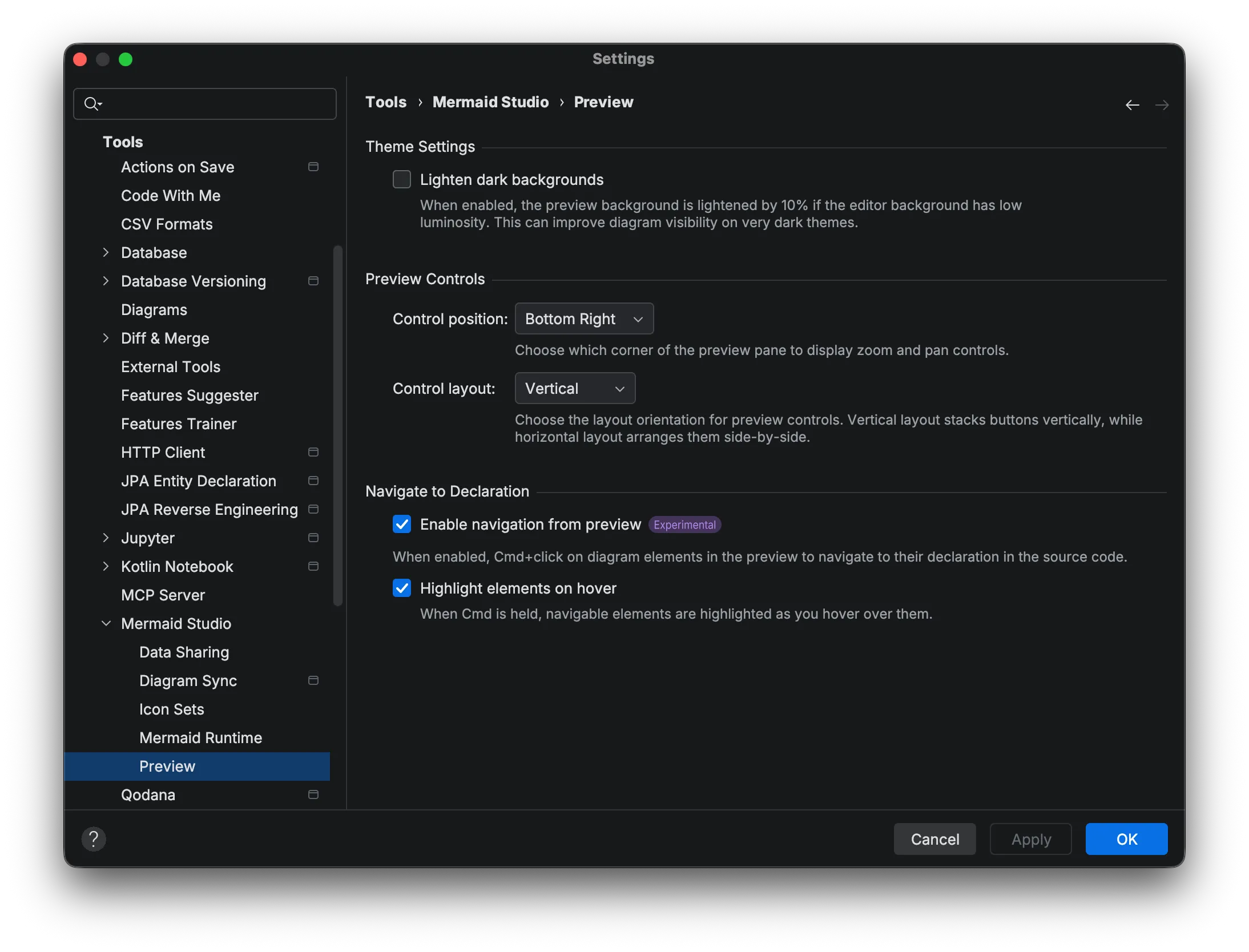
Theme Settings
Section titled “Theme Settings”Lighten Dark Backgrounds
Section titled “Lighten Dark Backgrounds”Some dark IDE themes have very dark gray or black backgrounds that can make certain diagram elements or edges difficult to see.
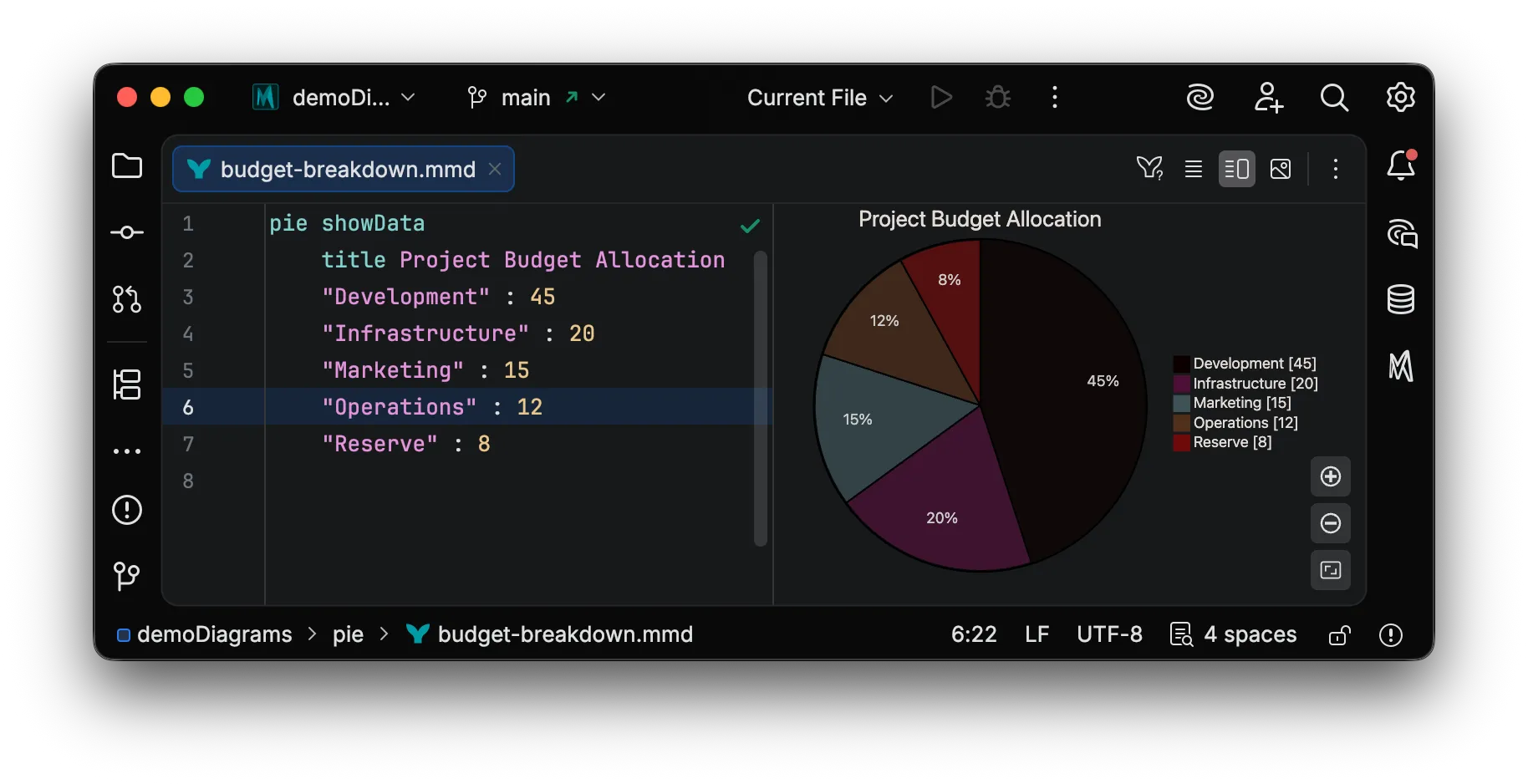
Enable Lighten Dark Backgrounds to lighten the preview background by 10%, improving diagram visibility.
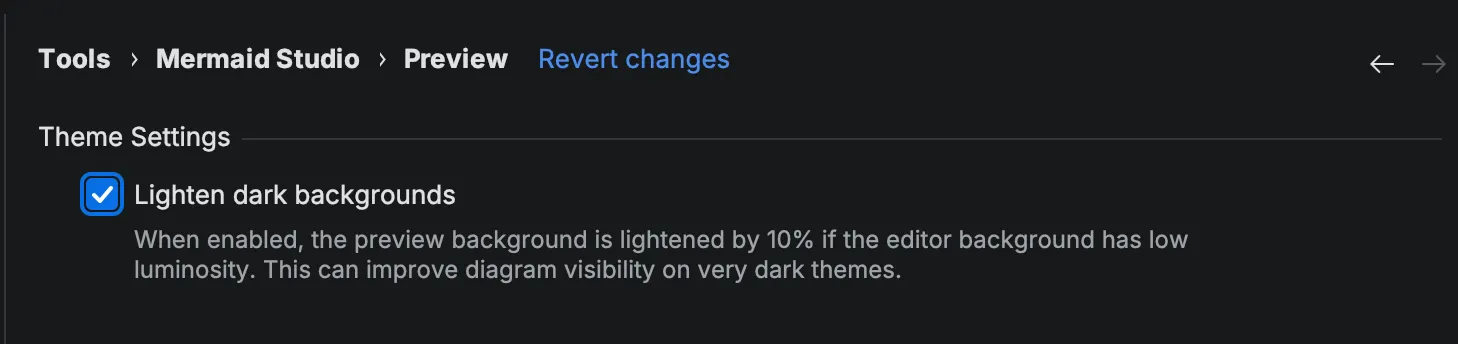
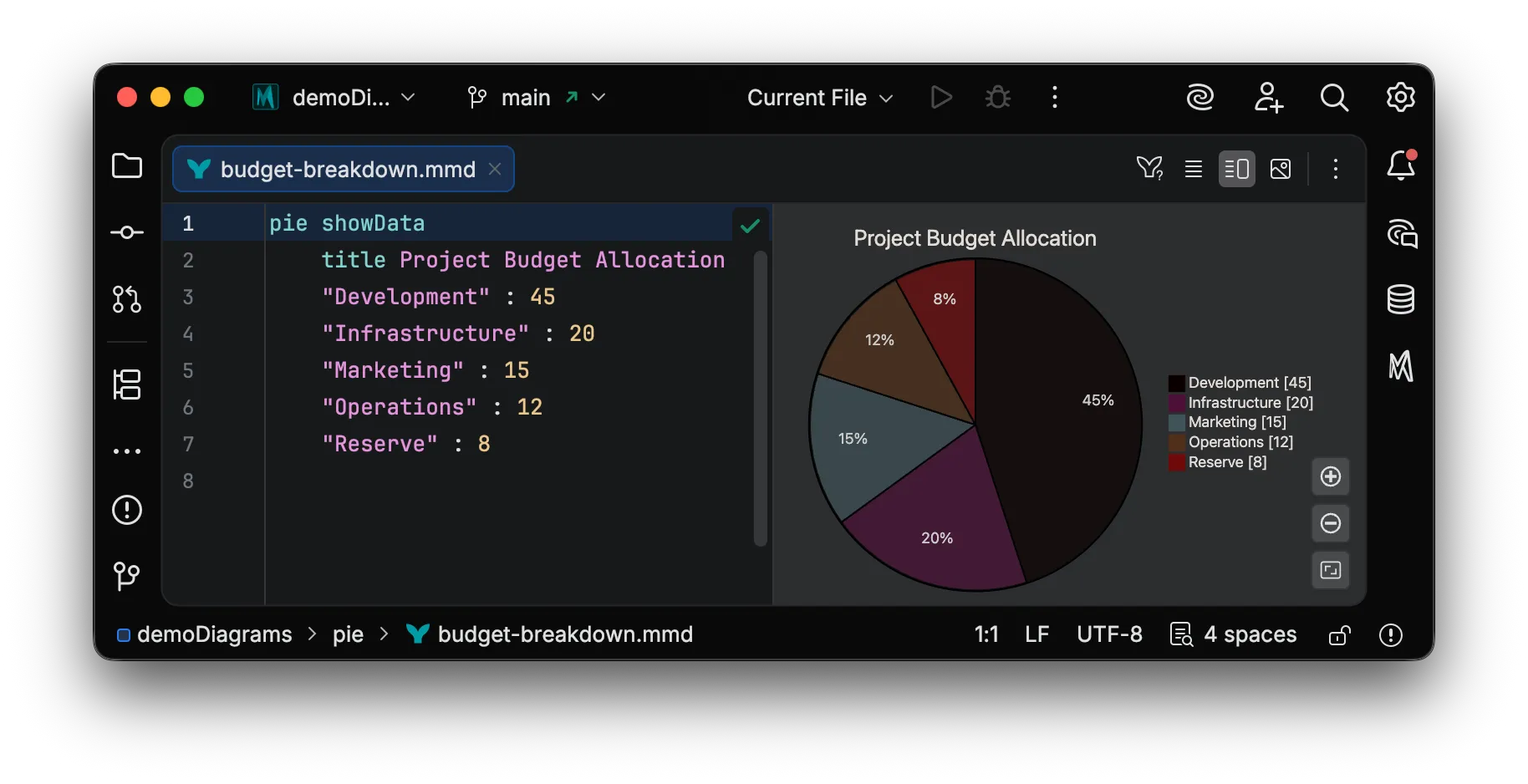
As seen below, enabling this option changes the preview background from very dark to a lighter shade, making black elements more visible:
Control Settings
Section titled “Control Settings”The preview includes zoom and pan controls that you can position and arrange to your preference.
Control Position
Section titled “Control Position”Choose where zoom and pan controls appear in the preview:
| Position | Description |
|---|---|
| Top Left | Controls in the upper-left corner |
| Top Right | Controls in the upper-right corner |
| Bottom Left | Controls in the lower-left corner |
| Bottom Right | Controls in the lower-right corner (default) |
Control Layout
Section titled “Control Layout”Choose how controls are arranged:
| Layout | Description |
|---|---|
| Vertical | Buttons stacked vertically (default) |
| Horizontal | Buttons arranged side-by-side |
Navigate to Declaration Expirmental
Section titled “Navigate to Declaration ”Navigate to Declaration lets you click an element in the preview while holding the
This feature is experimental and is only available for a subset of diagram types and elements.
| Setting | Description |
|---|---|
| Navigation from preview | Click elements to jump to their source definition |
| Highlight on hover | Show visual feedback when hovering over navigable elements |