
Diagram Validation
Last updated:
Mermaid Studio provides instant validation as you type, highlighting errors at their exact locations and detecting a variety of issues that Mermaid.js alone cannot catch.
Robust Syntax Error Detection and Reporting
Section titled “Robust Syntax Error Detection and Reporting”Mermaid.js stops at the first syntax error it encounters, often with a generic message that doesn’t pinpoint the problem. Mermaid Studio uses proprietary parsers built specifically for IDE analysis and use them to analyze your entire diagram and report all errors at their exact locations.
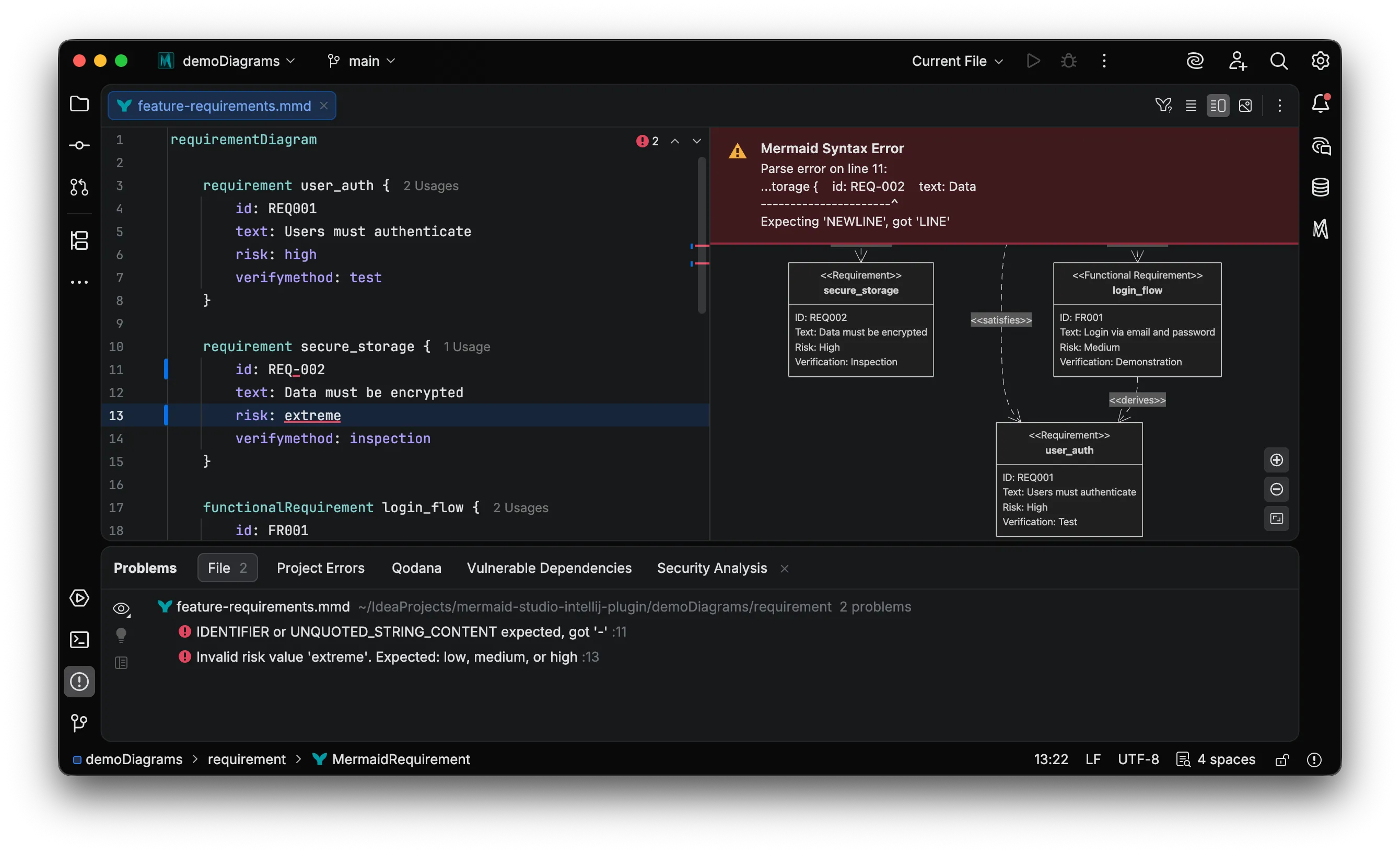
This means you can fix several issues in one pass rather than discovering them one at a time through repeated render attempts.
Inspections
Section titled “Inspections”Beyond syntax errors, Mermaid Studio includes over 100 inspections that detect logical issues, deprecated syntax, and common mistakes. Inspections appear as warnings or hints in the editor without blocking diagram rendering.
Deprecated Syntax
Section titled “Deprecated Syntax”Detects outdated syntax patterns and offers quick fixes to modernize your diagrams.

For example, Mermaid’s init directive (%%{init: ...}%%) is deprecated in favor of YAML frontmatter.
Mermaid Studio flags this and provides a quick fix to convert automatically.
Unresolved References
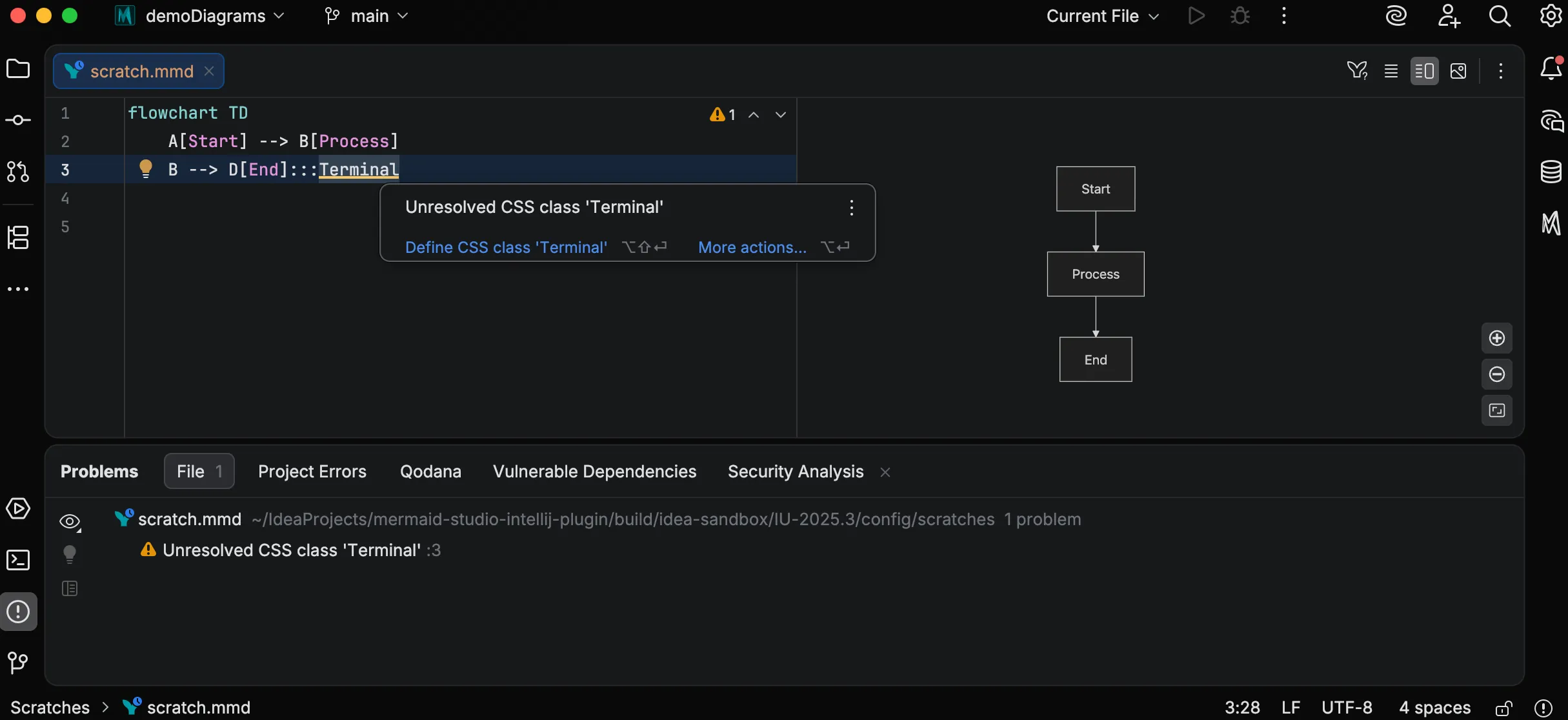
Section titled “Unresolved References”Flags references to elements that don’t exist, such as:
- CSS classes used but never defined
- Icons not found in enabled icon sets
- Entity, class, or state names that don’t match any declaration
Quick fixes can often create missing definitions for you.
Duplicate Definitions
Section titled “Duplicate Definitions”Warns when you define the same element twice, which can cause unexpected merge behavior or render failures.
Unused Definitions
Section titled “Unused Definitions”Identifies CSS classes, entities, or other elements that are defined but never referenced. These may indicate leftover code that can be removed or missing references that should be added.
Content Safety
Section titled “Content Safety”Detects content that will be silently modified or stripped by Mermaid’s rendering pipeline:
- Unclosed HTML-like tags (e.g.,
<My Chart) in text content that DOMPurify will strip, causing unexpected content loss - Unsupported Unicode characters that certain diagram types cannot render
Logical Errors
Section titled “Logical Errors”Catches semantic issues that are syntactically valid but logically problematic:
- Circular dependencies in Gantt task scheduling
- Invalid temporal order where a task’s start date falls after its end date
- Unreachable states with no incoming transitions
- Dead-end states with no outgoing transitions and not marked as final
- Invalid lifecycle operations like deactivating an inactive participant in sequence diagrams
Issues like these can lead to unpredictable rendering output or even outright failure, so catching them early helps ensure your diagrams behave as expected. When Mermaid.js does catch these problems, it typically reports them as a generic render failure without pointing to a specific line. Mermaid Studio traces many of them back to the exact lines responsible.
Quick Fixes
Section titled “Quick Fixes”Many inspections include quick fixes that resolve issues automatically.
Place your cursor on a warning and press
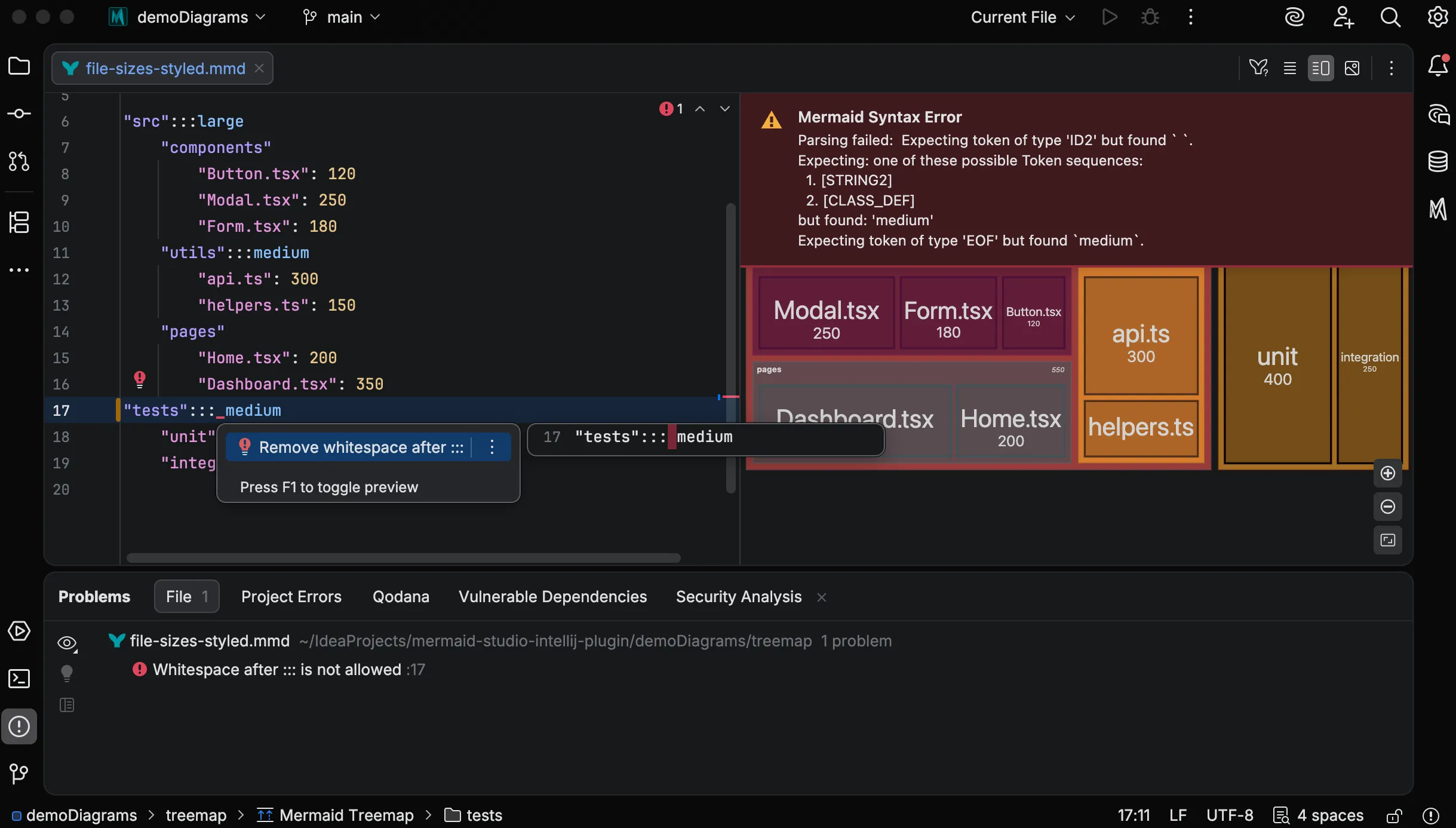
Examples of quick fixes:
- Convert to YAML frontmatter for deprecated init directives
- Create CSS class definition for unresolved class references
- Remove redundant statement for invalid lifecycle operations
Mermaid.js Parser Diagnostics Experimental
Section titled “Mermaid.js Parser Diagnostics ”In addition to Mermaid Studio’s built-in validation, you can optionally surface errors from the Mermaid.js renderer directly in your editor. When enabled, this inspection captures parser errors reported by the live preview and highlights them inline, letting you see Mermaid.js errors without checking the preview panel.
This is useful for catching issues that Mermaid.js reports but that Mermaid Studio’s built-in parsers may not yet cover.
Enabling the Inspection
Section titled “Enabling the Inspection”Mermaid.js parser diagnostics are disabled by default. To enable them:
- Go to Settings > Editor > Inspections
- Navigate to Mermaid > General
- Enable Mermaid.js parser diagnostics
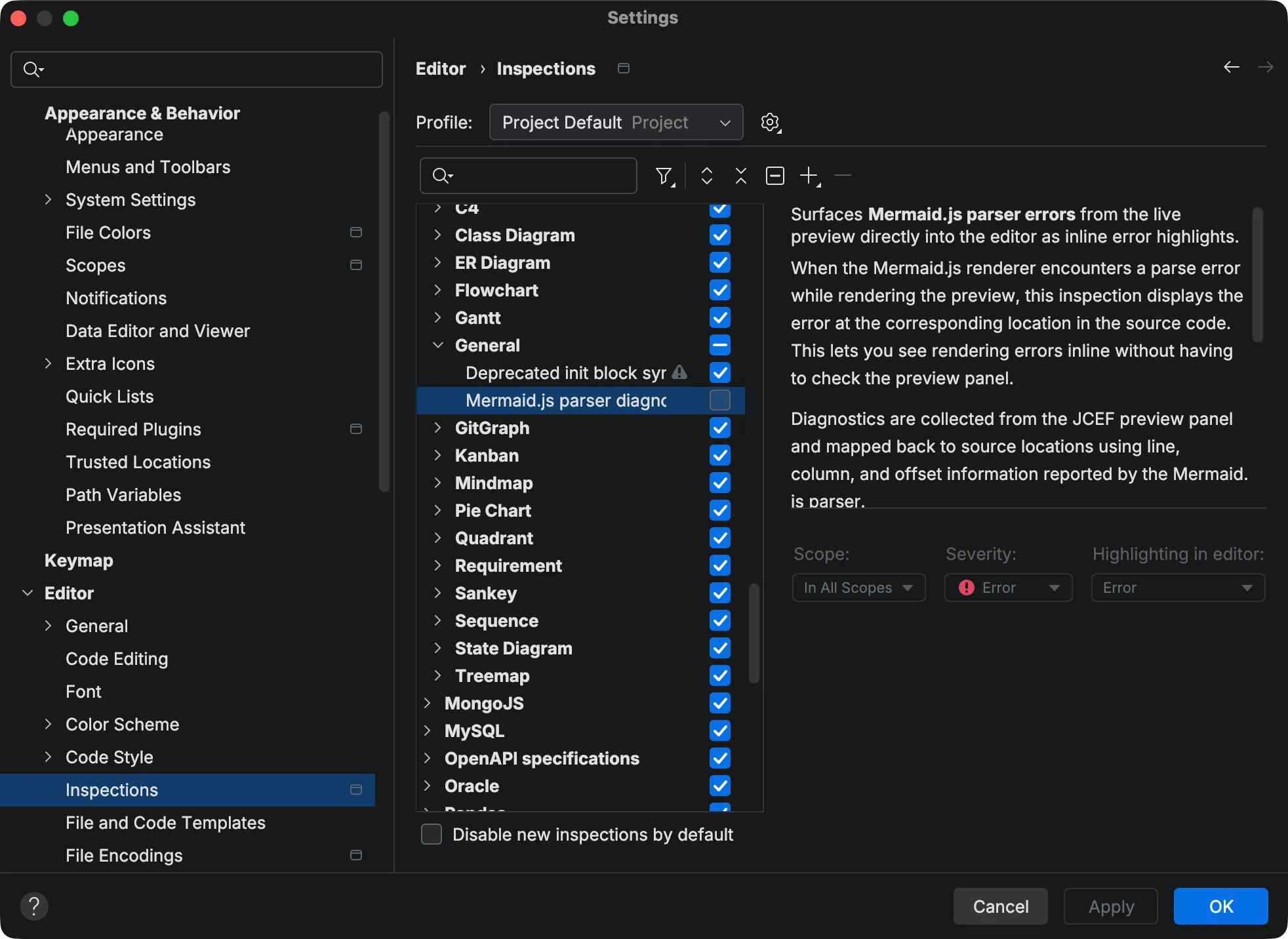
The inspection requires the live preview to be open, since diagnostics are collected from the Mermaid.js renderer running in the preview panel. It works for both .mmd files and Mermaid code blocks in Markdown files.
Error Location
Section titled “Error Location”Mermaid.js error messages often include imprecise or missing location information. Rather than displaying the raw position reported by the parser, Mermaid Studio uses heuristics to map each diagnostic to a more accurate location in your source code. The result is usually close, but may occasionally highlight a slightly different range than where the actual problem is.
Overlap Suppression
Section titled “Overlap Suppression”When both Mermaid Studio’s built-in validation and Mermaid.js report an error at the same location, the Mermaid.js diagnostic is automatically suppressed to avoid duplicate error markers. This keeps the editor clean while still surfacing errors that only Mermaid.js detects.
Registry Keys
Section titled “Registry Keys”Two registry keys provide additional control over the diagnostics pipeline. Access the registry via Help > Find Action (
| Key | Default | Description |
|---|---|---|
ms.preview.parser.error.diagnostics.enabled | true | Controls whether the preview collects and stores parser diagnostics. When false, no diagnostics are collected regardless of the inspection’s enabled state. |
ms.preview.parser.error.overlap.suppression.enabled | true | Controls whether Mermaid.js diagnostics that overlap with existing error highlights are suppressed. |
Viewing Problems
Section titled “Viewing Problems”Errors and warnings appear as underlines in the editor. Hover over an issue to see a description of the problem.
To see all issues at once, open View > Tool Windows > Problems. Click any entry to jump directly to its location.
Works in Markdown
Section titled “Works in Markdown”Validation works in Mermaid code blocks inside Markdown files, giving you the same error detection and inspections regardless of where you write your diagrams.