
Print Diagrams
Last updated:
Mermaid Studio lets you print diagrams directly from the IDE with full control over page setup, margins, and scaling. You can also save diagrams as PDF files using your system’s print-to-PDF feature.
How to Print
Section titled “How to Print”-
Open your Mermaid file in the editor or, in the case of a markdown file, pop out the diagram you want to print into its own preview window.
-
Use one of these methods:
- Press
Command + Option + P CommandOptionP Control + Alt + P CtrlAltP - Search for Print Diagram in the Search Anywhere dialog (
Shift + Shift ShiftShift Shift + Shift ShiftShift )
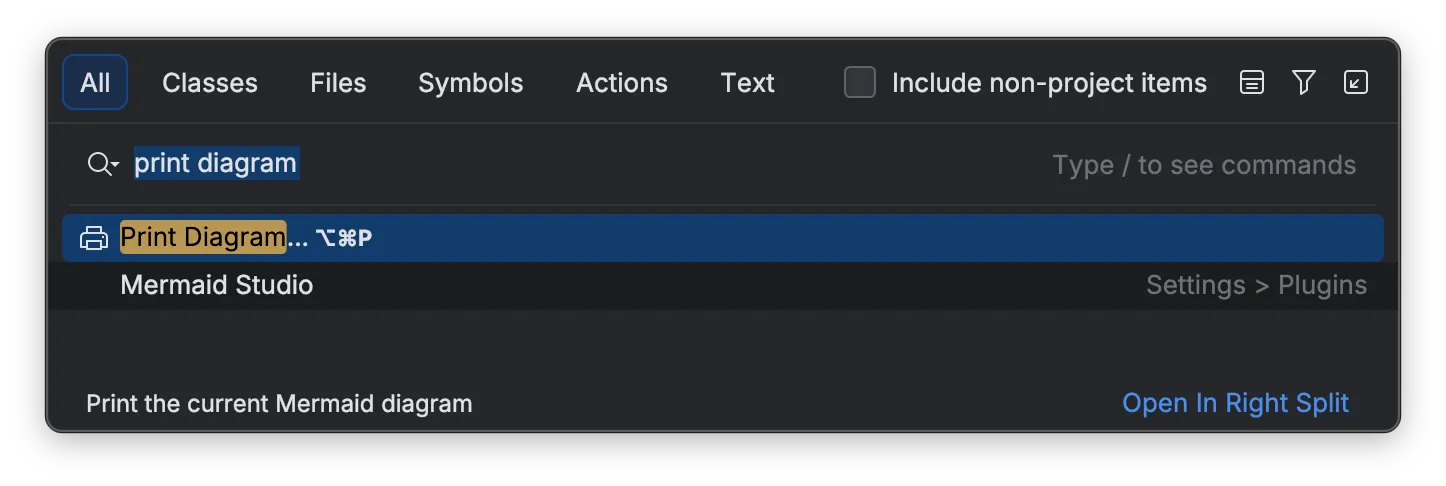
- Press
-
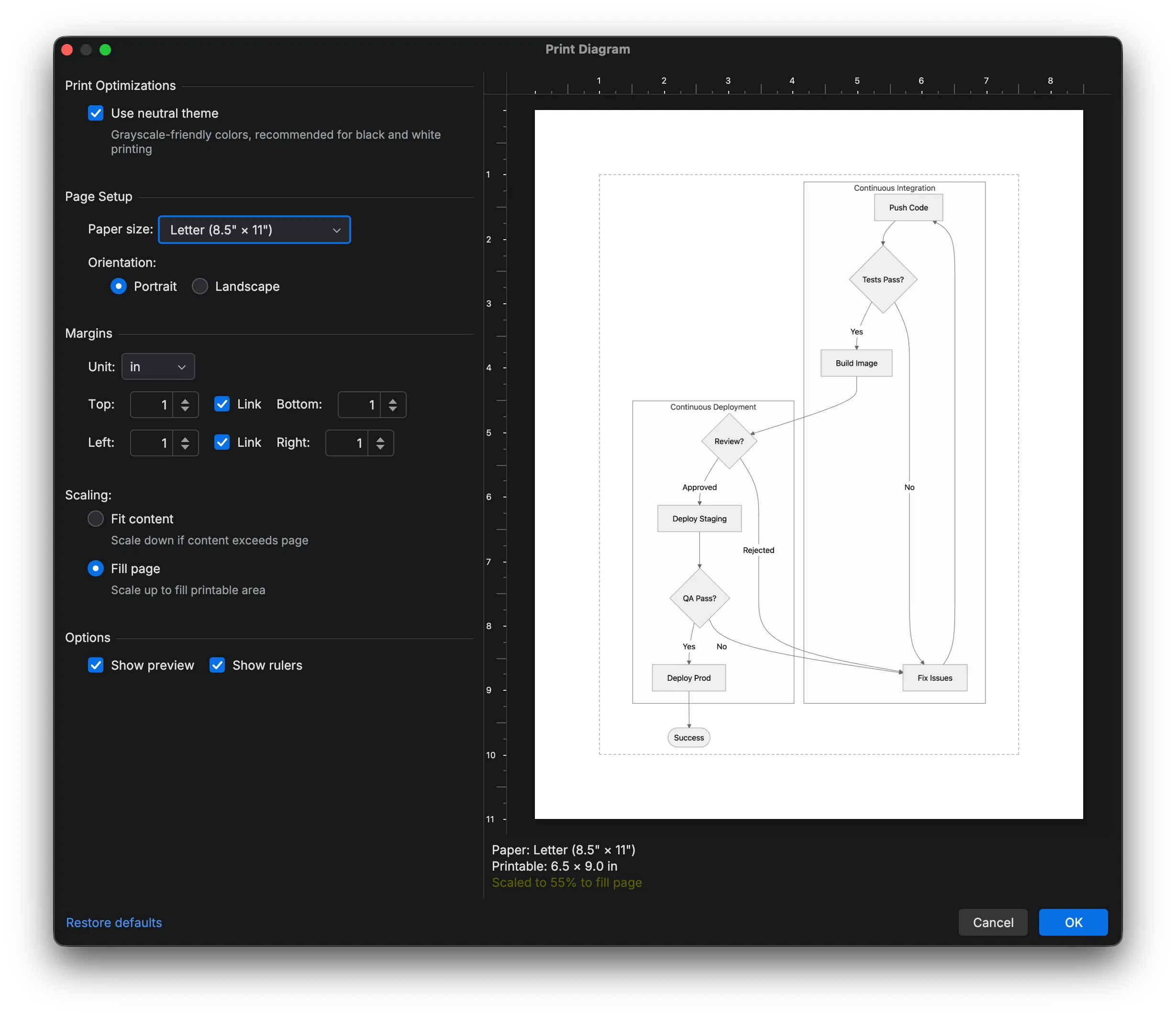
Configure print options in the dialog. A live preview shows how your diagram will appear on the page.
-
Click OK to open the system print dialog.
-
Select your printer and click Print.
Print Options
Section titled “Print Options”Print Optimizations
Section titled “Print Optimizations”Use neutral theme: Renders the diagram using Mermaid’s neutral theme, which uses grayscale-friendly colors.
Recommended for black and white printers or to reduce ink usage.
Page Setup
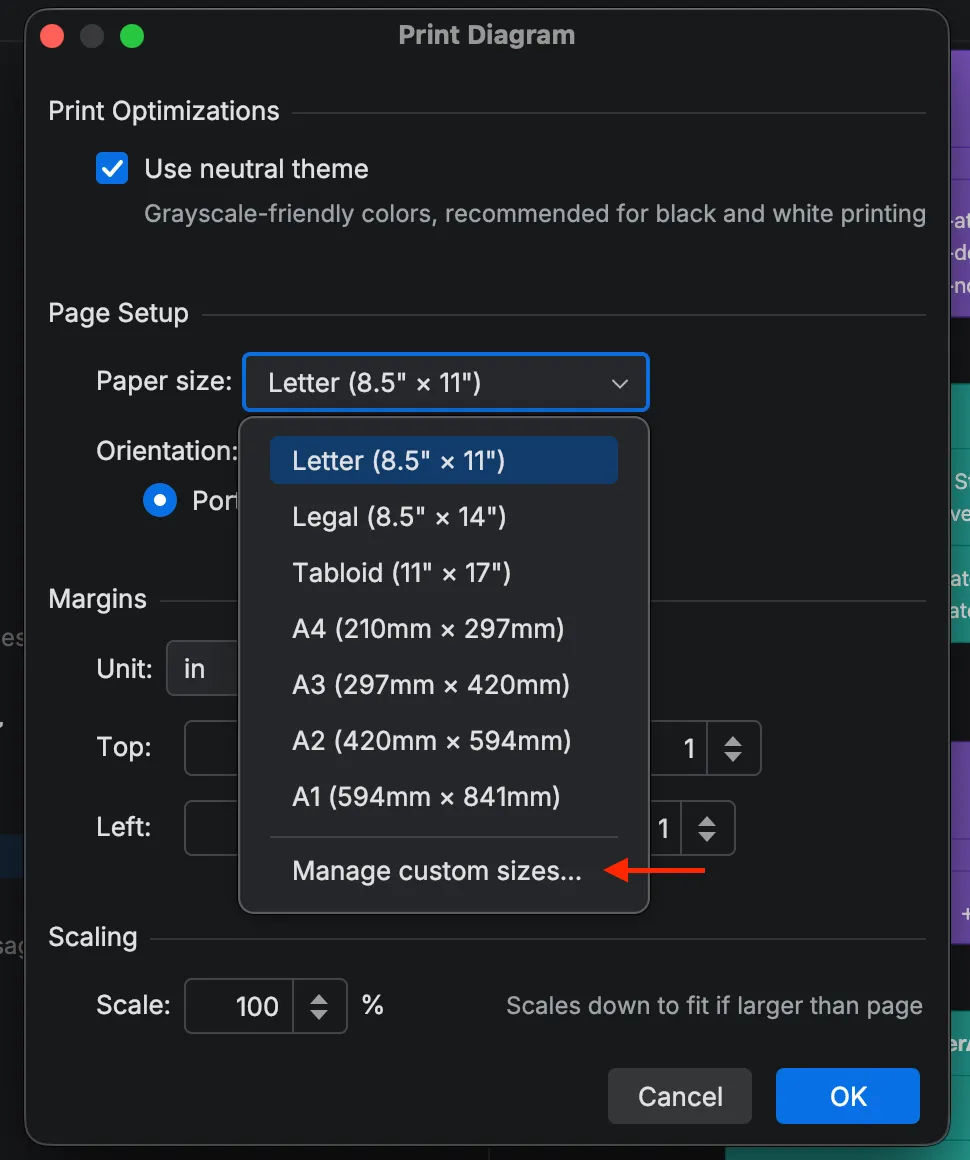
Section titled “Page Setup”Paper Size: Choose from standard sizes or create custom ones.
| Size | Dimensions |
|---|---|
| Letter | 8.5” × 11” |
| Legal | 8.5” × 14” |
| Tabloid | 11” × 17” |
| A4 | 210 × 297mm |
| A3 | 297 × 420mm |
| A2 | 420 × 594mm |
| A1 | 594 × 841mm |
Orientation: Portrait (taller than wide) or Landscape (wider than tall).
Custom Paper Sizes
Section titled “Custom Paper Sizes”To add a custom paper size:
-
Click the paper size dropdown and select Manage custom sizes…
-
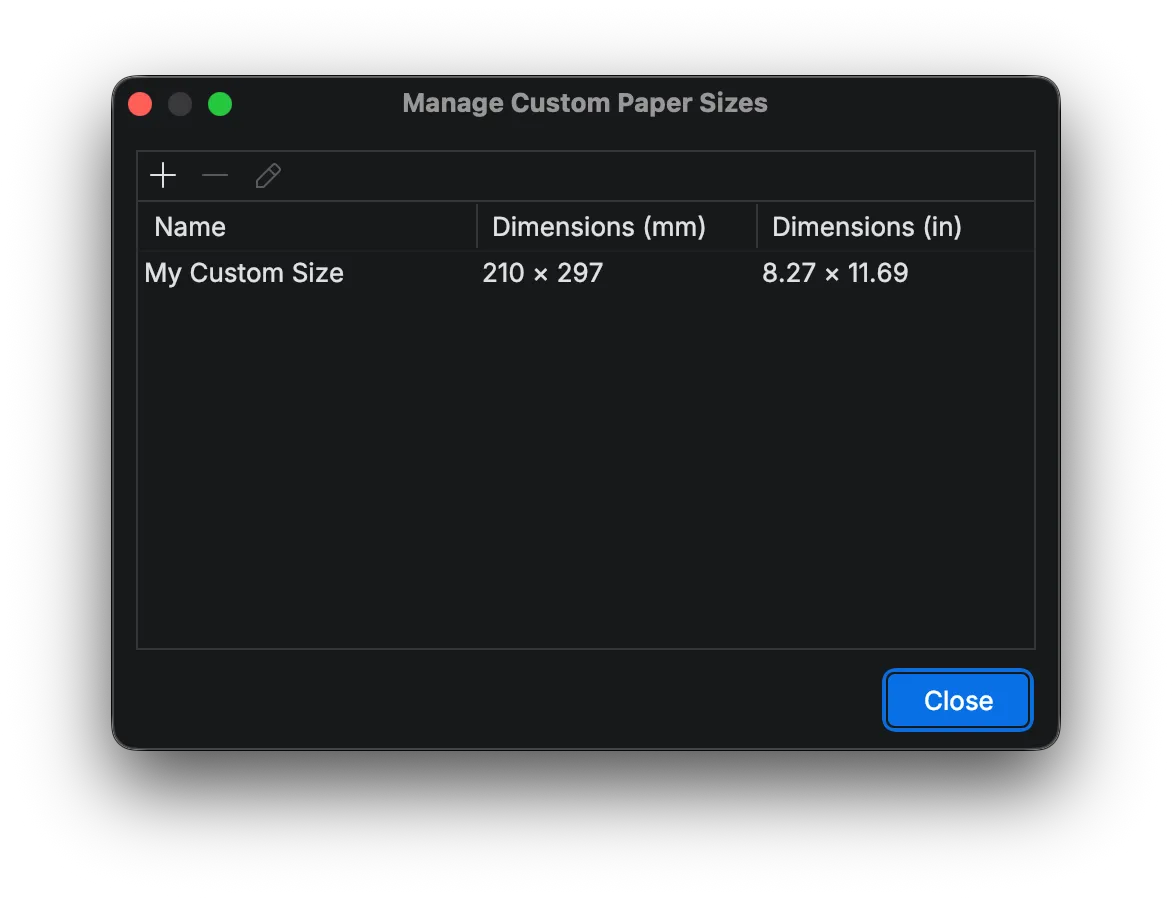
In the Custom Sizes dialog, click the + button to add a new size.
-
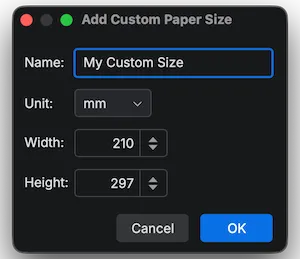
Enter a name, choose units (mm or inches), and specify dimensions.
-
Click OK to save.
Custom sizes appear in the paper size dropdown alongside the built-in sizes.
Margins
Section titled “Margins”Configure the space between your diagram and the edge of the paper.
- Unit: Choose millimeters (mm) or inches (in)
- Top/Bottom: Vertical spacing
- Left/Right: Horizontal spacing
- Link checkboxes: When enabled, changing one margin adjusts its partner proportionally
Default margins are 1 inch (25.4mm) on all sides.
Scaling
Section titled “Scaling”Fit content (default) : Prints the diagram at its natural size. If the diagram is larger than the printable area, it scales down to fit.
Fill page : Scales the diagram to fill the entire printable area.
Save as PDF
Section titled “Save as PDF”Use your operating system’s print-to-PDF feature:
macOS: In the system print dialog, click the PDF dropdown and select Save as PDF…
Windows: Select Microsoft Print to PDF as the printer.
Linux: Select Print to File as the printer and choose PDF format (when using CUPS-PDF).