
Diagram Sync
Last updated:
Diagram Sync automatically exports your Mermaid diagrams to SVG and or PNG images whenever you save or close a Mermaid file (.mmd).
This enables you to effortlessly keep your documentation images up-to-date without manual export steps.
How It Works
Section titled “How It Works”When you save or close a Mermaid file, Diagram Sync:
- Checks if the file matches any of your configured patterns
- Renders the diagram using Mermaid Studio’s Mermaid diagram export service
- Saves the output as SVG and/or PNG in the same directory as the source file with an appended extension.
For example, saving docs/architecture.mmd creates docs/architecture.mmd.svg alongside it.
Getting Started
Section titled “Getting Started”-
Open Settings (
Command + Comma Command, Control + Alt + S CtrlAltS ) and navigate to Mermaid Studio > Diagram Sync.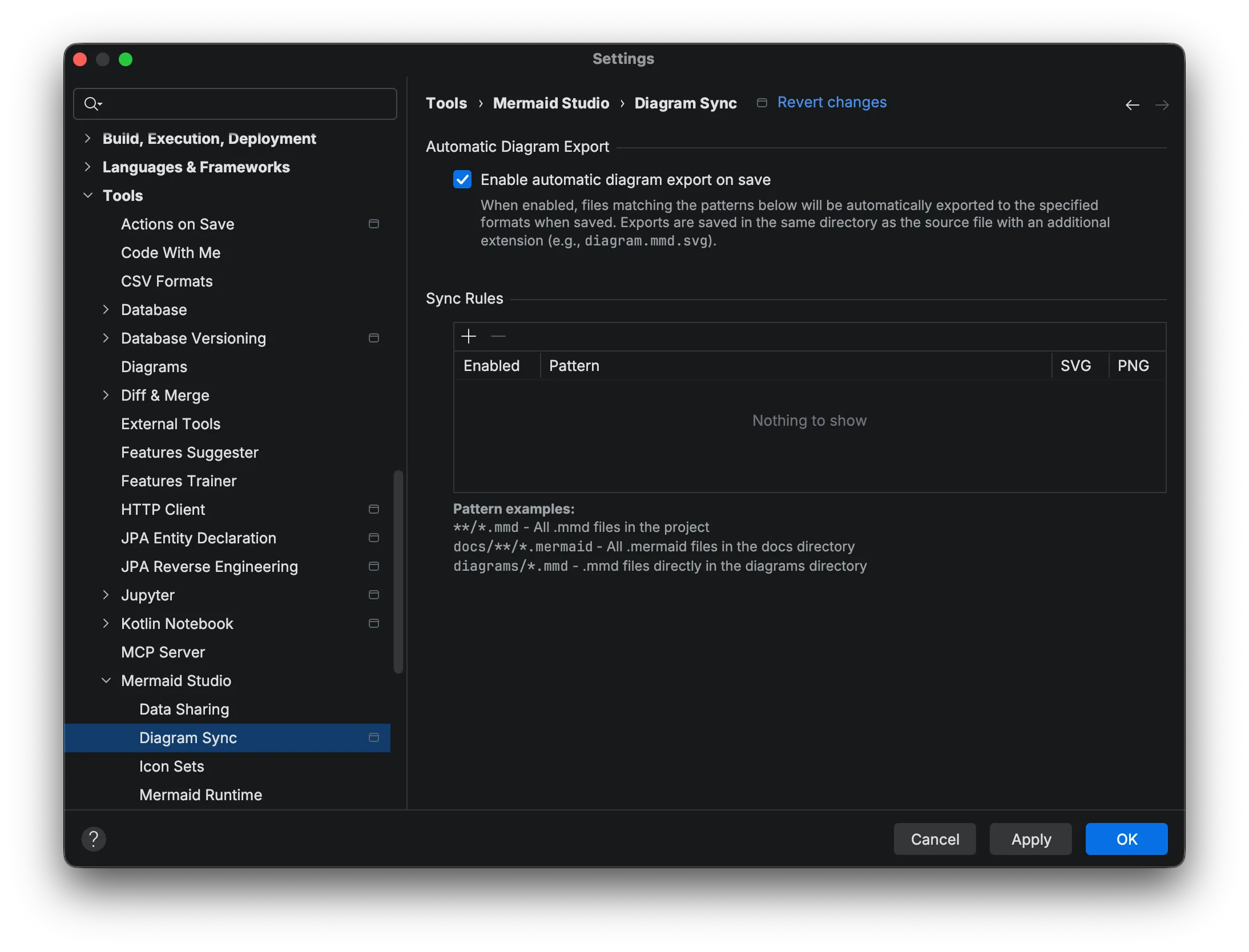
-
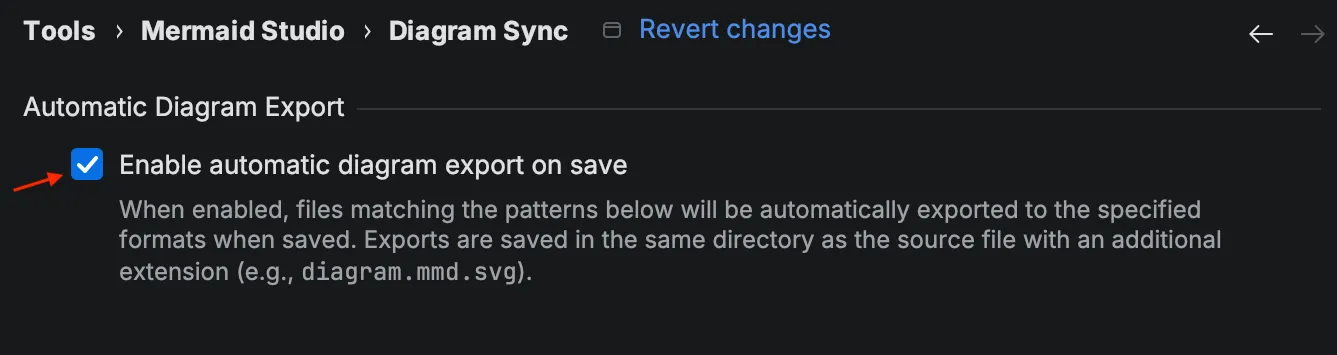
Check Export on save.
-
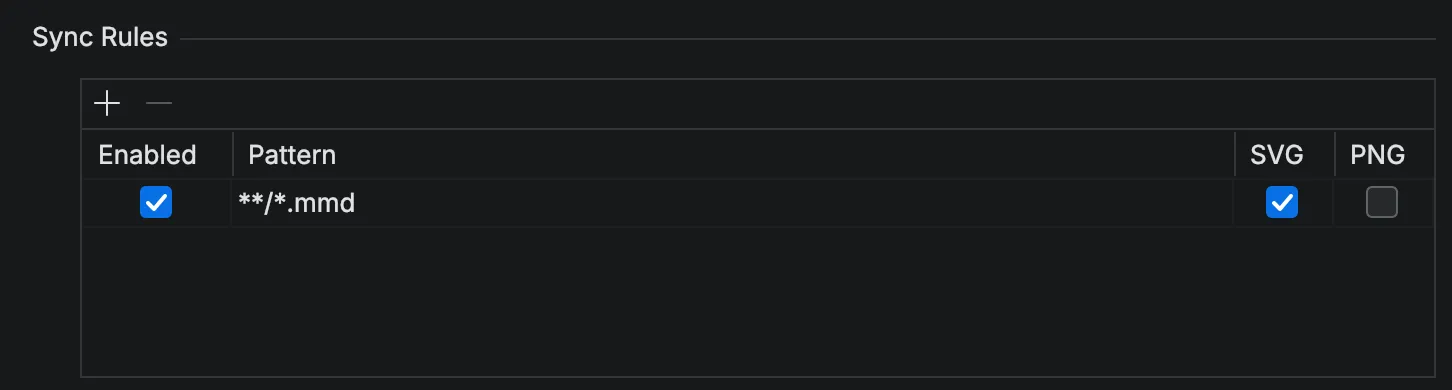
Click the + button to add a sync rule.
-
Enter a pattern to match your diagram files and select output formats (SVG, PNG, or both).
-
Click Apply.
Sync Rules
Section titled “Sync Rules”Each rule specifies which files to export and in what format:
| Column | Description |
|---|---|
| Enabled | Toggle this rule on/off |
| Pattern | Glob pattern matching file paths |
| SVG | Export to SVG format |
| PNG | Export to PNG format |
Pattern Examples
Section titled “Pattern Examples”| Pattern | What It Matches |
|---|---|
**/*.mmd | All .mmd files anywhere in the project |
**/*.mermaid | All .mermaid files anywhere in the project |
docs/**/*.mmd | .mmd files in the docs folder and subfolders |
diagrams/*.mmd | .mmd files directly in the diagrams folder |
You can create multiple rules to handle different directories differently. If a file matches multiple rules that specify different output formats, artifacts from all matched rule formats are generated without generating any duplicate artifacts.
Absolute paths are treated as relative to the project root. Diagram Sync cannot be enabled for arbitrary files outside the project.
Status Bar Widget
Section titled “Status Bar Widget”When you have a Mermaid file open, a sync status icon appears in the bottom-right status bar.

The following badge colors indicate the current sync status:
| Badge | Status | Meaning |
|---|---|---|
| Green | Synced | Exports are up-to-date |
| Yellow | Out of Sync | Source changed since last export |
| Red | Error | Export failed |
| None | No rules match this file |
When a file is syncing, an animated spinner is shown in place of the sync icon.
Hover over the icon to see the current status, file name, and last synced timestamp.
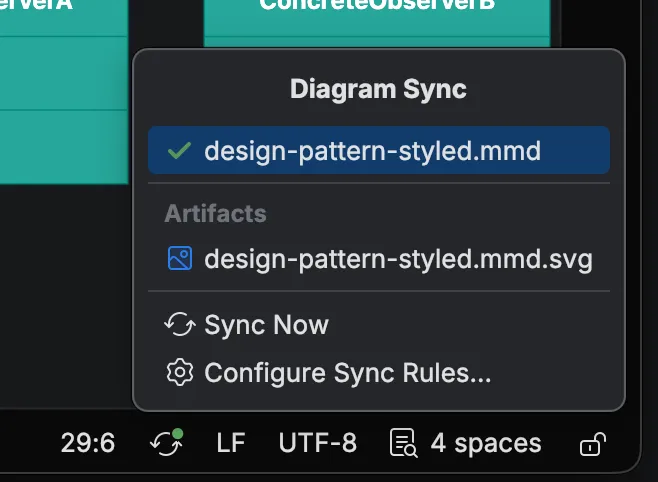
Click the icon to open a popup with status details, links to generated files, and a Sync Now button.
Manual Sync
Section titled “Manual Sync”To force an immediate export:
-
Click the status bar widget.
-
Click Sync Now.
This triggers an export outside the normal save-based workflow.
Artifact Locations
Section titled “Artifact Locations”Artifacts are saved in the same directory as your source file with an appended extension:
| Source File | SVG Artifact | PNG Artifact |
|---|---|---|
flow.mmd | flow.mmd.svg | flow.mmd.png |
docs/arch.mermaid | docs/arch.mermaid.svg | docs/arch.mermaid.png |
Error Handling
Section titled “Error Handling”If a diagram has syntax errors, Diagram Sync:
- Displays a red error icon in the status bar widget
- Logs the error details to the IDE log
- Preserves your existing artifacts (doesn’t delete or corrupt them)
Fix the syntax error and save again to retry the export.
Settings Persistence
Section titled “Settings Persistence”Settings are stored per-project in .idea/mermaidstudio/sync.xml.
You can share settings with your team by committing this file to version control.