Semantic Syntax Highlighting
Last updated:
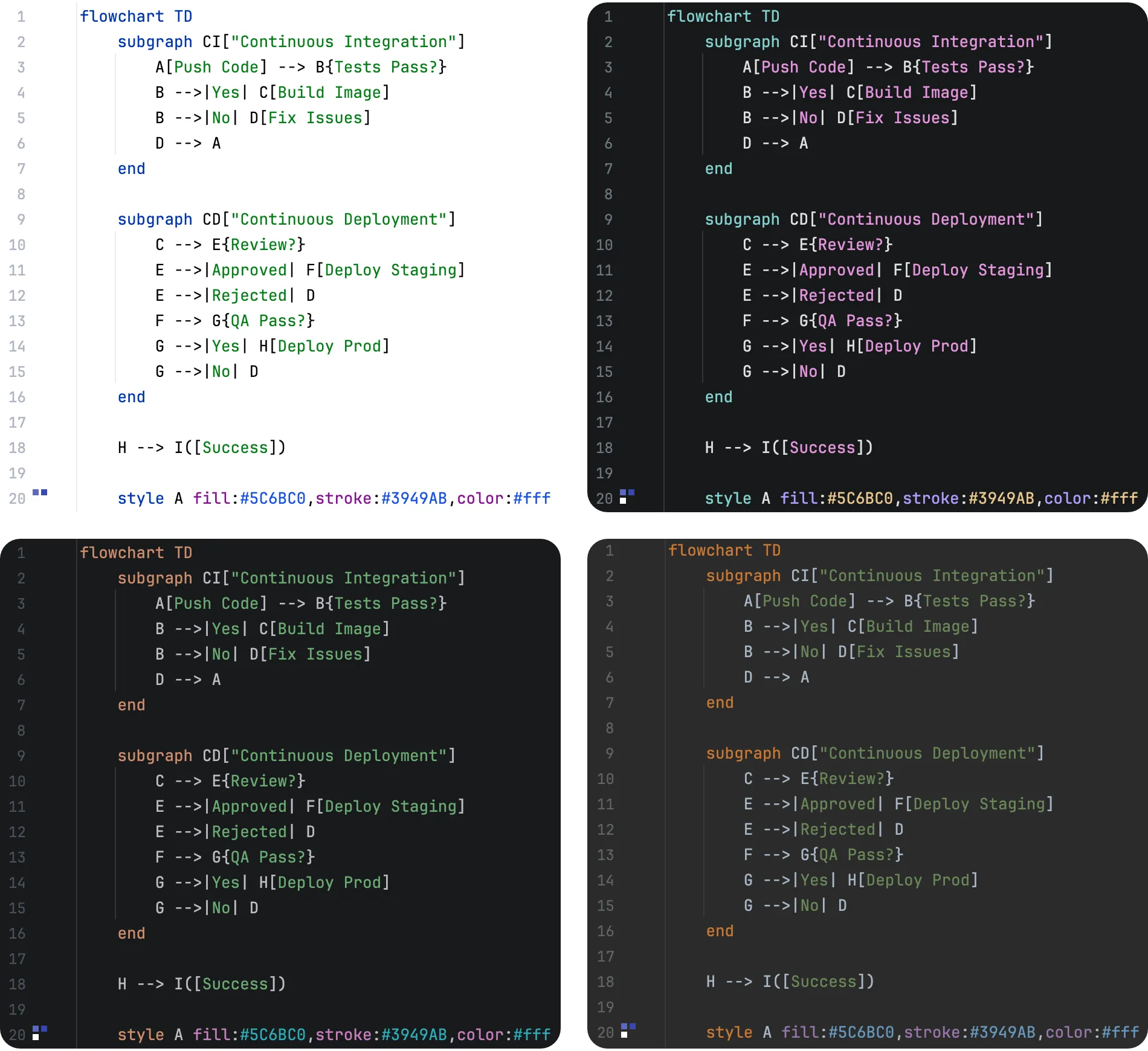
Mermaid Studio provides accurate syntax highlighting for all supported diagram types, powered by dedicated Grammar-Kit based parsers that understand the structure and semantics of each diagram.
Semantic Syntax Highlighting
Section titled “Semantic Syntax Highlighting”Most syntax highlighters use regular expressions to identify tokens based on patterns. This works well for many languages, but Mermaid presents a unique challenge: 20+ diagram types, each with its own syntax, where the same text can have entirely different meanings depending on context.
Mermaid Studio uses dedicated parsers that understand each diagram type’s grammar. This enables semantic highlighting—coloring tokens based on what they mean, not just what they look like. You can see at a glance whether something is a node ID, a label, a type reference, or a keyword.
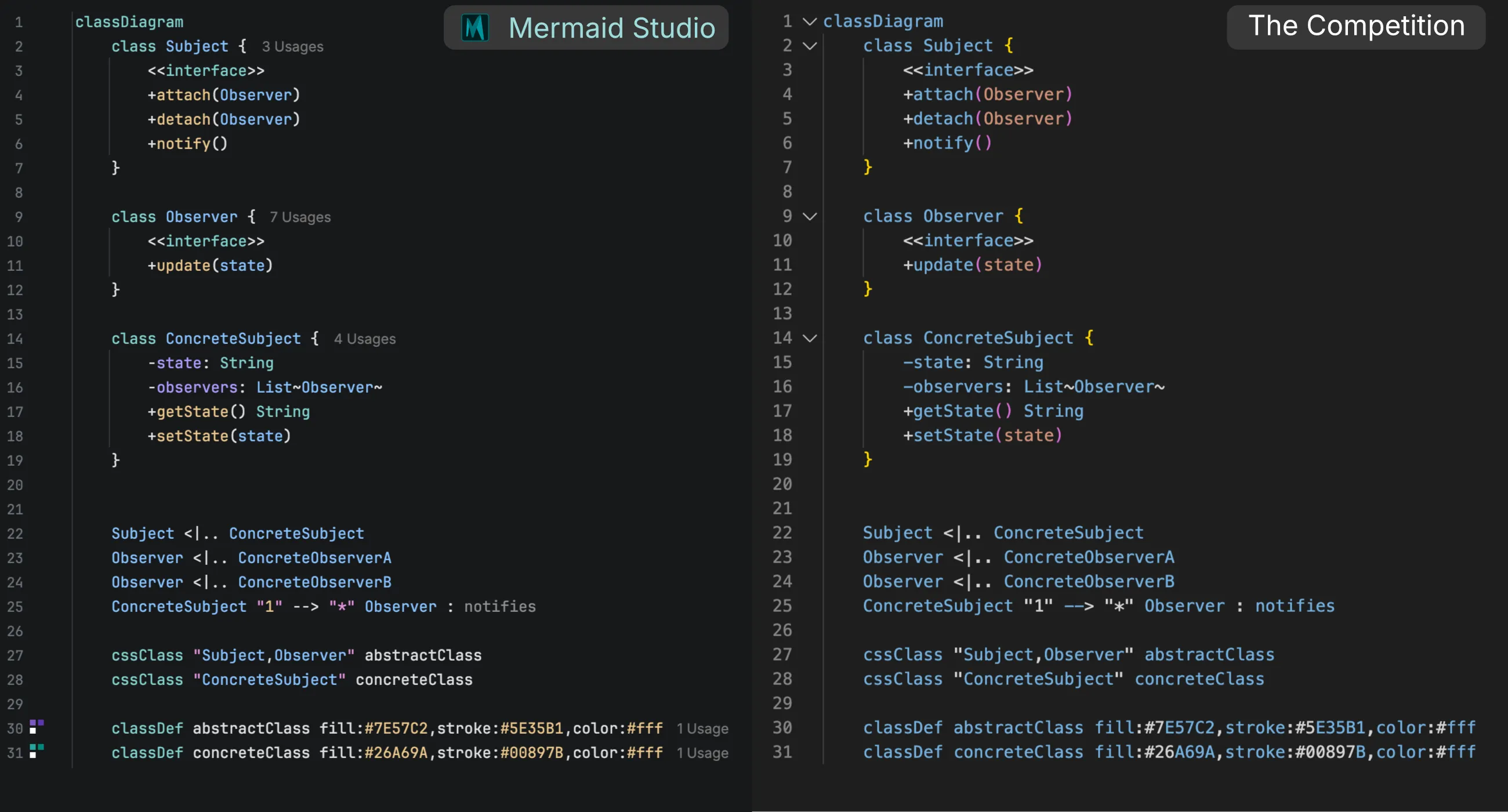
This parser foundation also powers Mermaid Studio’s code completion, error detection, and refactoring capabilities.
Customizing Colors
Section titled “Customizing Colors”Syntax highlighting colors adapt to your current IDE color scheme. You can also customize individual element colors.
-
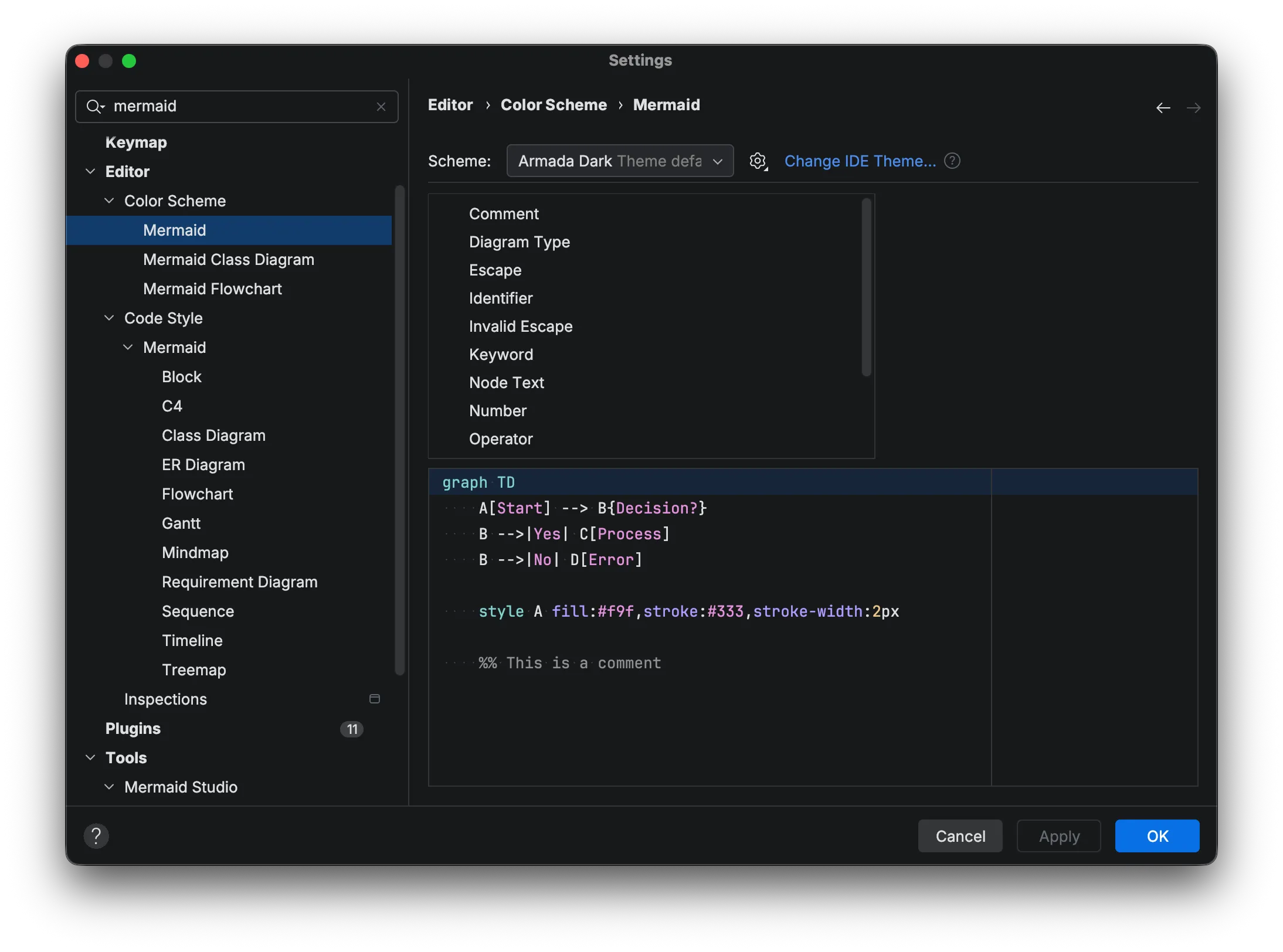
Open Settings (
Command + Comma Command, Control + Alt + S CtrlAltS ). -
Navigate to Editor > Color Scheme > Mermaid.
-
Select the element you want to customize.
-
Adjust the foreground color, background color, or font style.
-
Click Apply to see your changes.
Some of the more complex diagram types, such as flowcharts, class diagrams, and Ishikawa diagrams, have dedicated color settings pages with additional elements. The remaining diagram types use the base Mermaid color settings. Additional diagram-specific settings pages may be added in future releases.
Depth-Based Highlighting
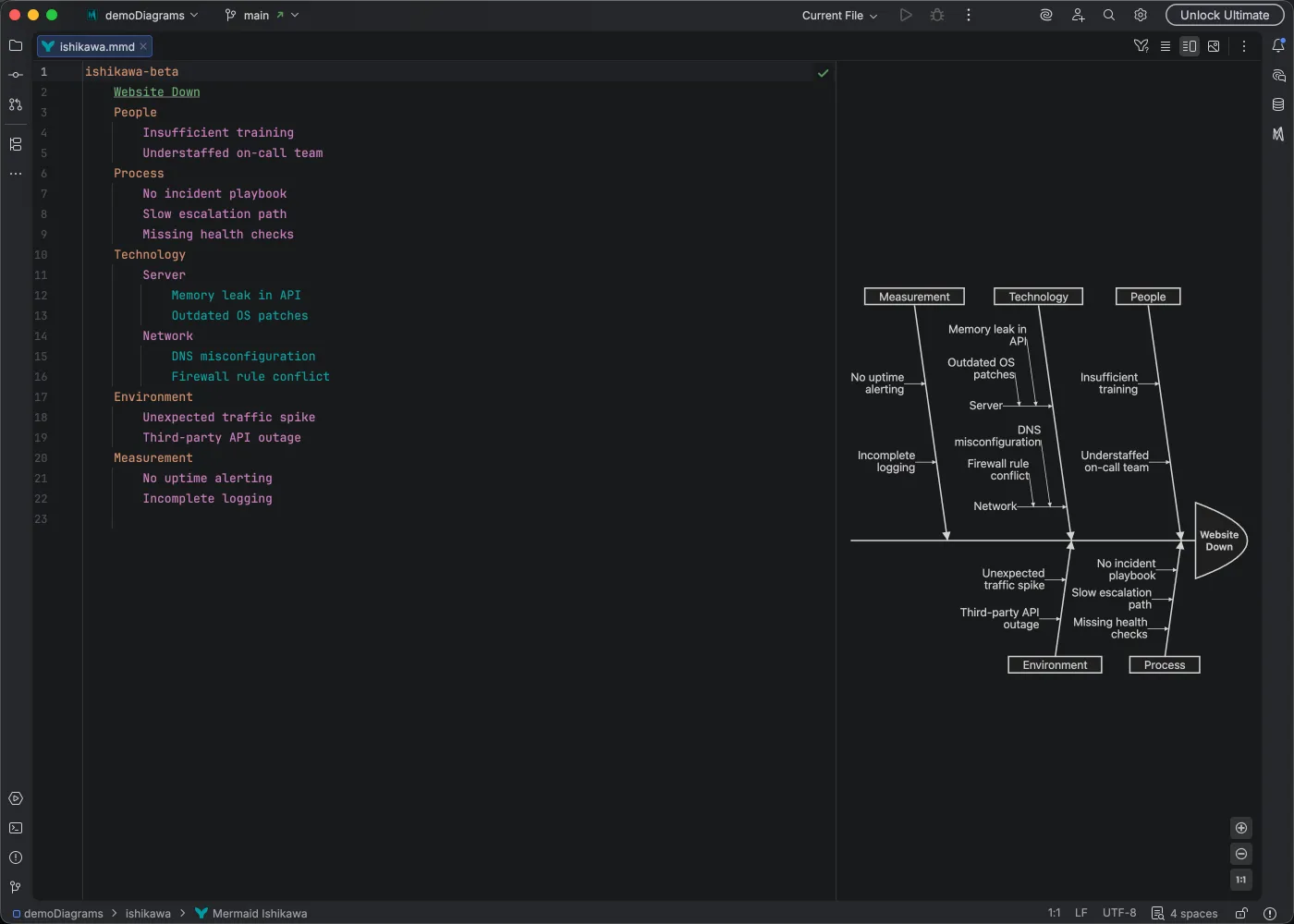
Section titled “Depth-Based Highlighting”Ishikawa (fishbone) diagrams use indentation-based depth highlighting, where causes at different nesting levels are colored distinctly. This makes it easy to see the hierarchy of causes at a glance without counting indentation levels.
Theme Compatibility
Section titled “Theme Compatibility”Mermaid Studio’s syntax highlighting is deeply integrated into IDE’s editor color scheme system, ensuring that default colors match your preferred theme without requiring additional configuration.