
MCP Tools
Last updated:
Mermaid Studio provides MCP (Model Context Protocol) tools that allow coding agents to generate, validate, and work with Mermaid diagrams directly in your IDE.
What is MCP?
Section titled “What is MCP?”MCP is an open standard for connecting AI applications to external data sources and tools. When you use an MCP-compatible agent (like Claude Code, JetBrains AI Assistant, or GitHub Copilot), it can discover and invoke Mermaid Studio’s diagram capabilities through this protocol.
Available Tools
Section titled “Available Tools”analyzeMermaidDiagram
Section titled “analyzeMermaidDiagram”Validates diagram syntax and checks for errors using both the Mermaid.js parser and Mermaid Studio’s static analysis. Problem reports include suggested quick fixes derived from the same inspections shown in the IDE, giving agents actionable steps to resolve issues.
generateMermaidDiagram
Section titled “generateMermaidDiagram”Renders a Mermaid diagram as SVG, either returning the content or saving to a file. Agents can use this for lightweight previews or to produce vector graphics suitable for embedding in documentation and web pages, just like the IDE’s export feature.
generateMermaidPng
Section titled “generateMermaidPng”Exports a Mermaid diagram as a PNG image with support for custom dimensions and background color. PNGs work reliably in slide decks, documents, and other contexts where SVG support is inconsistent. Agents can also use the rendered output to catch layout and readability issues that syntax validation alone would miss.
searchMermaidIcons
Section titled “searchMermaidIcons”Searches the icon index to find icons for use in diagrams, with fuzzy matching and filtering by icon set. The search covers whichever icon sets you’ve loaded into Mermaid Studio, including vendor-specific sets like AWS, Azure, and GCP that aren’t bundled with Mermaid.js. Supports batching multiple searches in a single call, reducing round-trips when an agent needs to find several icons at once.
getMermaidFrontmatterSchema
Section titled “getMermaidFrontmatterSchema”Retrieves the JSON schema for a diagram type’s frontmatter, covering layout and theme options such as padding, fonts, and diagram-specific visual settings. Agents can use this to fine-tune diagram appearance without guessing at available options or valid values.
getMermaidSyntaxGuide
Section titled “getMermaidSyntaxGuide”Provides syntax reference documentation for any Mermaid diagram type, available in condensed or comprehensive formats. This gives agents accurate, up-to-date syntax information without searching external documentation, reducing errors from outdated or hallucinated syntax.
Configuring MCP Tools
Section titled “Configuring MCP Tools”You can enable, disable, or selectively configure which MCP tools are exposed to coding agents.
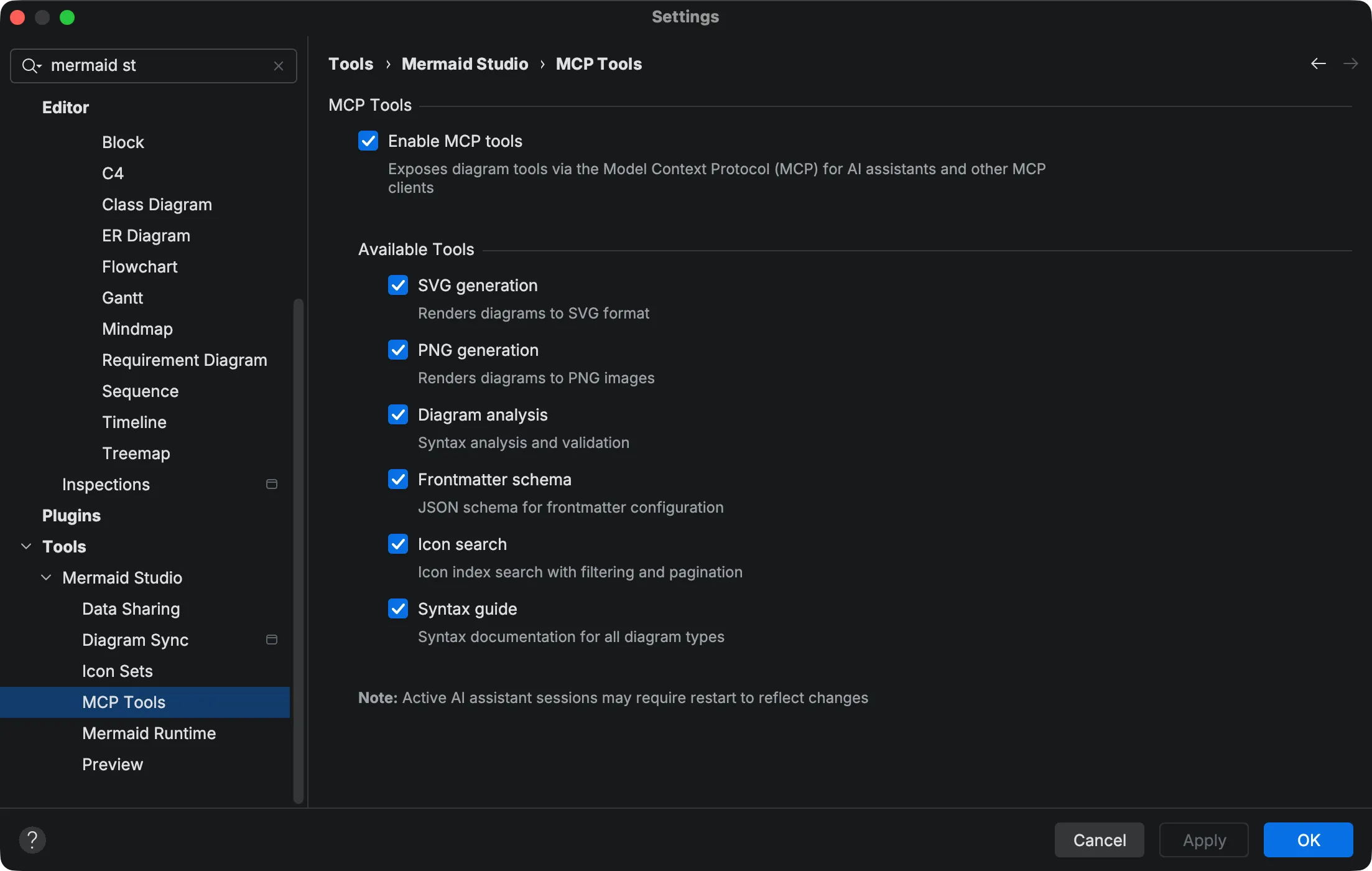
-
Open the IDE settings/preferences (
Command + Comma Command, Control + Alt + S CtrlAltS ). -
Navigate to Tools > Mermaid Studio > MCP Tools.
-
Use the Enable MCP tools checkbox to turn the entire feature on or off.
-
Under Available Tools, toggle individual tools based on your needs.
-
Click Apply or OK to save your changes.
Changes take effect immediately. Active agent sessions may need to be restarted to see the updated tools list.
Agentic Workflow
Section titled “Agentic Workflow”The MCP tools can be combined in an iterative generate-validate-render loop.
To enable this behavior, add instructions to your agent’s configuration file (e.g., CLAUDE.md, AGENTS.md, or similar).
Example instructions to include:
When creating or editing Mermaid diagrams:1. Call `getMermaidSyntaxGuide` to learn the syntax for the diagram type2. Write the diagram code3. Call `analyzeMermaidDiagram` to check for errors4. Fix any issues and re-analyze until valid5. Use `searchMermaidIcons` to find appropriate icons when needed6. Call `generateMermaidPng` to render the diagram7. Visually review the PNG for layout and readability issues8. Refine and re-render until the diagram looks correctWith these instructions, the AI can catch visual issues that syntax validation alone would miss—like overlapping labels or confusing layouts—because it actually sees the rendered output.
Good tool-calling models will often use a variation of this workflow automatically when prompted to create or edit diagrams even without explicit instructions.
Example Prompts
Section titled “Example Prompts”When working with a coding agent, you can ask it to:
- “Create a flowchart showing the user registration process”
- “Check this Mermaid diagram for errors”
- “Export this sequence diagram as a PNG at 2x scale”
- “Find AWS icons for an architecture diagram”
- “Search for database icons I can use in a flowchart”
- “Create a state diagram for an order workflow”
The agent can render diagrams directly and show you the results, or save them to files in your project.
Using External Agents
Section titled “Using External Agents”The MCP tools aren’t limited to agents running inside a JetBrains IDE. External agents can access Mermaid Studio’s capabilities as long as your JetBrains IDE is running in the background.
This means you can work in VS Code, Cursor, or another editor with a coding agent and still use the Mermaid diagram tools—the JetBrains IDE handles rendering and validation behind the scenes.
For setup instructions, see External client setup in the JetBrains documentation.
Requirements
Section titled “Requirements”- Any supported JetBrains IDE version
2025.2or later - Mermaid Studio plugin installed
- Claude Code, JetBrains AI Assistant, or another MCP-compatible coding agent
- JetBrains MCP Server Plugin
License Terms
Section titled “License Terms”Using Mermaid Studio through coding agents, AI assistants, and other AI-powered tools is permitted under the terms of Mermaid Studio’s End User License Agreement (EULA), section “AI Services Integration” (5.k).