
Sample Diagram Picker
Last updated:
Mermaid Studio ships a curated starter for every supported diagram type. The sample picker lets you drop one into your current editor in a single click, so you don’t have to remember the exact syntax for a gitgraph or a requirement diagram just to get going.
Opening the picker
Section titled “Opening the picker”The picker is available in four places:
- Keyboard shortcut.
Press
Alt + Shift + D AltShiftD Alt + Shift + D AltShiftD from any Mermaid context. - Editor context menu.
Right-click anywhere in a
.mmdfile, or inside a```mermaidfence in a Markdown file (including an empty fence), and choose Insert Sample Diagram… - Tools menu. From the main menu: Tools > Insert Sample Diagram…
- Find Action.
Press
Command + Shift + A CmdShiftA Control + Shift + A CtrlShiftA and typeInsert Sample Diagram.
The action is hidden when there’s no Mermaid context to replace (non-Mermaid files, pop-out preview windows, etc.).
Using the picker
Section titled “Using the picker”The picker is a lightweight popup with a list of samples on the left and a live preview on the right.
-
Use the arrow keys or click to highlight a sample. The preview re-renders to show you exactly what you’ll get.
-
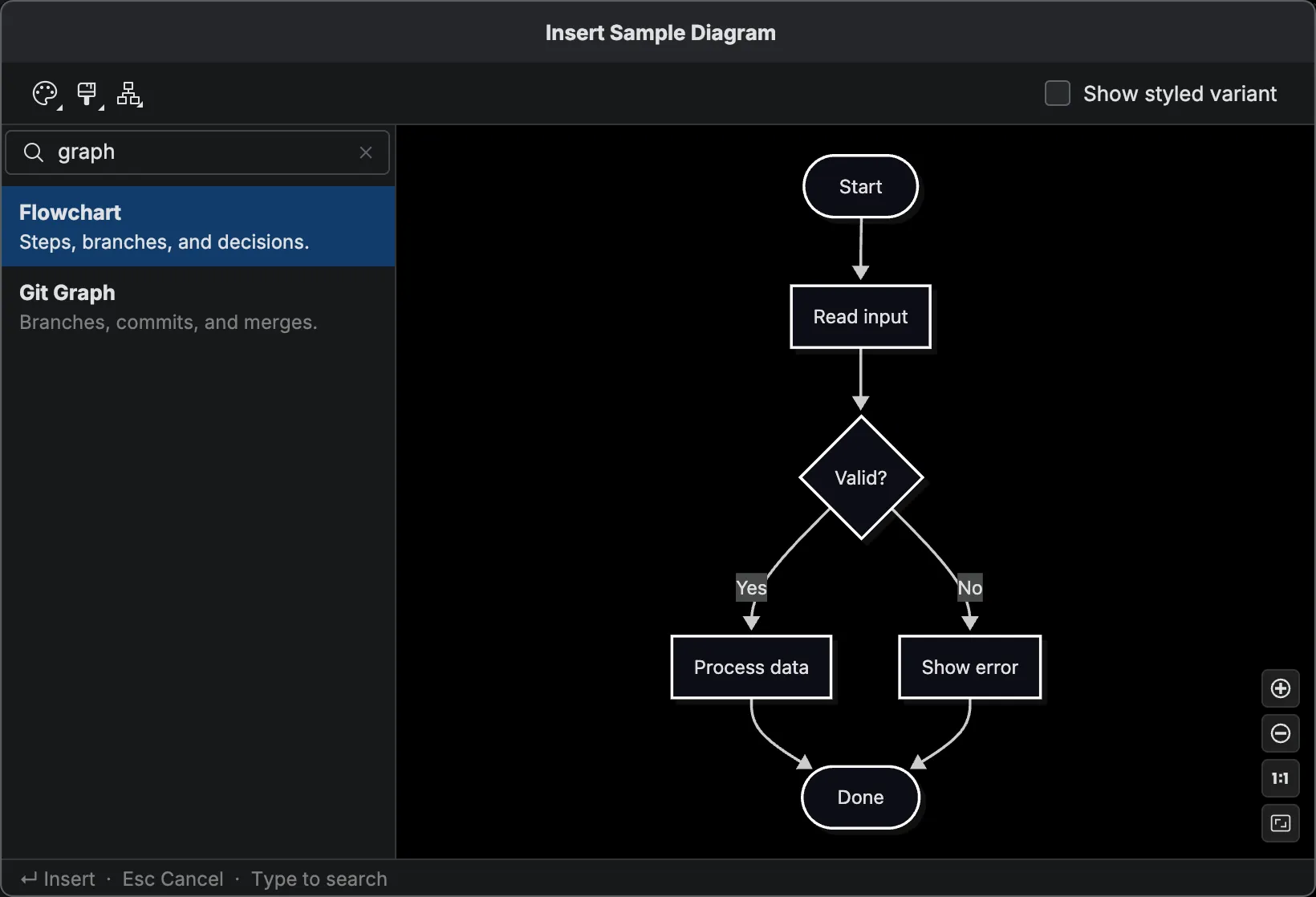
Start typing at any time to search. A search field appears above the list and matches the name, the short description, and the diagram type’s keywords, so
flowjumps to Flowchart,causesjumps to Ishikawa, andsequenceDiagramjumps to Sequence. -
Press
Enter Enter Enter Enter , or double-click the sample, to insert it. -
Press
Escape Esc Escape Esc to clear the search, and press it again, or click outside the popup, to close without inserting.
The capture below shows the picker filtered by graph, which matches Flowchart through its diagram-type keyword.
Styling toolbar
Section titled “Styling toolbar”The toolbar above the list and preview lets you customize how the sample looks before inserting it.
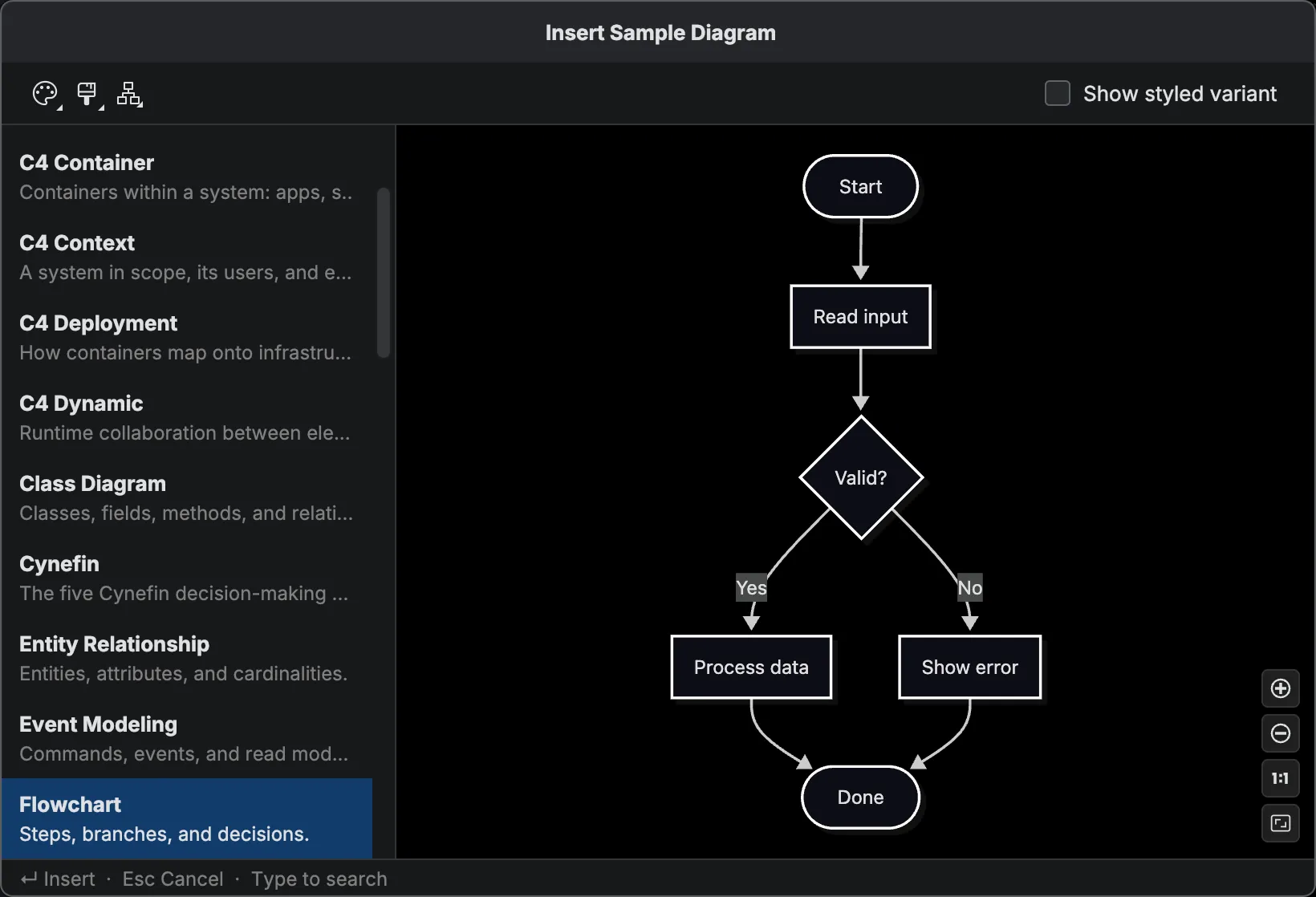
Basic / Styled toggle
Section titled “Basic / Styled toggle”Switch between the plain sample and a Styled variant that includes themeVariables, classDef declarations, and other styling hooks you can customize.
Styled variants are a starting point for your own custom styles, so you don’t have to look up the available CSS classes, theme variables, or classDef syntax from scratch.
Every sample has a styled variant to jumpstart your own custom-styled diagram.
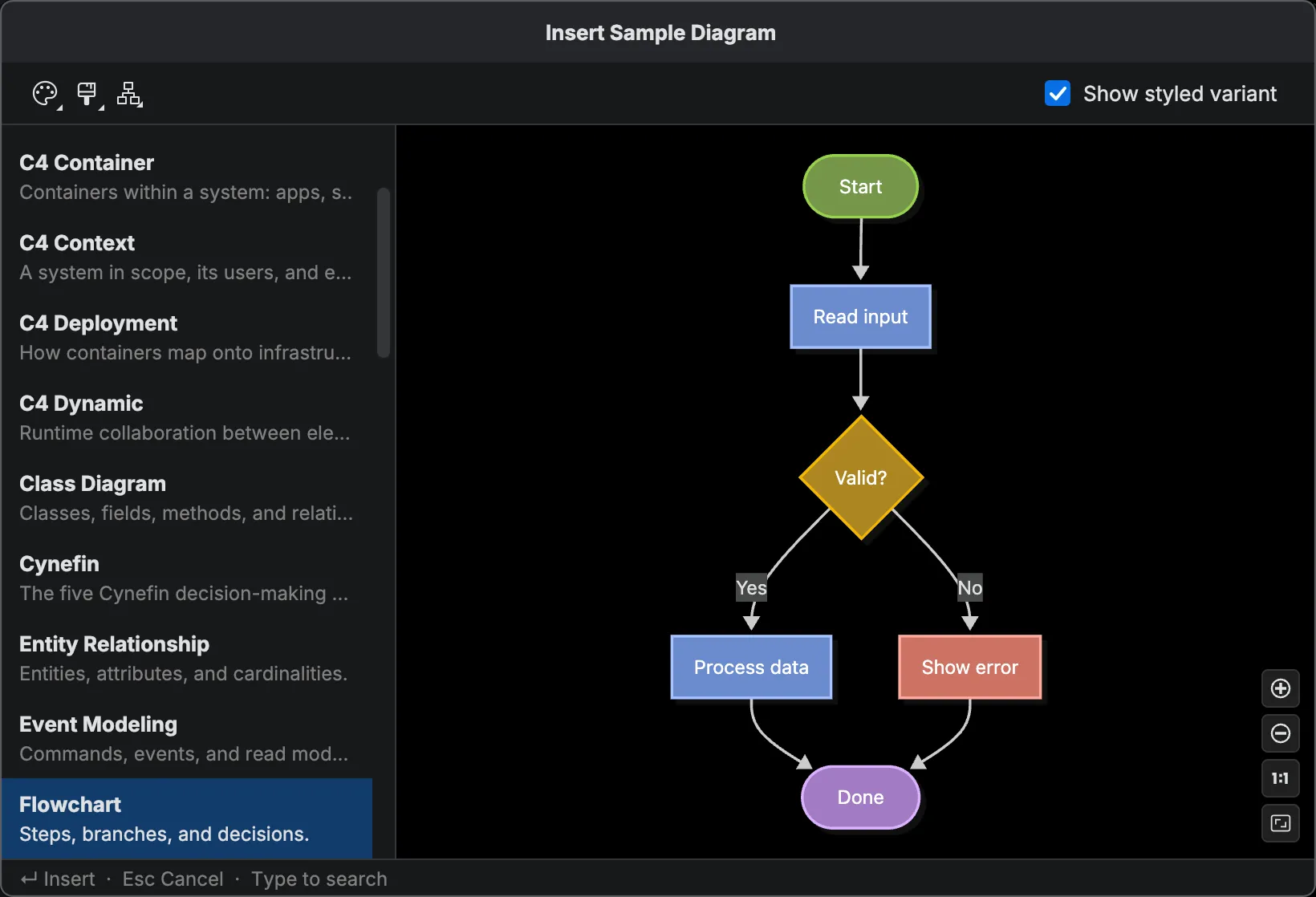
Theme, Look, and Layout dropdowns
Section titled “Theme, Look, and Layout dropdowns”- Theme — override the Mermaid.js theme (Auto, Default, Dark, Forest, Neutral, Base, Neo, Neo Dark, Redux, and more). Options are filtered by what the selected diagram type supports.
- Look — override the rendering look (Classic, Hand Drawn, Neo). Filtered by diagram type support.
- Layout — override the layout algorithm (Auto, Dagre, ELK, and more; see Layout). Filtered by diagram type support.
Toolbar behavior
Section titled “Toolbar behavior”- The preview updates live as you change any toolbar setting.
- Toolbar overrides are injected into the frontmatter of the inserted code, so what you see is what you get.
- Toolbar state is remembered across picker sessions within the IDE session.
- Overrides that aren’t supported by the current sample’s diagram type are silently dropped at render and insert time. The sticky state survives for other samples that do support them.
Recently used
Section titled “Recently used”The five samples you’ve inserted most recently appear in a pinned Recently Used section at the top of the list. The rest of the catalog stays in the All Samples group, sorted alphabetically by name, so the main list never shifts around under you.
What the picker inserts
Section titled “What the picker inserts”In a standalone .mmd file the sample replaces the entire document.
In a Markdown file, if your caret is inside a mermaid code fence, the sample replaces the fence body.
The fence delimiters and surrounding markdown stay exactly as they were.
If you changed any toolbar settings, the inserted source includes a frontmatter block with the corresponding config keys (theme, look, layout).
In both cases the replacement is a single undoable step, so
The empty-file banner
Section titled “The empty-file banner”Opening a blank .mmd file surfaces a banner at the top of the editor inviting you to start from a sample.
Instead of staring at an empty file wondering what to type, you can browse working examples and pick one to build on.
The banner disappears automatically the moment the file is no longer empty (either because you inserted a sample or because you started typing).
Controlling the banner
Section titled “Controlling the banner”The banner has three inline actions:
- Choose sample… — open the picker.
- Dismiss — hide the banner for the current file, for this session only. Reopening the file later brings it back.
- Don’t show again — hide the banner globally. You can re-enable it from Settings > Tools > Mermaid Studio > Notifications with the Show sample picker banner on empty Mermaid files checkbox.