
Security
Last updated:
Mermaid Studio’s security model has three layers:
- IntelliJ project trust controls whether the plugin renders diagrams at all in a given project.
- Click-callback interception in the interactive preview blocks the JavaScript callback form of the Mermaid.js
clickdirective regardless of any other configuration. - The Mermaid.js
securityLevelconfig governs HTML escaping inside labels and the upstream behavior of Mermaid.js’s own click machinery.
Each layer is documented below.
Trusted vs. untrusted projects
Section titled “Trusted vs. untrusted projects”IntelliJ marks freshly cloned or imported projects as untrusted by default and runs them in safe mode until you mark them trusted. See JetBrains’ Project Security guide for the full description of safe mode and how project trust propagates.
Mermaid Studio aligns with that model: rendering a Mermaid diagram can follow embedded URLs, fetch external resources (icon-set images, remote assets referenced from HTML labels), and (depending on the configured securityLevel) inject HTML into labels.
An image URL embedded in a diagram source is an arbitrary network request the IDE would otherwise make on your behalf when the file is rendered, and image URLs can carry tracking pixels or point at malicious payloads.
Keeping rendering disabled until you’ve vetted the source means you can clone a repository, open a .mmd file, and read its source through the editor (with full syntax highlighting and completion) without triggering any of that diagram-driven behavior on the way.
While a project is untrusted, the following user-facing surfaces are disabled:
- The live preview pane (and the popout window).
- Markdown integration rendering inside the platform Markdown preview.
- Export, print, and copy actions for SVG, PNG, and PDF.
- Diagram Sync (the background that maintains
.mmd.svg/.mmd.pngartifacts alongside source files).
Editing surfaces that are entirely IDE-local (syntax highlighting, completion, inspections, refactoring, the structure view) continue to work on untrusted projects. MCP tools are also exempt; see the carve-out below.
Re-activating the preview
Section titled “Re-activating the preview”Mark the project trusted from the trust banner the platform shows on open, or from Find Action (
While untrusted, the preview shows a clear disabled state with a prompt to trust the project, rather than failing silently.
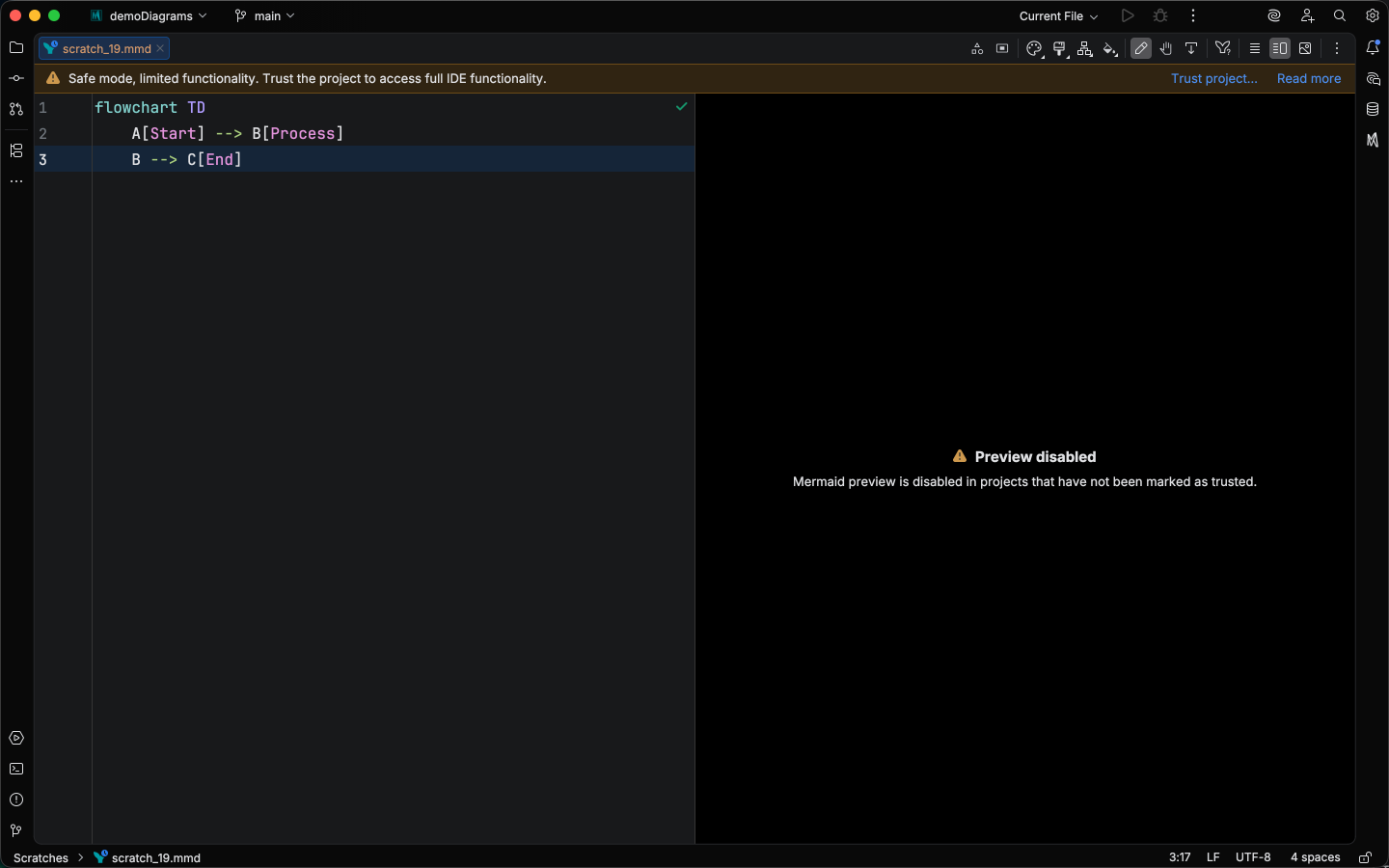
MCP tools are not subject to project trust
Section titled “MCP tools are not subject to project trust”Mermaid Studio’s MCP tools operate principally at the IDE level rather than the project level. Even though IntelliJ’s architecture is project-oriented (most IDE actions are scoped to the active project), the MCP tools accept their diagram source as a tool argument and render or analyze it without depending on a particular project being open. Project trust state therefore does not gate them, and they remain available across the IDE instance whether the foreground project is trusted or untrusted.
The Mermaid.js securityLevel config described below still applies to MCP-rendered output, so use that lever (or your MCP client’s tool-permission controls) to constrain what MCP-rendered diagrams can do.
JavaScript click callbacks are always blocked
Section titled “JavaScript click callbacks are always blocked”Mermaid Studio’s interactive surfaces (live preview, popout window, Markdown preview) never execute the JavaScript callback form of the Mermaid.js click directive (click X call myFunc()), independent of any securityLevel setting.
Hyperlink clicks (click X href "...") are routed through the IDE’s external-URL handler, so they remain subject to IntelliJ’s URL prompts rather than navigating in-pane.
Export, print, and MCP-rendered output is SVG or PNG, not a live document, so click directives have no surface to act on regardless of securityLevel.
Mermaid.js securityLevel
Section titled “Mermaid.js securityLevel”Mermaid.js exposes a top-level securityLevel config option that sets the level of trust for a parsed diagram: how HTML in label text is handled and whether Mermaid.js’s own click functionality is enabled.
For the authoritative description of each level, see the Mermaid.js securityLevel documentation.
The click-callback portion is overridden by the plugin as described above; the HTML handling follows whatever the configured level does upstream.
The default is strict and applies to every context (Preview, Markdown, Export) unless you override it via runtime configuration.
| Value | Upstream behavior |
|---|---|
strict (default) | HTML tags in label text are encoded; click functionality is disabled. |
antiscript | HTML tags in label text are allowed; only <script> elements are removed. Click functionality is enabled. |
loose | HTML tags in label text are allowed. Click functionality is enabled. |
sandbox | Rendering happens inside a sandboxed iframe, which prevents any JavaScript from running. See the caveats below. |
Setting the level via runtime configuration
Section titled “Setting the level via runtime configuration”The securityLevel lives in the same Mermaid runtime configuration you use to set themes, layout engines, and other Mermaid.js options.
Open Settings > Tools > Mermaid Studio > Mermaid Runtime and edit one of the four contexts (Base, Preview, Markdown, Export) to set the level for diagrams rendered in that context:
securityLevel: looseEach context can set its own value; the merged config follows the merge order (default → Base → context → frontmatter).
Individual diagrams can also override the level inline by setting config.securityLevel in their frontmatter.
When to change the default
Section titled “When to change the default”Stay on strict unless you have a specific reason to relax it.
Switching to loose or antiscript lets diagram authors put HTML in labels.
That HTML can include <img> and other tags that fetch resources over the network, so it remains an attack vector when you render Mermaid sources from untrusted authors (open-source contributions, AI-generated content, scraped documentation), even though the click-callback portion is neutralized.
loose or antiscript is the right call when you control the diagram sources and need HTML in labels that strict would encode, such as inline color spans, custom font sizes, embedded images, or anchor tags.
Sandbox caveats
Section titled “Sandbox caveats”sandbox mode renders each diagram inside an isolated iframe that the plugin cannot reach into, so it disables the preview’s interactive IDE features.
The diagram still renders, but as a static image.
Use strict or loose for any project where you work with the preview interactively.