
Live Templates
Last updated:
Live templates simplify inserting structured Mermaid statements: short abbreviations like cls, bloop, req, and tr expand into full statements you tab through to fill in.
The shared abbreviation-then-tab flow removes both syntax friction (recalling exact arrow forms, block punctuation, and attribute keys) and the repetition of authoring similar statements by hand, and variables that expect an existing identifier (a class, state, participant, or requirement) reuse the editor’s name-completion popup, prefiltered to the diagram’s existing declarations.
Mermaid Studio gives you live templates two ways:
- Bundled templates are a ready-made set for class, sequence, state, requirement, ER, C4, and Kanban diagrams. Each one is context-aware: it surfaces only where its expansion is valid, down to the position inside a block rather than just the diagram type, and its variables draw on the diagram’s existing declarations through name completion (see Contextual visibility).
- Your own templates are custom templates you define in IntelliJ’s live-template editor, scoped to the broad Mermaid contexts the plugin registers. This works in every edition, including the free tier.
Bundled templates
Section titled “Bundled templates”The plugin ships live templates for the diagram types below. Each diagram-type page documents its own abbreviations alongside the rest of that diagram’s language support.
- Class diagram
- Sequence diagram
- State diagram
- Requirement diagram
- Entity-relationship diagram
- C4 diagram
- Kanban board
- Use case diagram
- Agentflow diagram
Support for additional diagram types will be added in future releases.
Triggering a template
Section titled “Triggering a template”Type the abbreviation and either:
- Press
Tab Tab Tab Tab to expand without going through completion, or - Open the completion popup (
Control + Space ControlSpace Control + Space CtrlSpace ), select the template, and pressTab Tab Tab Tab orReturn Return Enter Enter .
Once the template is inserted,
Contextual visibility
Section titled “Contextual visibility”Every template is context-scoped, so it only appears in positions where its expansion is valid.
This goes beyond scoping templates to diagram types to include semantic context.
The sequence-diagram bloop template, for example, surfaces inside a sequence diagram body but not inside a box participant block where loop isn’t allowed.
Configuring templates
Section titled “Configuring templates”Configure the bundled templates under Settings > Tools > Mermaid Studio > Live Templates.
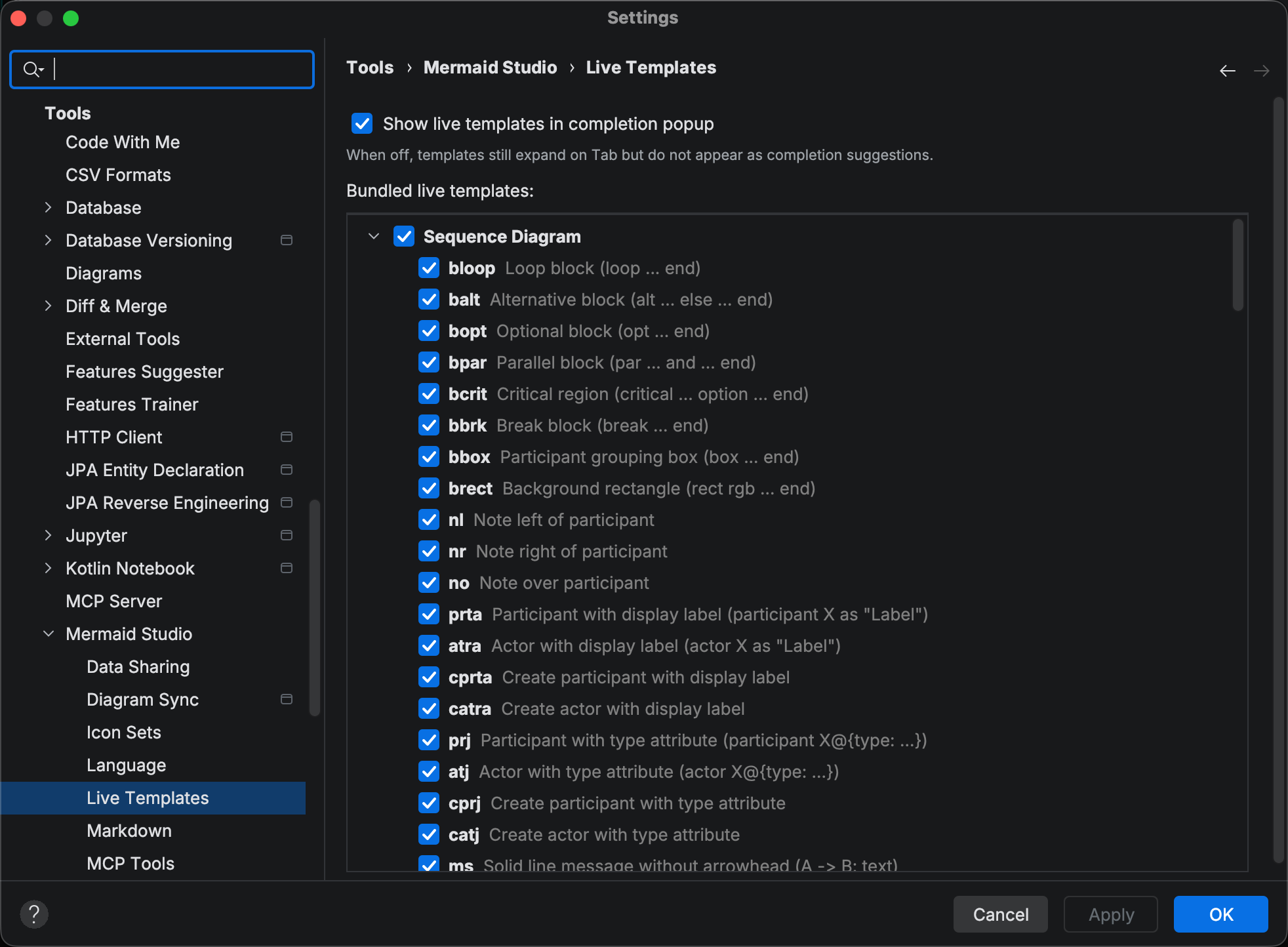
The page lists every bundled template grouped by diagram type, each with a checkbox to enable or disable it. Toggling a group toggles every template under it, and tree speed search jumps to a row as you type its abbreviation.
A single Show live templates in completion popup toggle above the tree controls whether the bundled templates appear as completion suggestions. When off, templates still expand on
Adding your own templates
Section titled “Adding your own templates”Defining your own Mermaid templates works in every edition, including the free tier; only the bundled set above requires a paid license. To write your own Mermaid templates, use the standard IntelliJ live-template editor under Settings > Editor > Live Templates. Mermaid Studio registers template contexts you can scope a custom template to:
- Mermaid — anywhere in a Mermaid file.
- Frontmatter — inside the YAML frontmatter config block.
- Other — Mermaid content that isn’t covered by a more specific context.
Pick one of these in the template’s Applicable in row so your template only surfaces where it’s valid.