
Use Case Diagram
Last updated:
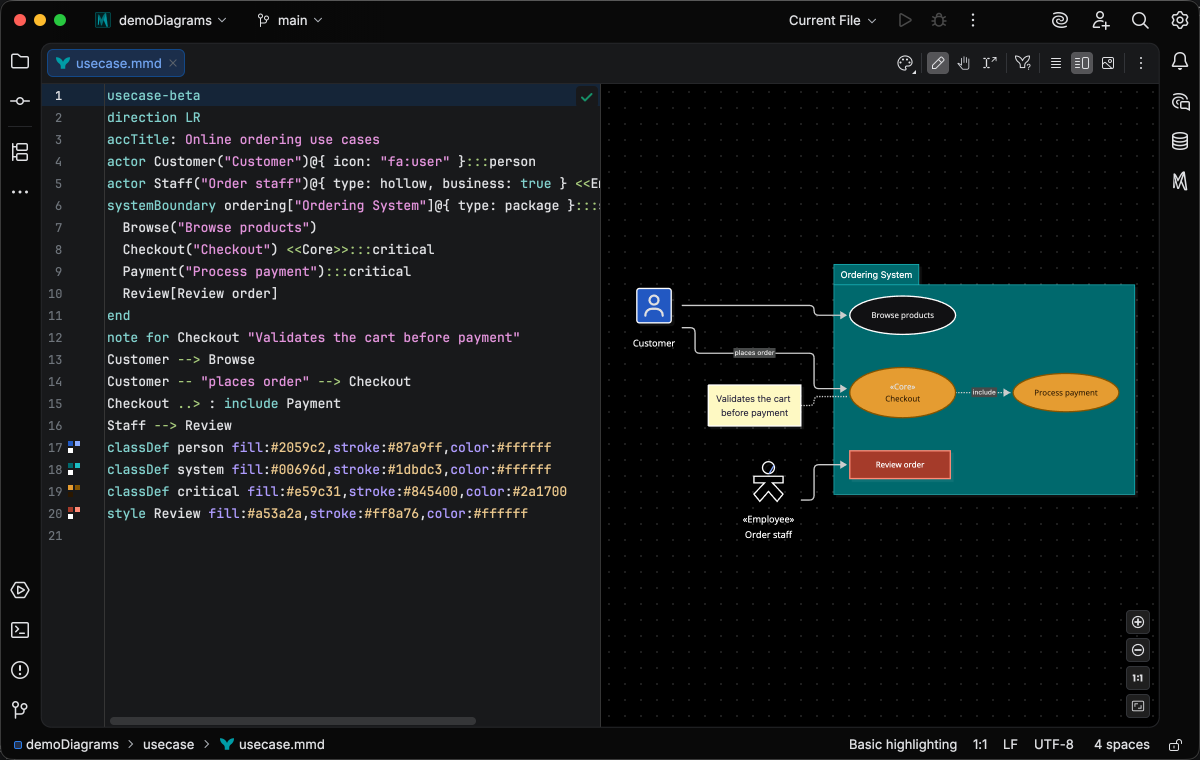
Mermaid Studio recognizes and renders UML use case diagrams inside IntelliJ IDEA and other JetBrains IDEs. A use case diagram shows who interacts with a system and what they can do with it: actors on the outside, use cases inside a system boundary, and the associations, includes, and extends between them.
Live Preview
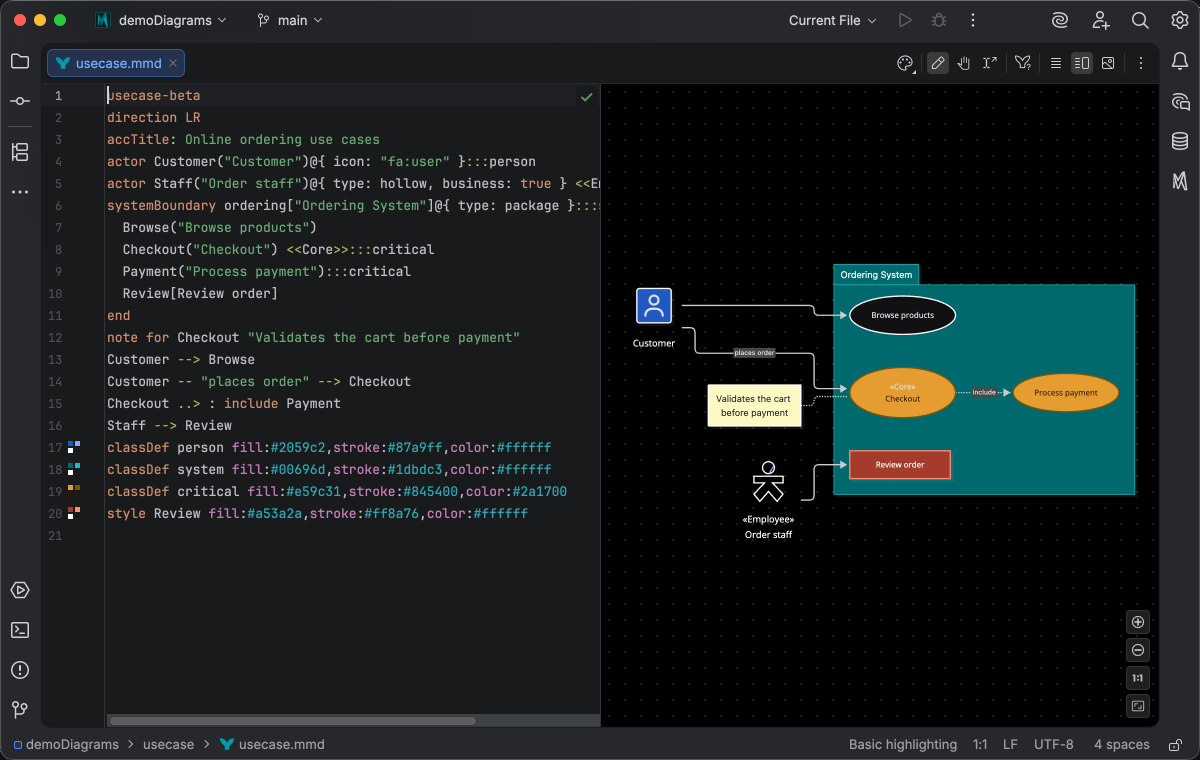
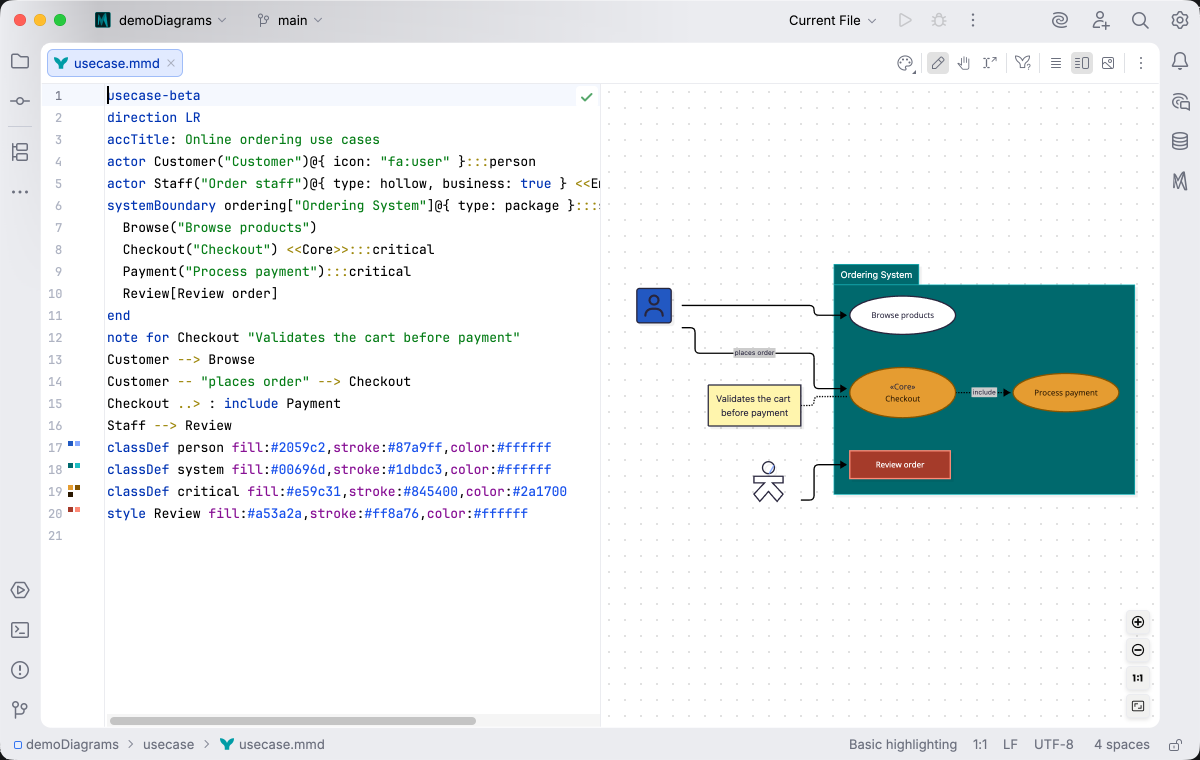
Section titled “Live Preview”Mermaid Studio opens a use case diagram in a split editor with the highlighted source on the left and the rendered diagram on the right. The example below groups an online store’s use cases inside one boundary, with a customer and a staff member outside it and classes coloring each part, rendered under three IDE themes:
IDE Support
Section titled “IDE Support”Use case diagrams are a basic syntax highlighting type with a few editing aids on top.
Folding lets you collapse and expand structural blocks of the diagram source (subgraphs, frontmatter, multi-line strings) directly in the editor gutter. It keeps long diagrams navigable without forcing you to scroll past detail you don’t need right now.
Use the gutter triangles, Code → Folding, or the standard JetBrains shortcuts (
When the cursor sits next to a bracket, brace, or paren, Mermaid Studio highlights its matching pair across the whole diagram and lets you jump between them. This is especially valuable in nested syntax (subgraph blocks, JSON-style style strings, multi-shape labels) where it’s easy to lose track of which closer goes with which opener.
The line-comment action (
When you type a quote character to start a string, Mermaid Studio inserts the matching closing quote and places the cursor between them. Backspacing through an empty pair removes both characters at once. This keeps quoted labels balanced and reduces fiddly cursor work.
Pressing
Live templates expand a short abbreviation into a larger snippet, with tab stops for the parts you fill in.
Type the abbreviation, press
The editor colors the diagram source with a lexer that understands the diagram type: keywords, identifiers, strings, numbers, comments, and operators each get their own color scheme attributes. Colors integrate with the IDE’s color scheme, so themes apply automatically.
Diagram types with a dedicated grammar go further; see Semantic Highlighting.
As you type, Mermaid Studio offers context-aware suggestions filtered to what’s valid at the cursor: node shapes, arrow types, keywords, icon names, identifiers, frontmatter keys, theme variables, and more. Completions cut down on typos and make the diagram syntax self-documenting.
Completion and validation for the YAML frontmatter block above the diagram body, driven by the diagram type’s slice of the Mermaid.js config schema. Config keys, enum values, and color properties complete as you type, and unknown or mistyped keys are flagged in place.
Hex, named, and rgb()/hsl() colors in style declarations get a small color swatch rendered in the gutter.
Click the swatch to open the IntelliJ color picker and pick a new value, and the source updates in place.
Inspections are static analyzers that run continuously and surface problems as you edit: duplicate IDs, undefined references, malformed syntax, deprecated patterns, missing required fields. Each inspection has a configurable severity (error, warning, info), can be suppressed inline, and most ship with a quick fix that resolves the issue with one keystroke.
This is where most of the editorial intelligence lives: a diagram type with rich inspections is much harder to break in subtle ways.
Rename refactoring (
Bundled and user-authored color themes with light and dark variants that apply to this diagram type from the Appearance menu or the Switch Diagram Theme action. Applying a theme writes the resolved theme variables into the diagram’s frontmatter, so the file renders the same outside the IDE.
At the start of a line, completion offers the statement keywords such as actor, systemBoundary, and note for, plus each direction value.
Press systemBoundary header and the editor inserts the closing end, and every boundary folds like any other block.
When the diagram shows in a preview, Mermaid.js parser errors are marked in the editor on the token they point to, so a mistake in the body shows up where you typed it (see Diagram Validation).
Frontmatter completion covers the config.usecase block, and the sample picker includes basic and styled use case samples to start from.
Styling with classes
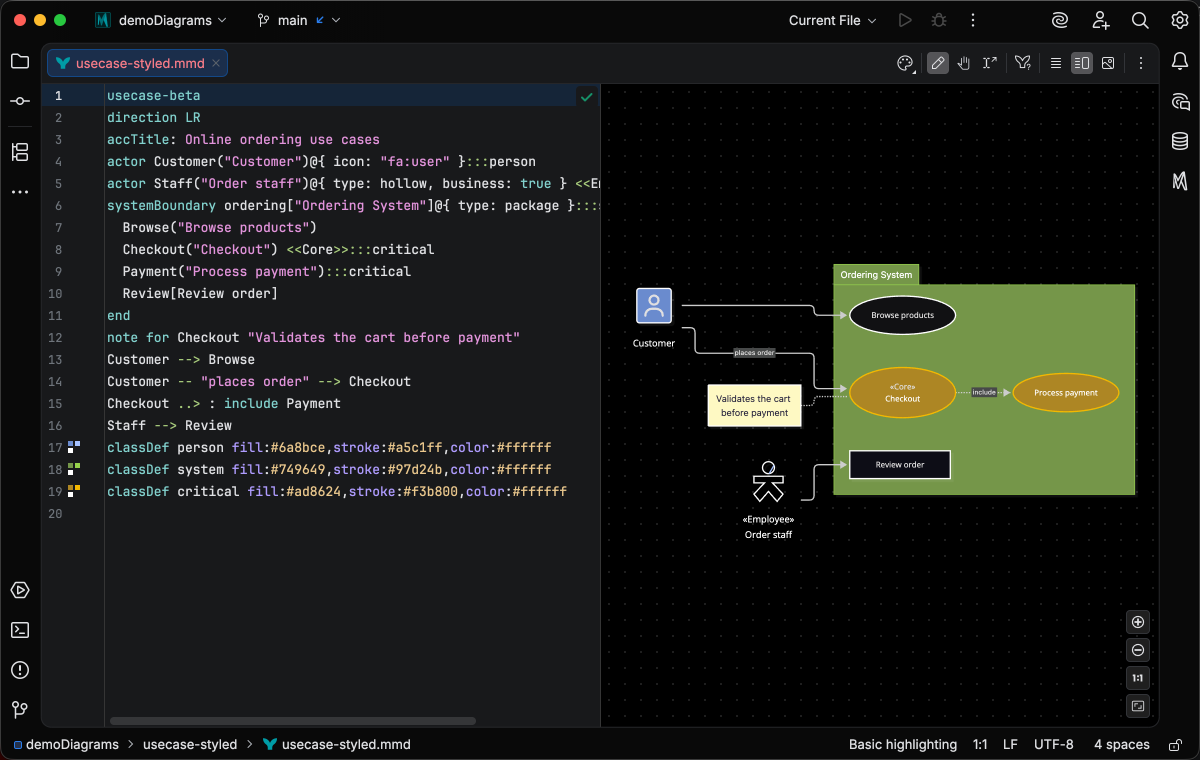
Section titled “Styling with classes”Style actors, use cases, and boundaries with classDef, class, and style statements, or attach a class inline with the ::: suffix.
The editor completes CSS properties and values inside these statements, completes class names wherever a class is referenced, and shows a color swatch in the gutter next to each color.
Renaming a classDef updates every use of that class, and an inspection flags a class that is defined but never used or used but never defined.
In the styled sample below, the gutter shows the colors of each classDef, and the preview shows the classes applied:
Live templates
Section titled “Live templates”Mermaid Studio bundles live templates for the statements a use case diagram is built from, so you can scaffold a boundary or a relationship without recalling the operator syntax. Type the abbreviation, accept it from the completion popup, and tab through the variables. See Live Templates for the cross-cutting mechanics (triggering, contextual visibility, configuration).
| Abbreviation | Expansion |
|---|---|
actor | Actor with a display label (actor id("Label")) |
boundary | System boundary block (systemBoundary id("Title") … end) |
include | Include relationship (source ..> : include target) |
extend | Extend relationship (source ..> : extend target) |
note | Note attached to an element (note for target "text") |
json | JSON table node (json id@{ … }) |
Quick Syntax Reference
Section titled “Quick Syntax Reference”Actors and use cases
Section titled “Actors and use cases”Declare every actor with actor; a use case is drawn as an ellipse with id("Label") or as a rectangle with id[Label].
An endpoint of a relationship that has no declaration becomes an ellipse use case:
usecase-betaactor Customeractor Admin("Main administrator")Login("Sign in")Report[Generate report]Customer --> LoginAdmin --> ReportAdd metadata to an actor to change how it’s drawn: @{ type: hollow }, @{ type: awesome }, @{ business: true }, or an icon from any registered icon set with @{ icon: "fa:user" }.
Relationships
Section titled “Relationships”Associations use -->, <--, and --, with an optional label between the dashes.
Includes and extends connect two use cases, and --|> draws a generalization:
usecase-betaactor Adminactor PersonAdmin --|> PersonAdmin -- "opens" --> CheckoutCheckout ..> : include PaymentApplyCoupon ..> : extend CheckoutSystem boundaries
Section titled “System boundaries”A systemBoundary block groups the actors and use cases inside it and closes with end:
usecase-betasystemBoundary payments["Payment service"] Authorize("Authorize payment") Refund("Issue refund")endactor ClerkClerk --> AuthorizeFor complete syntax details, see the Mermaid.js use case documentation.